FAQ
This page collects the most common questions about the NexBrowser client and how to resolve them. If your question isn't here, start a chat from System → Contact Support (see Contact Support).
Installation and startup
I clicked the close button on the main window. Why is the client still in the system tray?
That's the default behavior: the close button on the main window only hides it to the system tray; the process keeps running. Left-click the tray icon to show the main window again. To quit completely, right-click the tray icon and click "Exit". If the system tray isn't available, the close button minimizes the window instead.

Related: System Requirements and Installation
When I exit, the client keeps showing "Syncing data, please wait…"
When you exit, the client first closes all browser profiles and waits for their data to upload to the cloud. Please wait and don't force quit the process, or data sync may fail. If sync still hasn't finished after the wait, the client stays open and asks you to try exiting again later; the sync in progress keeps running.
Related: System Requirements and Installation
How do I switch the interface to English (or Chinese)?
Right-click the tray icon → "Language", or click your avatar in the top bar and choose under "Interface Language", to switch between "中文" and "English" with no restart. You can also change "Interface Language" under System → User Settings → Preferences and click "Save Settings".
Related: Interface Overview and Personalization
At startup I see "Update Required to Continue". Can I skip it?
No. A dialog with the "Required" badge means "This client version is no longer supported. Update to the latest version." It can't be closed and has only two buttons: "Exit" and "Update Now". Only the "New Version Available" dialog with the "Optional" badge can be skipped with "Cancel", and that only lasts for the current session; you'll be prompted again next time.
Related: Updates
Which drive stores profile data? What if it takes up too much space?
A new installation stores the profile cache in C:\Users\<username>\AppData\Local\NexBrowser\NexBrowserData by default; if you updated from an older version, the client keeps using your existing directory (for example D:\NexBrowserData). Go to System → User Settings → Storage & Cleanup to view and change the "Profile Cache Directory" (close all profiles first; you can choose to migrate the existing data), and set "Cleanup Interval" (default 7 days), "Cleanup Threshold" (default 1G), and "Disk Limit" (default 20G) to control disk usage.
Related: Interface Overview and Personalization
Which operating systems does NexBrowser support?
This manual covers the Windows client. It ships as an x64 installer (NexBrowser-Setup-<version>.exe, installed per user) and supports 64-bit Windows 10 / 11.
Related: System Requirements and Installation
I forgot my password. What should I do?
On the sign-in page, click "Forgot Password", enter your "Account Email", and click "Get Code". When the 6-digit email code arrives, set a new password (at least 8 characters) and click "Reset and Sign In". After a successful reset you'll see "Password reset. You are now signed in." with no need to sign in again. You can request a new code only once every 60 seconds.
Related: Sign Up and Sign In
Windows shows a SmartScreen warning during installation. Is it safe?
The installer is code-signed, so the warning shows the publisher's name instead of "Unknown publisher". Right-click the installer → "Properties" → "Digital Signatures" to check the signer and certificate validity. SmartScreen builds reputation separately for each file based on download volume, so a newly released version may still show a warning until it has been downloaded enough times. Continue only if the digital signature is valid and the installer came from the official download page; delete any file from an unknown source.
Related: System Requirements and Installation
Profiles and fingerprints
My profile won't open and says "Proxy check failed". What should I do?
Before launching, the client checks the exit of the bound proxy. If the check fails ("Proxy check failed", or a specific reason such as "The proxy upstream is unavailable" or "Proxy check timed out"), the profile won't start, so your real IP doesn't leak. First click "Check Proxy" for that proxy in the Proxy Center to confirm it works, then check that the upstream route of the current mode under System → Network Settings is working.
As long as the proxy exit check fails, the profile won't start. This is a protection mechanism, not a fault. Restore the proxy first instead of retrying the launch over and over.
Related: Opening, Closing, and Cloud Sync, Proxy Checks
Opening a profile says a Chrome kernel is missing. What should I do?
If the Chrome kernel required by the profile's fingerprint isn't installed, the client downloads and installs it first and then launches. The "Open" button shows the download or extraction progress as a percentage; just wait for it to finish. If no matching download package is found, the client opens the "Updates" page and shows "Chrome N kernel package is missing. Opened Updates." When creating or editing a profile, the "Browser Kernel" list shows whether each version is downloaded, downloading, or not downloaded.
Related: Updates, Fingerprint Settings
Why do I see "Close the profile before editing"?
Editing a profile, rebinding its proxy, accounts, or extensions from the list, changing its notes, moving it to a group, and resetting its fingerprint all require the profile to be closed on this device. Click "Close" on that row, wait for "Syncing" to finish, and then make your changes.
Related: Create Profiles, Profile List Management
What happens when I reset a fingerprint?
The confirmation dialog spells it out: fingerprint fields such as User Agent, WebGL, audio, and Canvas will be overwritten with new random values; consistency with the previous environment will change after the reset, which may affect accounts currently under risk review. Only reset profiles that really need it. This requires the fingerprint reset permission; without it, "Reset Fingerprint" isn't shown in the action bar (see Roles and Permissions).
Related: Fingerprint Settings
Can I restore a deleted profile?
No. Deleting a profile removes its settings, resource bindings, and local records, and the client has no recycle bin. Deleting requires the profile delete permission; without it, "Delete Profiles" isn't shown in the action bar (see Roles and Permissions).
Deleting a profile also deletes its local password vault. Passwords you saved inside the profile aren't uploaded to the cloud and can't be recovered after deletion. Make sure the profile has no passwords you still need before deleting it.
Related: Profile List Management, Password Vault
The profile button says "Opened". What does that mean?
There are two cases; hover over the button to see which:
- Not clickable (tip: "This profile is opened by another user"): another team member is using the profile. Wait until they close it and release it.
- Clickable (tip: "This profile is in use by your account. Click to release it."): the profile is occupied by your own account but isn't running on this device, usually after the client exited unexpectedly or after you opened it on another computer. Click the button, then click "Release" in the "Profile in use" dialog to return it to "Open". If it's still in use on another computer, close it normally there first.
Related: Opening, Closing, and Cloud Sync
After closing a profile I see "sync authorization failed". Did I lose data?
"Profile closed, but sync authorization failed. Check the sync status later." means the data upload for this exit wasn't authorized, so this session's data may not have reached the cloud. Your local data is unaffected, but opening the profile on another device may not show the latest data. Check the sync status later, and if needed, open the profile again and close it normally.
Related: Opening, Closing, and Cloud Sync
Opening a profile shows "Choose how to recover unfinished sync data"
This means data wasn't fully uploaded the last time the profile closed (for example, the client was force-quit). Choose "Keep current local data", "Restore latest saved snapshot", or "Use cloud backup". If you're not sure, keeping the local data is usually the right choice. Click "Cancel launch" to change nothing.
Related: Opening, Closing, and Cloud Sync
Proxies and networking
How do I choose between Direct, System Proxy, and Relay Node?
Choose based on how well your proxy IPs connect: use "Direct" when proxy IPs connect reliably on their own; use "System Proxy" when proxy software such as Clash, V2RayN, or Surge is running on this device; use "Relay Node" when direct connections to proxy IPs are unstable, or you need a fixed upstream exit or multi-hop forwarding. On a fresh installation where you've never picked a mode, the client detects the Windows system proxy at startup and uses System Proxy mode.
Related: Network Exit Modes
Why can't I delete long-term proxies I purchased?
Long-term purchased proxies can't be deleted manually. Batch deletion skips them automatically, and the confirmation tells you how many long-term purchased proxies will be kept. Only short-term purchased proxies (lifetime under 1 day) and manually imported proxies can be deleted. When a long-term proxy expires, extend it with "Renew".
Related: Proxy Store, Proxy Center
The proxy check says "Available", but websites still won't load in the profile
A passing check only means the proxy exit itself is reachable. Go to System → Network Settings and use the two diagnostic cards at the bottom to narrow it down: the "Website Test" card tests reachability and latency for Apple, GitHub, Google, and YouTube through the current exit mode, and the "IP Info" card shows details of the current exit IP. Together with the "Check Status" column in the Proxy Center, this tells you whether the problem is the proxy, the upstream route, or the target website.
Related: Network Diagnostics
Switching to System Proxy says "No system proxy detected. Configure one and switch again."
System Proxy mode needs a working system proxy on this device. Start proxy software such as Clash or V2RayN and make sure the system proxy is active, then go back to System → Network Settings and switch to the "System Proxy" tab again.
Related: Network Exit Modes
Will deleting a relay node or subscription cut off my network?
The confirmation dialog explains it: if a node from that subscription is in use, the selection is cleared, and profiles or scripts that use the node must select a relay node again. If the relay route becomes unavailable after deletion, the client falls back to the system proxy (when one is detected) or a direct connection, so the client never loses its network completely. The profile exit route does change, though, so select a new node promptly.
Related: Relay Nodes
Teams and permissions
Why are some buttons missing or grayed out?
Almost always because your role lacks the corresponding permission. The client shows menus and buttons based on your role's permissions; without permission, a button is hidden or disabled. If you lack access to an entire page, it shows "No Access" ("Your role in the current team does not include this feature. Ask the team owner to update your role permissions."). Ask the team owner to grant the permission to your role under "Manage Roles".
Related: Roles and Permissions
Why can't I switch teams?
Switching teams runs a few checks first. If an RPA task is running you'll see "An RPA task is running. Switch teams after it finishes."; if browser profiles are open on this device you'll see "Profiles are still open on this device. Close them before switching teams."; if the client can't check the profile status you'll see "Unable to check local profile status, so the team switch was blocked". Finish the tasks and close all profiles, then switch. Note that switching teams force-closes the standalone AI Agent window to prevent cross-team mistakes.
Related: Team Overview and Switching
Inviting a member says "Not enough member seats. Purchase more member seats first."
The number of members a team can hold is set by its plan. When the seats are used up, the "Invite Member" button is disabled. The team owner can upgrade or expand the plan to add seats; upgrades and expansions take effect immediately but don't extend the plan's expiration date.
Related: Members and Invitations, Team Plans
Can the team owner leave their own team?
No. You'll see "The team owner cannot leave their own team. Delete the team instead." Whether deleting or leaving the team currently in use, the client first checks whether any browser profiles are open or RPA tasks are running on this device, and blocks the action if the check fails.
Related: Team Overview and Switching
Billing and account
I paid for a top-up, but my balance hasn't updated
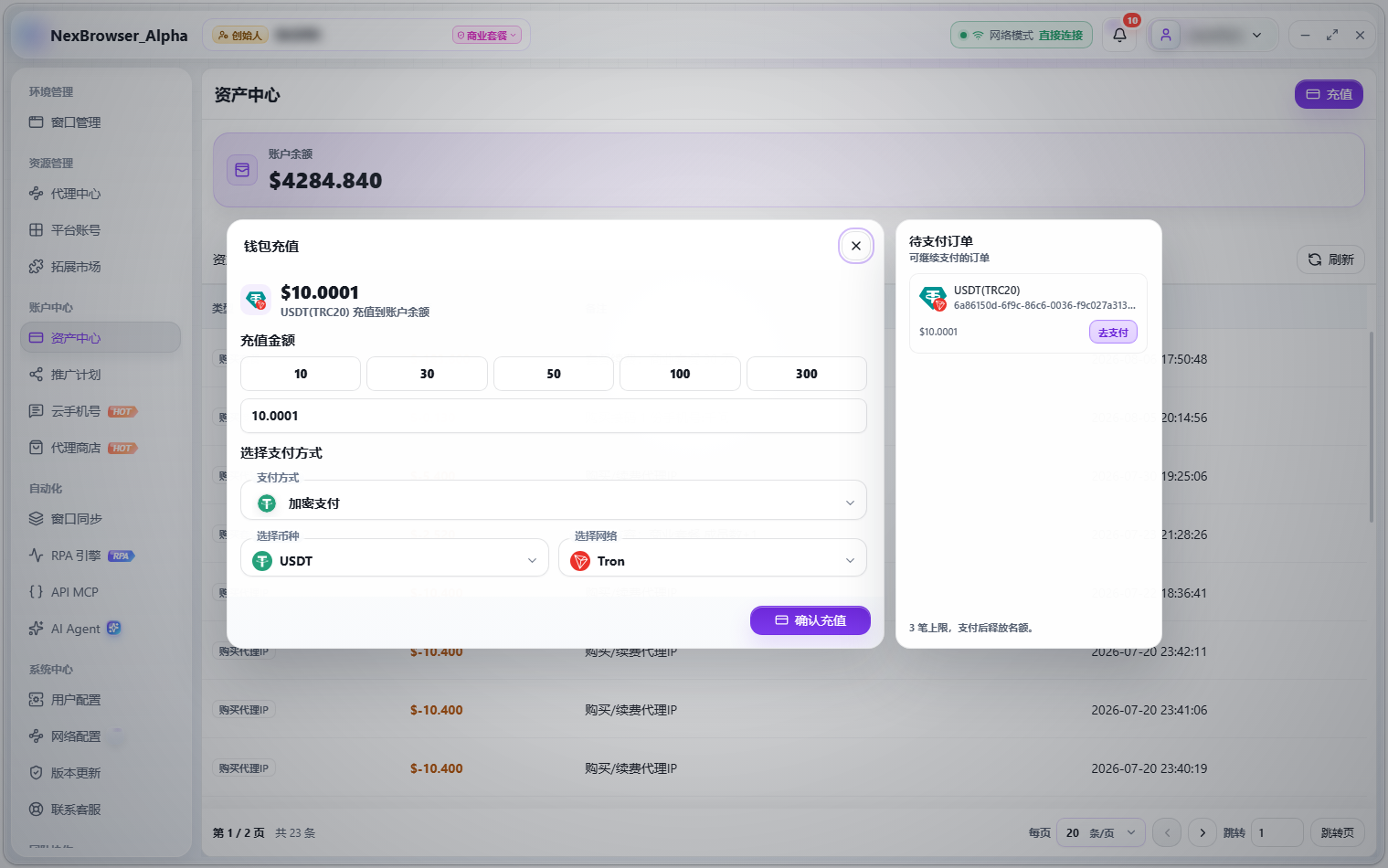
After a successful payment, the system confirms it automatically; once the funds arrive, the order dialog closes and your balance refreshes. Don't pay twice. If the network was busy when the order was created and the response was uncertain, the client recovers the matching pending order and shows "Pending order restored. Complete the payment." The top-up dialog shows up to 3 "Pending Orders" that you can click to continue paying. If you see "Payment is being confirmed. Contact Support.", settlement ran into a problem; contact support via System → Contact Support.
Related: Billing Center and Top-Ups, Contact Support
My virtual number didn't receive an SMS. Can I get a refund?
Yes, but only for numbers that are still waiting or haven't received an SMS. Click "Request Refund" on the record, choose a reason (No verification code received / Number is blocked / Already registered / Verification code can't be sent / Other), and submit. You'll see "Refund request submitted" and your balance refreshes. Numbers that have already received an SMS can't be refunded.
Related: Virtual Numbers
What are the requirements for withdrawing commission?
The minimum withdrawal is $10, and it can't exceed your current commission balance. Payouts go only to a USDT-TRC20 wallet address, and you must verify with an email code before submitting (with a 60-second cooldown after sending). After submitting, check the status under "Withdrawal History" in the Referral Program: Pending, Paid, or Rejected.
Related: Referral Program and Commission Withdrawal
An Alipay top-up says "Payment limit reached. Use another payment method."
The Alipay channel has a limit of 125 USD per transaction, and orders above it are rejected. Split the top-up into several payments, or use WeChat Pay or a crypto channel such as USDT/USDC instead.
Related: Billing Center and Top-Ups