Network Exit Modes
Network Settings is where you choose how the client itself and its browser profiles reach the network: Direct, System Proxy, or Relay Node. The page shows a description, a recommendation, and a connection route diagram for each mode.
Open it from the sidebar: System → Network Settings, from the "Relay Settings" button in the Proxy Center, or by clicking the network status capsule in the top bar (which opens the page on the current mode).
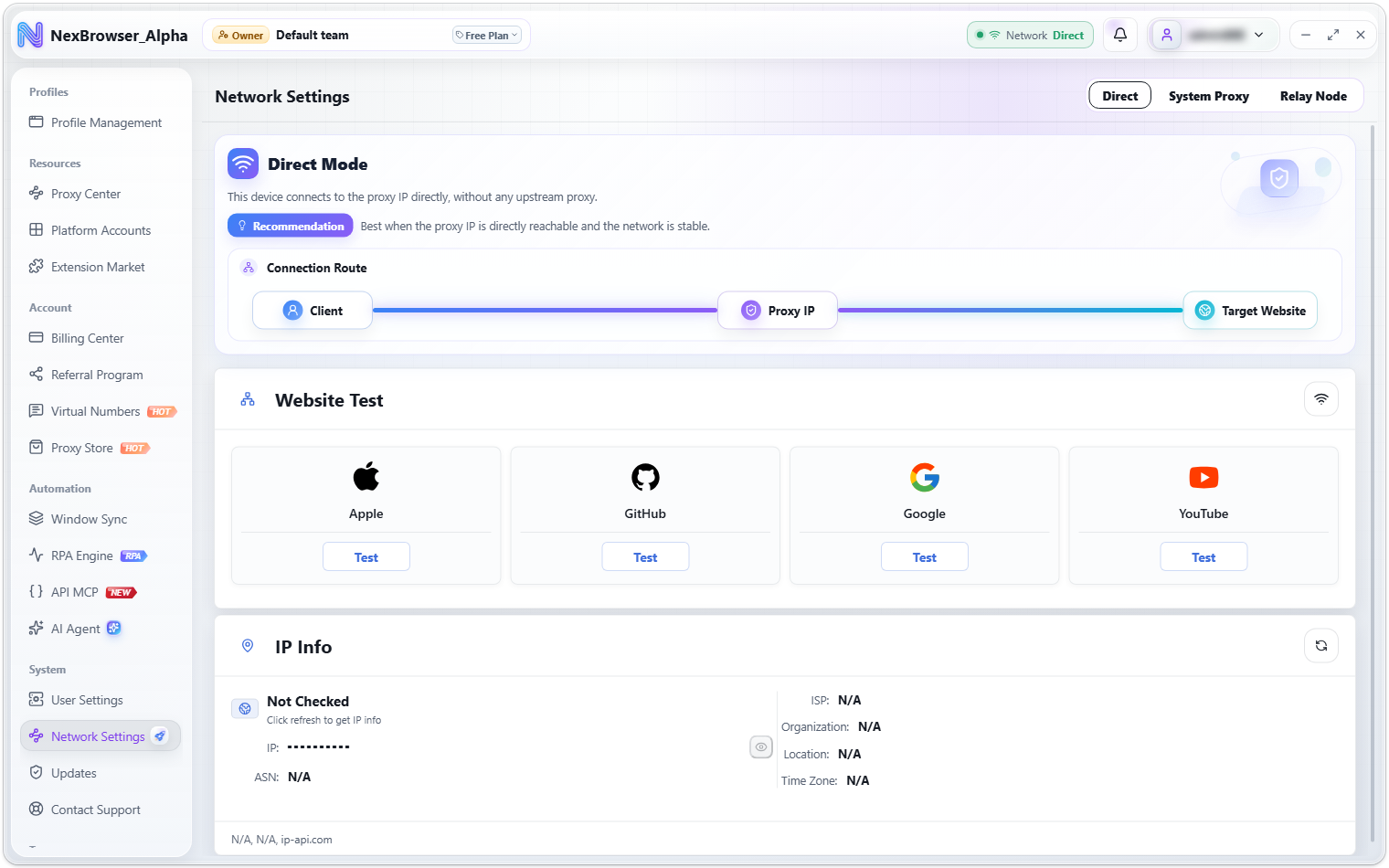
The three modes
The page header has three mode tabs. Each mode's description and recommendation, as shown on the page:
| Mode | Description | Recommendation |
|---|---|---|
| "Direct" | "This device connects to the proxy IP directly, without any upstream proxy." | "Best when the proxy IP is directly reachable and the network is stable." |
| "System Proxy" | "Connects to the proxy IP through this device's system proxy." | "Best when proxy software such as Clash, V2RayN, or Surge is running on this device and the proxy IP must be reached through the system proxy." |
| "Relay Node" | "Connects to the proxy IP through the selected relay node." | "Best when direct connections to the proxy IP are unstable, a fixed upstream exit is required, or multi-hop forwarding is needed." |
The "Connection Route" diagram under each mode shows the hops traffic passes through. In Relay Node mode, for example: Client → Relay Node → Proxy IP → Target Website.
In System Proxy and Relay Node modes, a status bar appears at the top of the page showing the current mode, the system proxy address ("No system proxy detected" if none) or the relay node name ("No relay node selected" if none), and the status: "Not Running", "Running", "Node Error", "Proxy Error", or "Network Error".
On a fresh install where you have never chosen a mode, the client checks the Windows system proxy at startup and switches to System Proxy mode if it finds one.
Checks before switching
- When you switch to System Proxy mode, the client first looks for a system proxy. If none is found, the switch is refused with "No system proxy detected. Configure one and switch again."
- When you switch to Relay Node mode without a node selected, you see "Select a relay node first" and stay on that tab so you can pick one. See Relay Node Management.
If saving the mode fails, you see "Failed to save proxy mode". After you switch modes, running profiles switch networks on the fly. If that fails, you see "Failed to switch the network of running profiles. Restart the affected profiles and try again." or "Some running profiles are missing the shared proxy context. Restart the affected profiles and try again." — restart the affected profiles as prompted.
How profile traffic is routed
Whether a profile has a proxy bound (see Window Configuration · Basic Info) combined with the current network mode determines the profile's actual route:
| Network mode | Profile has a proxy | Profile has no proxy |
|---|---|---|
| Direct | Uses only the profile's own proxy | Connects to the network directly |
| System Proxy | System proxy upstream, then the profile's proxy | Goes out through the system proxy |
| Relay Node | Chained: relay node upstream, then the profile's proxy | Goes out through the selected subscription node |
Proxy checks also use the current mode as their upstream route; see Proxy Check. When a profile launches, its proxy exit is checked first, and the profile won't launch if the check fails, so your real IP isn't exposed. See Opening and Closing Windows.