Multi-Window Sync
Multi-Window Sync (group control) mirrors what you do in one "main" window to several "follower" windows in real time, which is handy for performing the same actions across many profiles. Sync is controlled from a separate floating panel, so it doesn't take over the main interface.
Before you start
- At least 2 running profiles. With fewer, you'll see "Open at least 2 profiles in Profile Management first (X running)".
- The Window Sync permission. Without it, you'll see "You don't have permission to use Window Sync". See Roles and Permissions.
Two entry points
| Entry | Where | Description |
|---|---|---|
| Navigation | The "Window Sync" button in the "Automation" group of the left navigation | Opens the separate sync panel window, titled NexBrowser - Multi-Window Sync |
| Profile list | The "Window Sync" icon button in the Profile Management list toolbar | Select at least 2 open profiles first; otherwise the button is disabled with the hint "Select at least 2 open profiles first" |
Main window, followers, and role markers
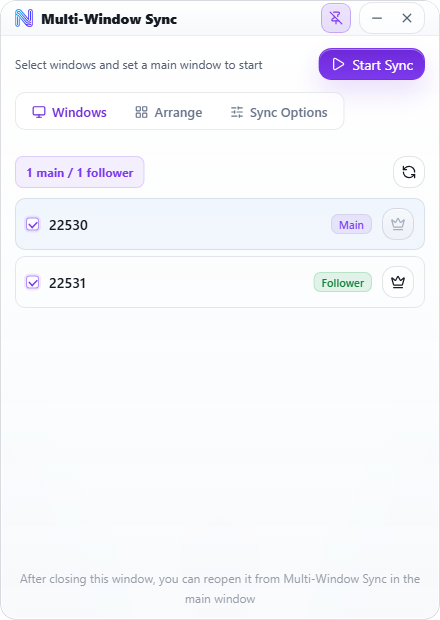
Sync has two roles: the main window (the source of actions, exactly 1) and follower windows (which mirror the actions, 1 or more). Roles are shown in two places:
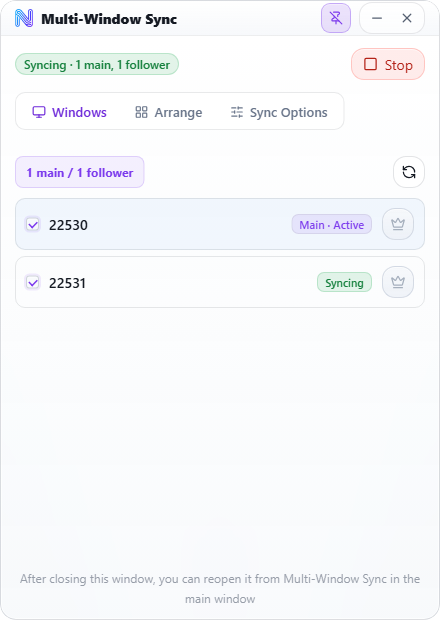
- Badges in the sync panel: main window (blue), follower (green), not included (grey). While running they show "Main · Active" and "Syncing".
- Number badges on browser windows: every running profile window carries a number badge. While it takes part in sync, the badge background shows its role: purple for the main window, green for followers, white for windows not included. The badge text is always the window number; the role is shown by color only.
Even before you click "Start Sync", selecting windows and setting the main window in the panel changes the badge colors on the real browser windows right away (purple for main, green for followers), which helps you tell similar windows apart. Closing the sync panel clears the preview, but a running sync keeps its role colors. Once a window exits, its role marker is cleared, and it won't inherit the old sync role the next time it starts.
Start and stop
- Open the sync panel, go to the "Windows" tab, and select the windows to include.
- Click the crown icon "Set as main window" on the window you want to lead.
- Click "Start Sync". Sync needs 1 main window and at least 1 follower. On success you'll see "Sync started and windows arranged: 1 main, N followers".
- Click "Stop" when you're done.
Common start errors: "Select a main window first", "Select at least one follower window", "The main window is not running", "No follower windows available (they must be running and differ from the main window)", and "The main window has been closed. Select a main window again." If sync starts but automatic arrangement fails, you'll see "Sync started, but automatic arrangement failed: …" and sync keeps running.
When sync starts, the participating windows are tiled automatically using the current display, column, spacing, and height settings in the "Arrange" tab (the main window takes the first cell, followers fill the rest in order), and the participating browser windows are kept on top (you can turn this off in the sync options). If the main window is closed, sync stops automatically; closing a follower only removes it from sync.
What gets synced
These actions are mirrored from the main window to every follower (only the active tab is synced):
- Mouse clicks and right-clicks
- Keyboard input (including the final text from Chinese input methods)
- Page scrolling
- Mouse movement
- Clipboard content from copy and cut
- Navigation (followers follow the main window's address changes)
- Opening, closing, and switching tabs
Text isn't retyped character by character. Instead, the whole input value is synced (the follower's input box follows smoothly: 1 → 12 → 123 …), which avoids differences between input methods. Enter and Space pressed while a Chinese input method is still composing aren't forwarded to followers, and pressing a modifier key on its own (Ctrl/Shift/Alt) isn't replayed. Copy/cut (Ctrl+C/X) isn't replayed as a keystroke; instead, the text selected in the main window is written straight to each follower's clipboard, so a following Ctrl+V pastes the same content in every window. When tabs are closed in sync, a follower always keeps its last tab so the whole window doesn't exit.
Sync options
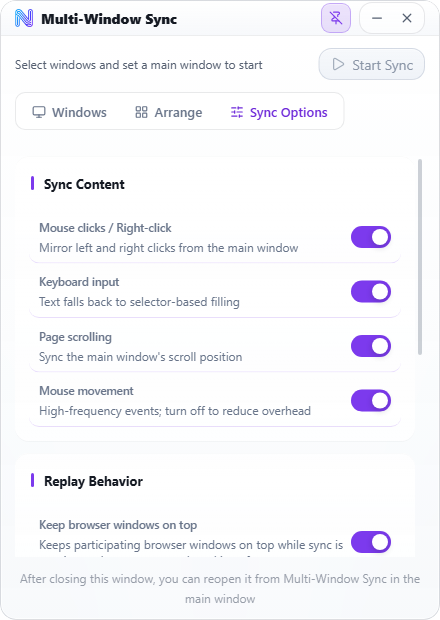
Use the "Sync Options" tab of the sync panel to choose which input types to mirror and how they're replayed.
| Option | Description | Default |
|---|---|---|
| "Mouse clicks / Right-click" | Mirrors left and right clicks from the main window | On |
| "Keyboard input" | Syncs text typed in the main window; when off, input method text isn't synced either | On |
| "Page scrolling" | Syncs the main window's scroll position | On |
| "Mouse movement" | High-frequency events; turn off to reduce overhead | On |
| "Keep browser windows on top" | Keeps participating windows on top while sync runs and restores normal stacking after it stops | On |
| "Move / Scroll throttle (ms)" | Range 10–500. In-app description: "Higher values send fewer events and save resources; lower values feel more responsive (default 40ms)." | 40 |
The "How It Works" section at the bottom of the tab lists four points: click coordinates are mirrored (unified viewport), text falls back to selector-based filling, only the active tab is synced, and followers follow the main window's navigation.
Sync options are captured when you click "Start Sync". Changes made while sync is running don't apply until you restart; the panel shows "Sync is running: stop and restart sync for option changes to take effect."
Arrange windows
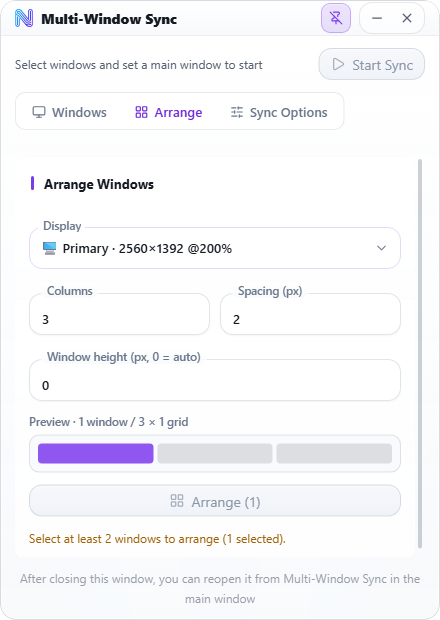
The "Arrange" tab tiles the selected windows in a grid on the display you choose, with the main window always in the first cell. It keeps coordinate sync accurate (all participating windows end up the same size and aligned), and it also works on its own as a window tidy-up tool.
| Field | Description | Default |
|---|---|---|
| "Display" | Choose the primary or an extended display; shows its logical resolution and scaling (for example 1920×1080 @150%) | Primary display |
| "Columns" | 1–12. Narrowed automatically to fit the screen (browser windows have a minimum width); when it's capped you'll see "(Up to N columns on this display; browser windows can't be any narrower)" | 3 |
| "Spacing (px)" | 0–64 | 2 |
| "Window height (px, 0 = auto)" | 0–4000, in steps of 20. 0 splits the screen height evenly by rows | 0 |
The preview updates live as "Preview · N windows / X × Y grid", with the selected windows highlighted in blue. When you're ready, click "Arrange (N)"; on success you'll see "Arranged N windows". You need at least 2 selected windows, otherwise you'll see "Select at least 2 windows to arrange (X selected)."
On high-scaling screens (such as 150%/200%), fewer windows fit than at 100%; the preview matches where windows actually land. If the windows already match the current layout, starting sync only swaps positions to follow the main/follower order instead of recalculating every window.
Common arrangement errors: "Failed to arrange windows", "No main window is available to arrange", and "These windows have no process PID: …". On an unsupported platform or without the native add-on, you'll see "Window arrangement skipped (unsupported platform or missing native window add-on)".
Clicks are mirrored pixel by pixel within the viewport, which relies on every window's content area being the same size. If window sizes differ, follower clicks may land off target, so use "Arrange" to even out window sizes before starting sync.
The floating sync panel
The sync panel is a small floating window (collapsed, it shrinks to a thin title strip). It has three tabs, "Windows", "Arrange", and "Sync Options", with a status badge at the top ("Syncing · 1 main, N followers" or "Syncing · Waiting for a valid main window") and the "Start Sync" / "Stop" button.
- Pin and collapse: the pin button at the top right switches between "Pin Sync Window" and "Unpin Sync Window". When pinned (the default), the panel stays expanded. When unpinned, it collapses to a thin strip that expands on hover and collapses again when the mouse leaves. If it's unpinned and collapses while sync is running, it snaps to the top center of the current screen.
- Remembered position: the panel can't be maximized or resized. You can drag it, and it remembers its position for next time. While sync runs, the panel floats on top of the synced browser windows.
- Closing the panel doesn't stop sync: the bottom of the panel says "After closing this window, you can reopen it from Multi-Window Sync in the main window". Sync keeps running in the background; reopening the panel shows the current main/follower state again. After sync stops or the main window exits, the always-on-top state of the panel and the participating windows is removed automatically.