Updates
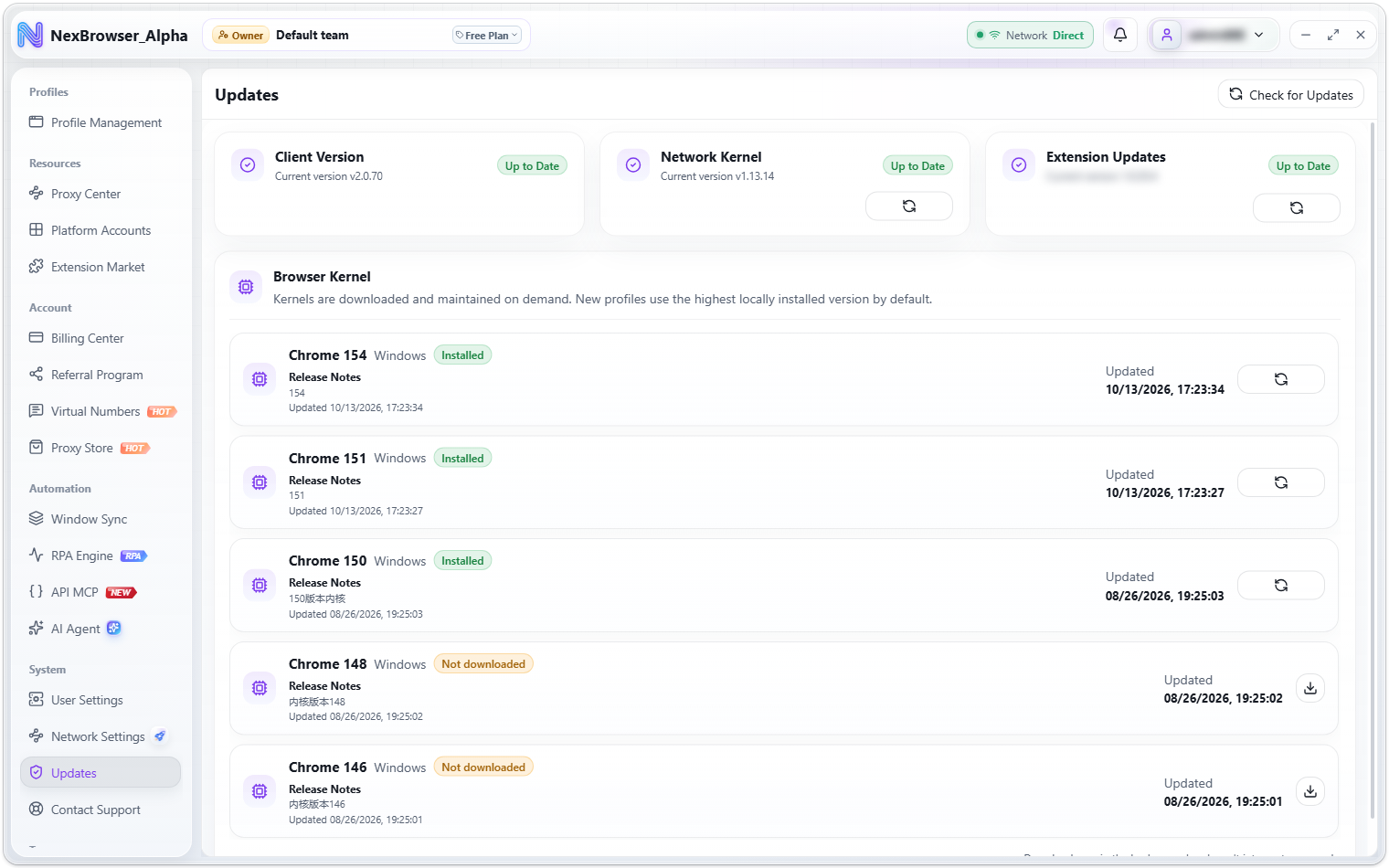
The "Updates" page manages updates for the client and its components in one place: see the current and latest versions, read the release notes, download updates, and follow their progress.
Four component types
Open it from the sidebar: System → Updates, and click "Check for Updates" to refresh version information. When a kernel download is in progress or has failed, a red dot appears on "Updates" in the sidebar.
| Component | What it is | Effect of updating |
|---|---|---|
| Client Version | The NexBrowser client installer itself | The installer starts automatically once downloaded and installs over the current version |
| Network Kernel | The chain kernel, a local component that relay nodes and chained proxies depend on | Close all running profiles before updating; proxy chains may be briefly unavailable during the update |
| Extension Updates | The built-in extension package | Open profiles need a restart for the update to take effect |
| Browser Kernel | Chrome kernels, downloaded on demand by major version, with several versions side by side | Downloads run in the background and don't interrupt your work |
The page shows three cards, "Client Version", "Network Kernel", and "Extension Updates", each with the current version. When an update is available, a card shows an "Update Available" badge (plus a red "Required Update" badge for a forced client update) and an update button ("Install Client Update", "Update Network Kernel", "Update Built-in Extension"); when it's current, it shows "Up to Date". When the Network Kernel or built-in extension is already up to date, you can use "Reinstall Network Kernel" or "Reinstall Built-in Extension" to download it again as a repair. Below, the "Browser Kernel" list shows each Chrome version number, system, status badge (Installed / Not downloaded / Downloading / Download failed), release notes, and update time, with "Download Kernel" and "Reinstall Kernel" buttons and "Retry" after a failure. While downloading, it shows a progress bar, downloaded/total size, speed, and time remaining.
Every download asks for confirmation first (such as "Download Client Update", "Update Network Kernel", "Download Chrome Kernel", or "Update Built-in Extension", and "Reinstall …" for reinstalls), explaining the target, the effect, and the risk. The same version is never downloaded twice.
- Close all running profiles before updating the chain kernel (Network Kernel); otherwise the update is refused with "The Network Kernel is in use by running profiles. Close all profiles before updating." Proxy chains may be briefly unavailable during the update.
- After the built-in extension is updated, open profiles need a restart for it to take effect.
Browser kernels on demand
The page explains: "Kernels are downloaded and maintained on demand. New profiles use the highest locally installed version by default." and "Downloads run in the background and won't interrupt your work." Several Chrome major versions can coexist, and each is downloaded separately as profile fingerprints require.
If the Chrome kernel a profile needs isn't installed when you open it, the client jumps to this page and starts downloading that version automatically, with no extra confirmation. If no matching package can be found, you'll see "Chrome N kernel package not found". See Open, Close, and Cloud Sync.
Required and optional updates
The client checks the server's version list automatically when it starts:
| Type | Dialog | Behavior |
|---|---|---|
| Required update | "Update Required to Continue", badge "Required" | The dialog can't be closed and has only two buttons, "Exit" and "Update Now". The text reads "This client version is no longer supported. Update to the latest version." |
| Optional update | "New Version Available", badge "Optional" | Click "Cancel" to skip it; skipping only lasts for this session, and you'll be asked again at the next launch |
The update dialog shows the current and target versions, the "What's New" list of changes, and a download progress bar. Once the download finishes, the installer starts automatically and you'll see "Update started. Follow the prompts to finish installing."
If browser profiles are still running at that point, the client first asks "Close Profiles Before Updating":
- "Close Profiles and Update": closes all browser profiles, waits for their data sync to finish, then exits the client and starts the installation.
- "Not Now": keeps the profiles running and shows "Update postponed. Running profiles stay open." You can update again later.
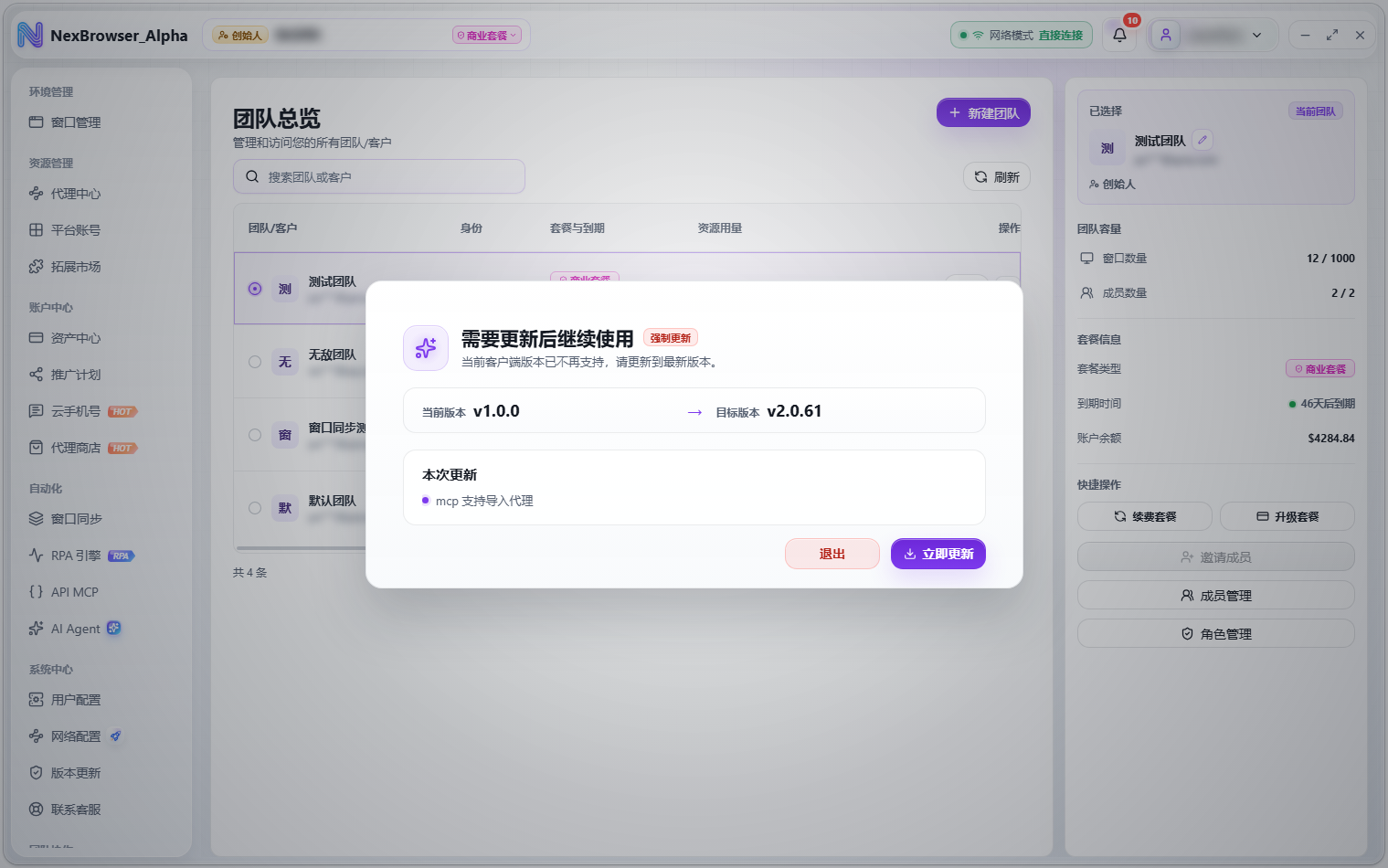
The required update dialog only offers "Exit" and "Update Now"; without updating, you can't keep using the client.
Resumable downloads and verification
- Client updates can resume: after a failed download, click "Resume Update" to continue from where it stopped. If the download URL, version, or checksum changes, the partial download is discarded and starts over.
- The installer is verified after downloading. If verification fails, the installer is deleted and the update reports a failure; just update again.
- Fully downloaded old installers are cleaned up automatically the next time the client starts; partial downloads are kept so they can resume.
- Triggering an update again while one is running doesn't download twice; you'll see "A client update is already in progress".
- If the installer can't start automatically, you'll see "The installer was downloaded but could not be started automatically. Install it manually from the download folder."
- Update failures are reported by cause: network error, download URL missing, download failed, or update failed.
The client can also update its interface in the background without reinstalling. During the update, a "Preparing interface" progress dialog appears (its stages are preparing the interface, unpacking interface files, verifying interface files, and switching to the new interface), and the interface reloads automatically when it's done. If a client update is waiting to be installed, the interface update is postponed so the client update goes first.