Billing Center and Top-Up
The Billing Center is the overview of your account funds: your account balance at the top and every balance change below. Paid actions such as team plans, proxy purchases, virtual numbers, and AI tokens are all charged to this balance.
Before you start
- You're signed in to the client. Open it from the sidebar:
Account → Billing Center. Signing in is all it takes; it isn't restricted by team menu permissions.
Account balance and asset records
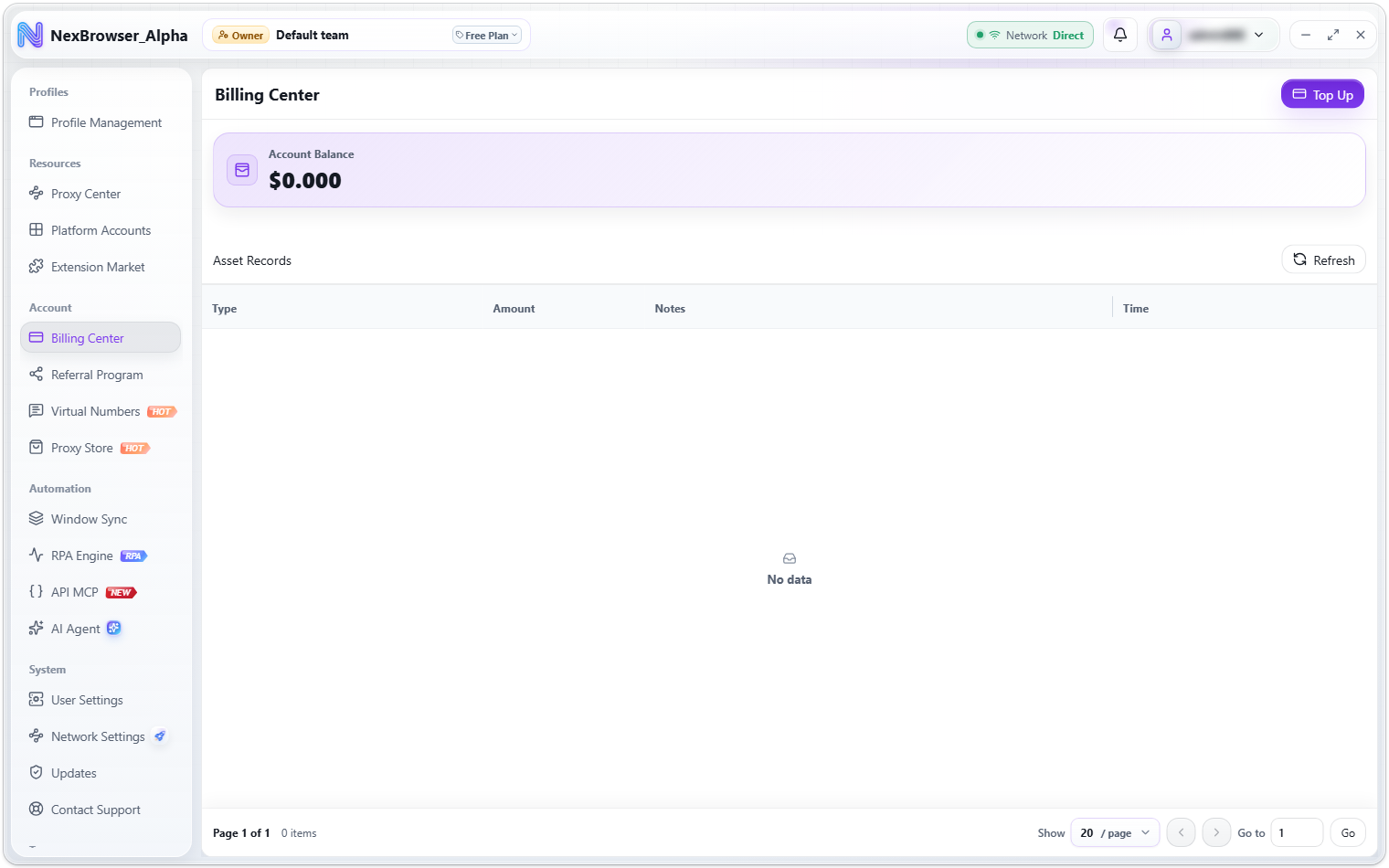
The top of the page has the "Account Balance" card (in US dollars, to 3 decimal places) and the "Top Up" button. Below, the "Asset Records" table lists every change, with the columns "Type", "Amount", "Notes", and "Time". It's paginated, and the "Refresh" button reloads it.
Positive amounts are shown in green (income) and negative amounts in red (spending). The Notes column shows "plan name / amount" where it can; when the details can't be recognized, it shows "Transaction details recorded".
Asset record types
| Type label | Description |
|---|---|
| Basic Plan / Team Plan / Business Plan | Charges related to team plans |
| Top Up | Top-ups credited to your balance |
| Payment / Order | General payments and order charges |
| AI Token / AI Token Purchase | Nex Agent token usage and purchases |
| SMS | Virtual number purchases |
| Proxy | Proxy Store purchases and renewals |
| Withdrawal | Commission withdrawals paid out |
Top up your balance
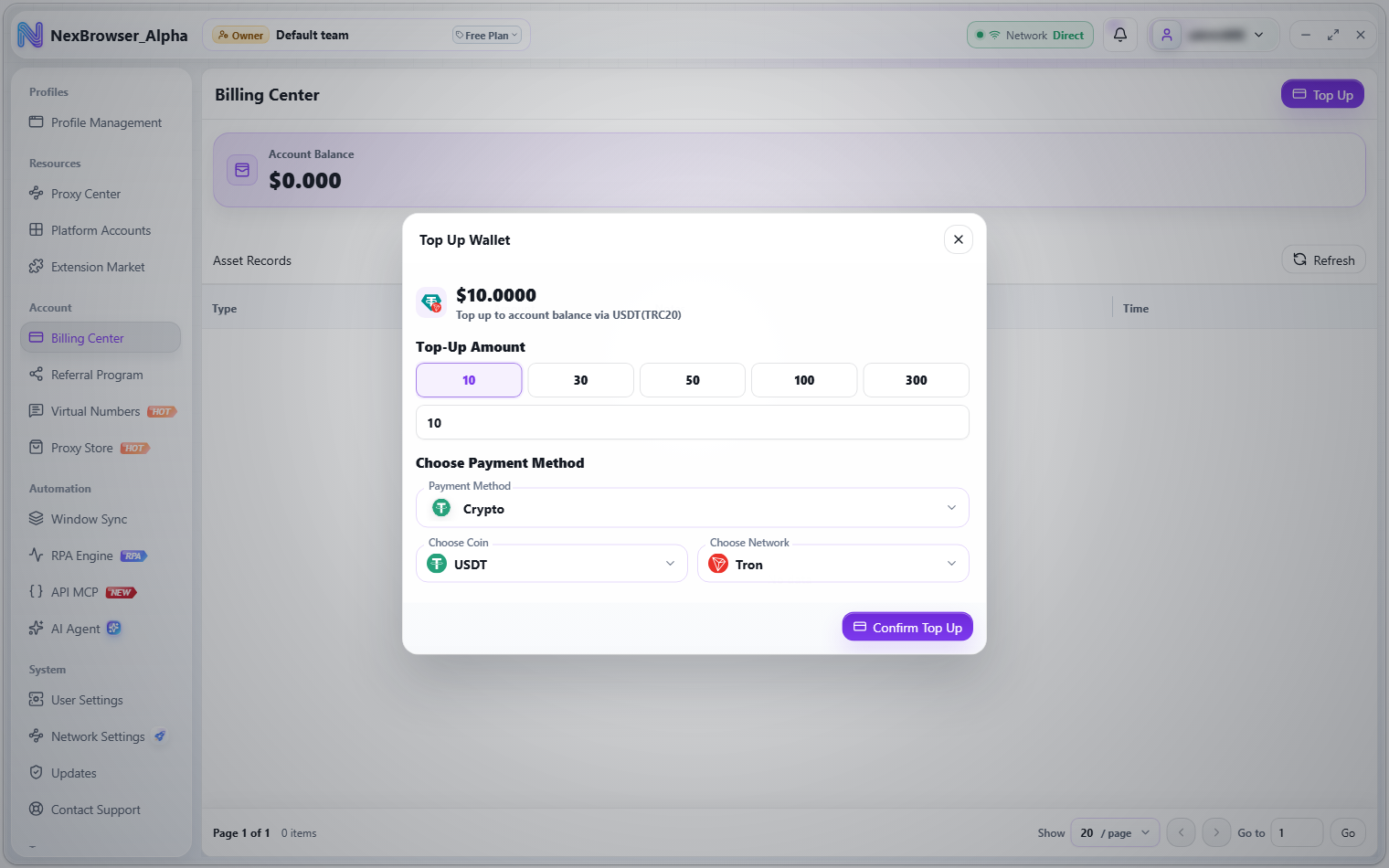
- In the Billing Center, click "Top Up" to open the "Top Up Wallet" dialog.
- Choose a preset amount (
10/30/50/100/300), or click "Custom amount" and enter your own. - Under "Choose Payment Method", choose "Crypto" and then a coin and network, or choose WeChat Pay or Alipay. Click "Confirm Top Up" to open the "Top-Up Order" dialog.
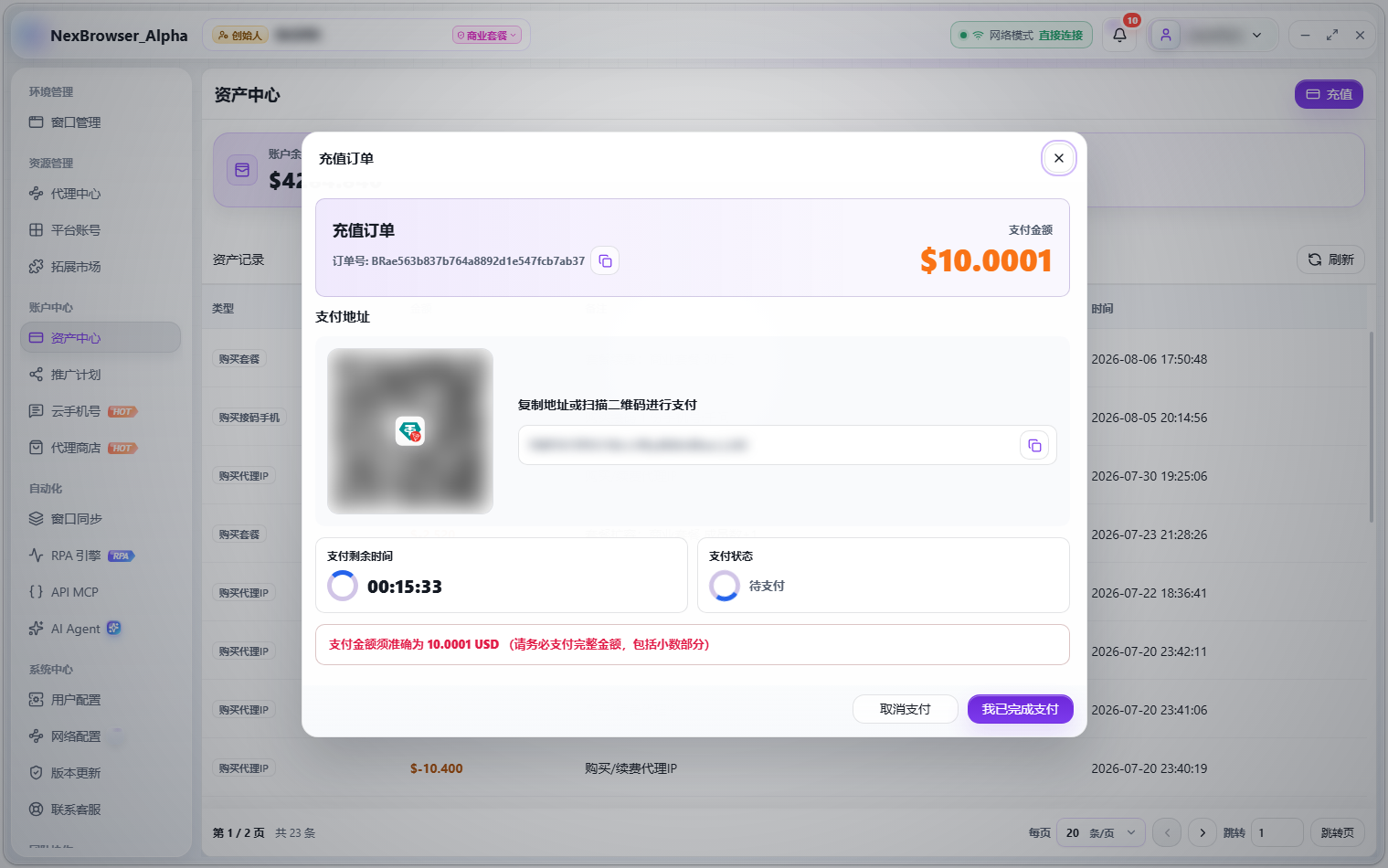
- Complete the payment as the order page instructs:
- Crypto channels show a wallet address and QR code with the hint "Copy the address or scan the QR code to pay", and remind you that the payment must exactly match the order amount (including decimals).
- Alipay/WeChat Pay channels show a payment QR code with the hint "Scan with WeChat/Alipay to pay".
- The client confirms the payment status automatically. Once the payment succeeds, the order dialog closes and your balance refreshes.
Payment channels
| Channel | Description |
|---|---|
| USDT(TRC20) | Crypto, TRON network |
| USDT(ERC20) / USDC(ERC20) | Crypto, Ethereum network |
| USDT(BEP20) / USDC(BEP20) | Crypto, BNB Chain network |
| USDT(Polygon) / USDC(Polygon) | Crypto, Polygon network |
| Alipay / Alipay (Backup) | Scan to pay, limited to $125 per transaction |
| WeChat Pay / WeChat Pay (Backup) | Scan to pay |
The payment methods you can actually choose are the ones shown in the "Top Up Wallet" dialog, which may be fewer than the table above. With no channel available, you'll see "No payment channels configured"; if a channel has been turned off, you'll see "This payment channel is not enabled". Going over the Alipay per-transaction limit shows "Payment limit reached. Use another payment method."
Order countdown and status
The "Top-Up Order" dialog shows the order number (copyable), a "Time Remaining" countdown, and the "Payment Status", with "Cancel Payment" and "I've Paid" buttons. Once the order expires, the button changes to "Place New Order" and you'll see "Order expired. Place a new order." Go by the countdown on the order page and finish paying before time runs out.
Resuming pending orders
- Each account can hold at most
3unexpired pending orders at a time. The top-up dialog's side panel lists them (with the hint "Limit of 3 orders. Slots are freed after payment."); click "Pay Now" to continue paying without placing a new order. A slot is freed once the order is paid or expires. - If the network is busy and the response is uncertain when you create an order, the client automatically restores the matching pending order and shows "Pending order restored. Complete the payment."
Once you've paid, the system confirms the payment automatically; the order page clearly states "Payment is confirmed automatically once complete. Do not pay twice." If the money doesn't arrive for a long time, or you see "Payment is being confirmed. Contact Support.", reach out through Contact Support instead of paying the same order again.