System Requirements and Installation
This page covers the NexBrowser client's system requirements, installer package, disk space planning, and how to exit and update the client.
System requirements
| Item | Requirement |
|---|---|
| Operating system | Windows 10 / 11, 64-bit |
| Installer | NexBrowser-Setup-<version>.exe (x64 installer) |
| Install permissions | Installs for the current user; no administrator rights needed |
| Disk space | 20 GB or more recommended (see "Disk space recommendations" below) |
Download from the official website
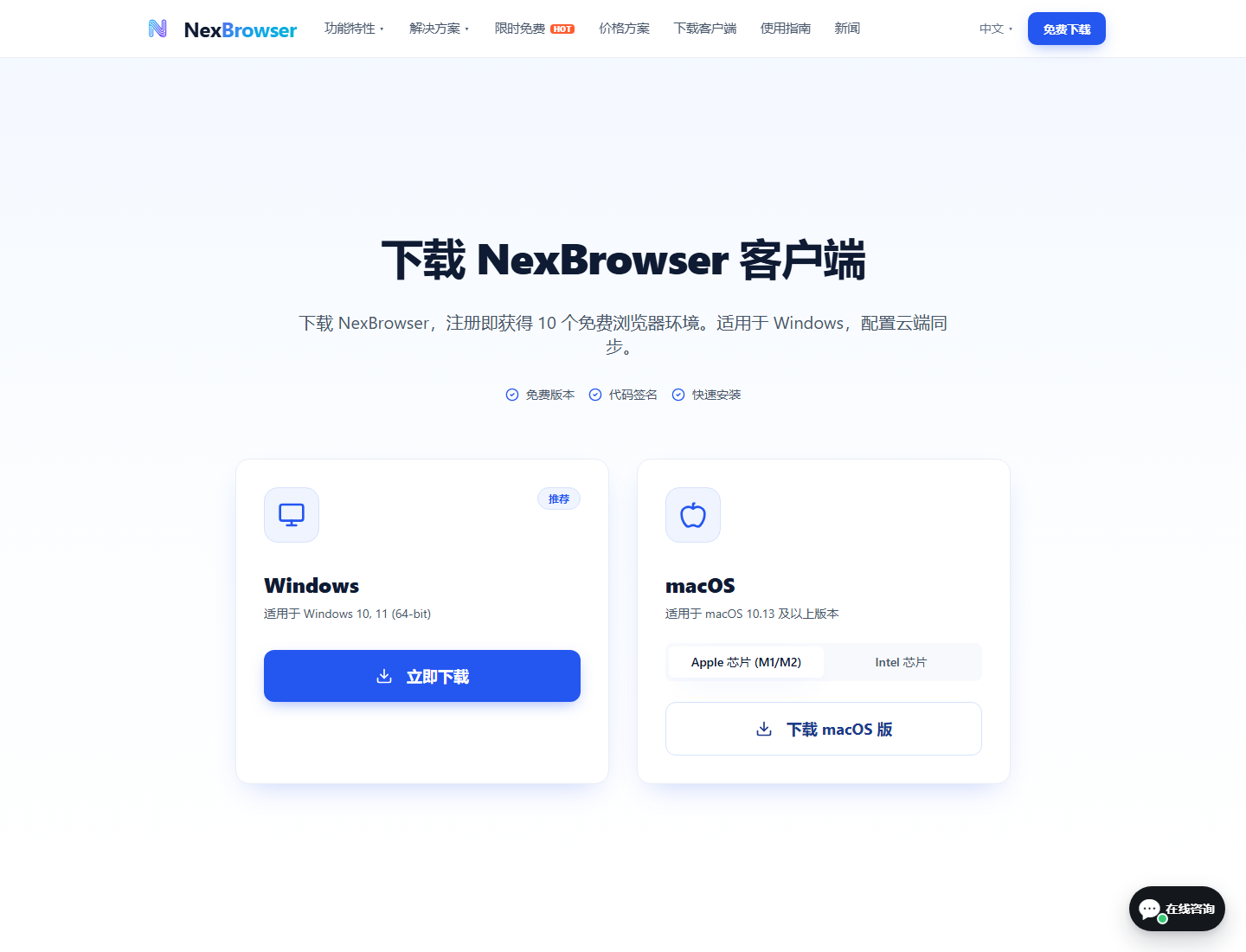
Open the official website nexbrowser.net and click the free download button on the home page, or use the download link in the top navigation to open the download page.

On the download page, click the download button on the Windows card to get the installer.
The installer is code-signed. Right-click the installer → "Properties" → "Digital Signatures" to check the signer and certificate validity. SmartScreen builds reputation separately for each file based on download volume, so a new release may still show a warning until it has been downloaded enough times. Make sure the digital signature is valid and the installer came from the official download page; delete any file from an unknown source.
Installation steps
Double-click the installer. The setup wizard runs through the steps below. The wizard language follows the Windows display language: Chinese on Chinese systems, English on all others.
- Close the running client: The installer first tries to close any running NexBrowser process. If that fails, a retry prompt appears. Choose "Retry" to try again, or "Cancel" to stop the installation.
- Choose the install location (first install only): The wizard shows the "Choose Install Location" page with the hint "A NexBrowser folder will be created inside the folder you choose." Edit the path under "Destination Folder" directly, or click "Browse..." and pick a parent folder in the "Select the parent folder for the installation" dialog. The product folder name is appended to the path you choose automatically (for example, choosing
D:\installs toD:\NexBrowser). - Copy files: A progress bar shows the installation progress.
- Finish: Leave the run option checked and click Finish. The client starts as the current user.
The installer reads the install location recorded in the registry. When it finds a valid existing installation, it skips the location page and installs over the existing folder, then skips the finish page and starts the client automatically. Updating therefore takes fewer steps than a first install. If old files are in use by another program and can't be removed safely, the installation stops with a message; close that program and run the installer again.
A desktop shortcut is created after installation (on every install).
Disk space recommendations
Profile data can take up a lot of space, so it helps to know where the client stores it before you install:
- Profile cache directory: A new installation stores profile cache data in
C:\Users\<username>\AppData\Local\NexBrowser\NexBrowserDataby default. When you update from an older version, the client keeps using your existing data directory (for exampleD:\NexBrowserData). You can view and change it underSystem → User Settings → Storage & Cleanup; see Interface Overview and Personalization. If your system drive is short on space, change the cache directory to a larger drive before you start using the client. - Browser kernels: Kernels are downloaded on demand per Chrome major version, and several versions can coexist. Each version takes several hundred MB.
- Disk limit: The default disk limit is
20G. Keep at least 20 GB free on the drive that holds the cache directory.
Closing and exiting
Clicking the close button on the main window only hides the client to the system tray; the process keeps running. Left-click the tray icon to show the main window, or double-click it to toggle between showing and hiding. The right-click menu offers "Show Window", "Toggle Theme", "Window Sync", "Language", and "Exit". To quit completely, use "Exit" in the tray menu.

When you exit, the client first closes all running browser profiles and waits for their data to upload to the cloud, showing "Syncing data, please wait…". Don't force quit the process, or data sync may fail. If sync still hasn't finished after the wait, the client stays open and asks you to try exiting again later; the sync in progress keeps running.
Updating the client
There are two official update channels. Both download the full installer and install over the existing version:
- Update from inside the client: Open
System → Updates, click "Check for Updates", and follow the prompts to download and install. See Updates. - Automatic prompt at startup: The client checks its version when it starts. An optional update shows the "New Version Available" dialog (badge "Optional"); you can click "Cancel", and the dismissal only lasts for the current session. A required update shows the "Update Required to Continue" dialog (badge "Required") with the message "This client version is no longer supported. Update to the latest version."
The required-update dialog can't be closed and has only two buttons: "Exit" and "Update Now". Downloads can resume after an interruption: if a download fails, click "Resume Update". The installer starts automatically once the download completes.
If browser profiles are still running when an update is about to install, the "Close Profiles Before Updating" prompt appears. Choose "Close Profiles and Update" to close all profiles, wait for data sync, and then install, or "Not Now" to keep the profiles running.