Team Plans
A team's profile limit, member limit, and validity all come from its team plan. This page explains how to buy a plan when you create a team, and how the three plan actions — activate, renew, and upgrade — differ.
Before you start
- Only the team owner can manage plans. Other members see "Only the team owner can manage plans". Being the owner is separate from role permissions; see Roles and Permissions.
- Plans are paid from your account balance. If your balance is too low, top up first in the Billing Center.
How the plan is chosen
You don't pick a plan tier by hand. Once you choose the number of members and profiles, the client matches a plan tier to the profile count and gets a live quote for it.
| Setting | Options |
|---|---|
| Members | 2 / 3 / 5 / 10 / 20 / 50 / 100 |
| Profiles | 5 / 10 / 30 / 50 / 100 / 200 / 1000 (no fewer than the lowest plan's starting profile count) |
| Duration / Renewal Period | 1 / 3 / 6 / 12 / 24 months |
Creating a team (a plan is required)
When you create a team, you must choose and pay for a team plan at the same time; the client doesn't allow teams without a plan.
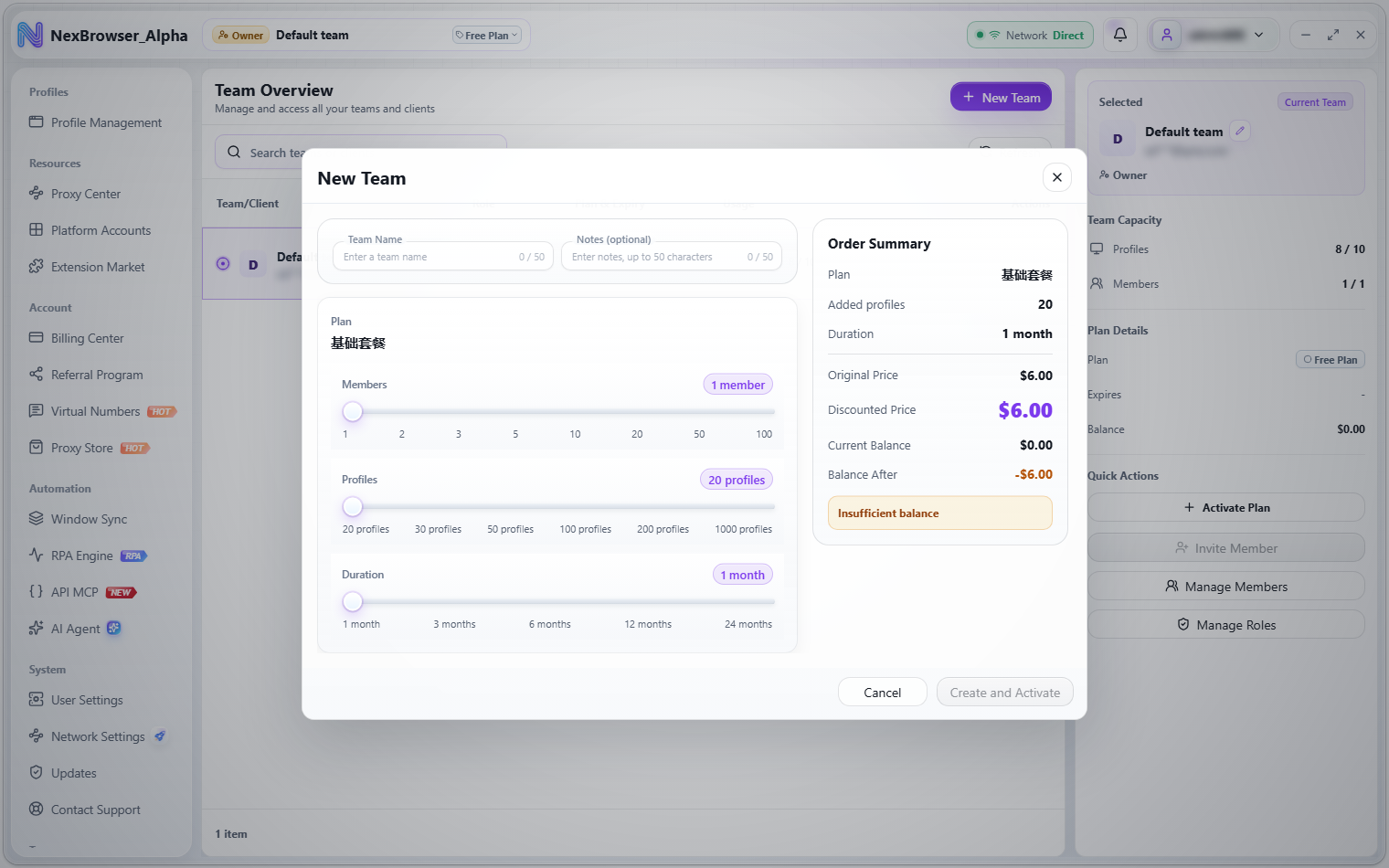
- On Team Overview, click "New Team" to open the "New Team" dialog.
- Enter a "Team Name" and, optionally, "Notes (optional)". Each is limited to
50characters (a counter is shown in the field). - Use the sliders to choose "Members", "Profiles", and "Duration". "Plan" shows the plan tier matched automatically.
- Review the "Order Summary" on the right: Plan, Added members, Added profiles, Duration, Original Price, Discount, Discounted Price, Current Balance, and Balance After.
- Click "Create and Activate" (it shows "Creating and activating..." while working). On success you see "Plan activated" and the client switches to the new team automatically.
While the quote is being calculated, the summary shows "Estimating the plan price. The final amount will be confirmed again after the team is created." and the button stays unavailable. Common validation messages: "Team name is required", "Select the number of members", "Select a duration", and "At least N profiles required". If your balance is too low, the summary shows "Insufficient balance" and the button is unavailable.
There is no separate "Confirm Payment" dialog when creating a team: clicking "Create and Activate" creates the team and charges your balance immediately. If activating the plan fails, the newly created empty team is deleted automatically so no team is left without a plan, and you see "Failed to create the team or activate the plan".
Where to manage an existing plan
For an existing team:
- The row's "More Actions" menu on Team Overview: "Activate Plan" if the team has no plan, otherwise "Renew Plan" and "Upgrade Plan".
- The "Quick Actions" card in the Team Overview details panel: "Activate Plan", or "Renew Plan" and "Upgrade Plan".
- The plan badge in the top bar: click it and choose to activate, upgrade, or renew the current team's plan.
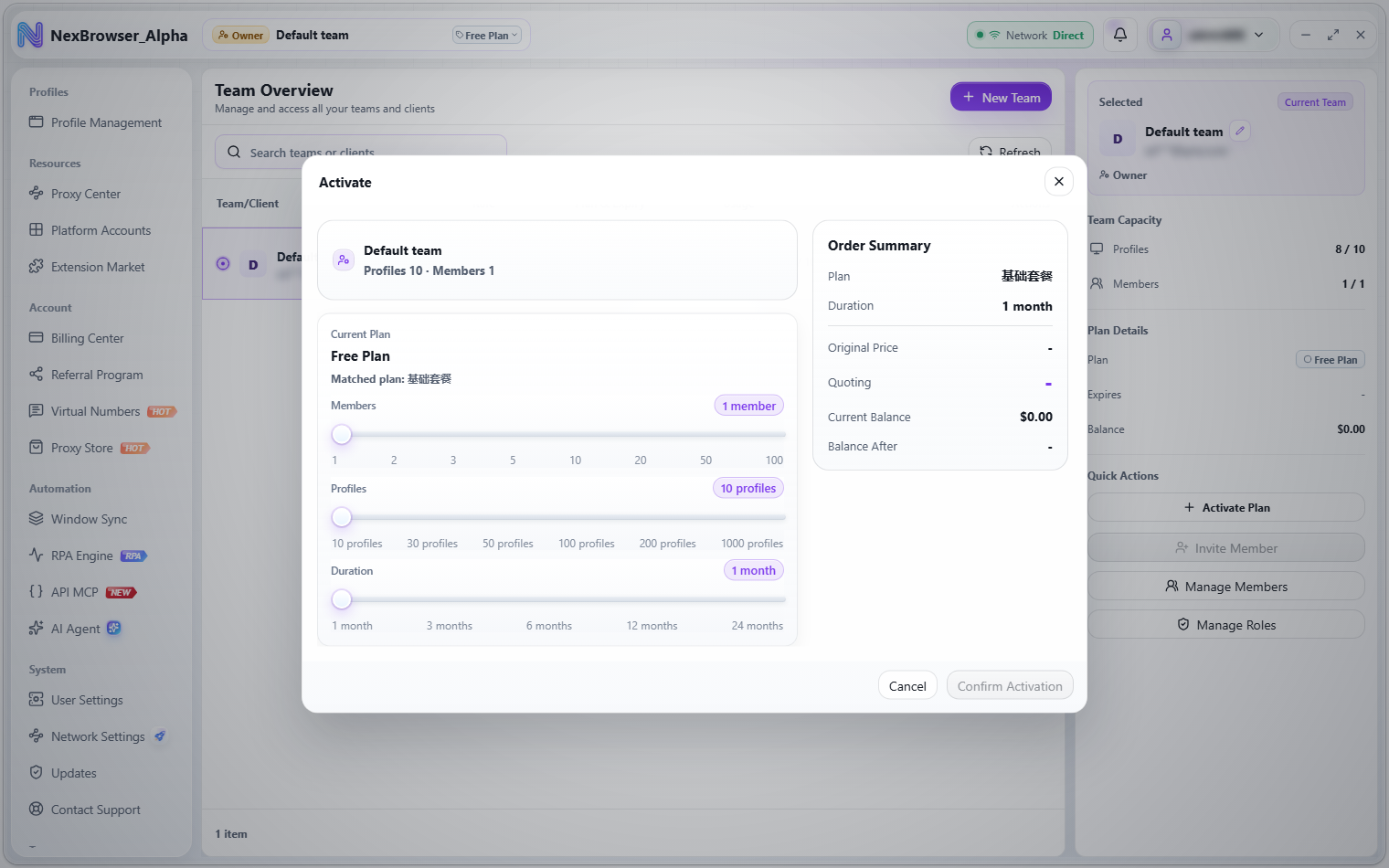
The dialog title is the action name ("Activate", "Upgrade", or "Renew"). On the left you see the team name, its current capacity ("Profiles N · Members M"), and the plan settings; on the right is the "Order Summary":
| Action | Settings on the left |
|---|---|
| Activate | "Current Plan", "Members", "Profiles", "Duration" |
| Upgrade | "Current Plan", "Members", "Profiles" |
| Renew | "Renewal Period" |
When activating or upgrading, if the new profile count matches a different tier, "Matched plan: xx" appears under "Current Plan".
Click "Confirm Activation", "Confirm Upgrade", or "Confirm Renewal" at the bottom right to open the "Confirm Payment" dialog (for example, "Your balance will be charged to activate the team plan."). Check the total due and the balance change, then confirm. On success you see "Plan activated", "Plan upgraded", or "Plan renewed".
How activate, renew, and upgrade differ
| Action | What you can change | Buys time? | Takes effect |
|---|---|---|---|
| Activate | Members, profiles (the plan is matched to the profile count), duration | Yes | Expiry is calculated from the duration bought |
| Renew | Validity only; you can't change the plan or the member / profile limits | Yes | Extends the expiry date |
| Upgrade (expand) | Add members or profiles; the plan is re-matched to the profile count | No | Immediately, without extending the expiry date |
Validation messages: "Renewal cannot change the plan", "Renewal cannot change member or profile limits", "Select a renewal period", "Increase members or profiles first", "Upgrades and expansions do not extend the expiration date. Refresh and try again.", "Profile count cannot be lower than the current count", "Member count cannot be lower than the current count", and "Insufficient balance. Top up before changing the plan."
An upgrade (including simply adding members or profiles) takes effect immediately but doesn't extend the expiry date; only activating and renewing buy time. When upgrading, the profile and member counts can't go below the current values, and at least one of them must increase.
Live quotes
Plan prices are quoted live:
- After you change the settings (members, profiles, duration), wait for the quote before submitting. While quoting, the "Discounted Price" row shows "Quoting" and the confirm button is unavailable.
- If the order no longer matches the quote when you submit, you see "The order has changed. Get a new quote before submitting." Get a new quote and submit again. If the quote fails, you see "Plan price is unavailable. Refresh and try again."
- If your balance can't be read, you see "Balance is unavailable. Refresh and try again."