Virtual Numbers (SMS)
Virtual Numbers is the built-in SMS verification service: buy a one-time phone number to receive sign-up or verification SMS from platforms, and the client pulls the latest SMS and extracts the OTP code automatically. Numbers that never receive an SMS can be refunded.
Before you start
- Open it from the sidebar:
Account → Virtual Numbers. - You need the SMS permissions (viewing records and buying numbers are separate permissions), which the team owner assigns under "Manage Roles". Without them, the buttons are greyed out with the hint "You don't have permission to buy numbers". See Roles and Permissions.
- Enough account balance. If your balance is too low, you'll see "Insufficient balance. Top up first." and can't buy; top up first in the Billing Center.
Buy a number
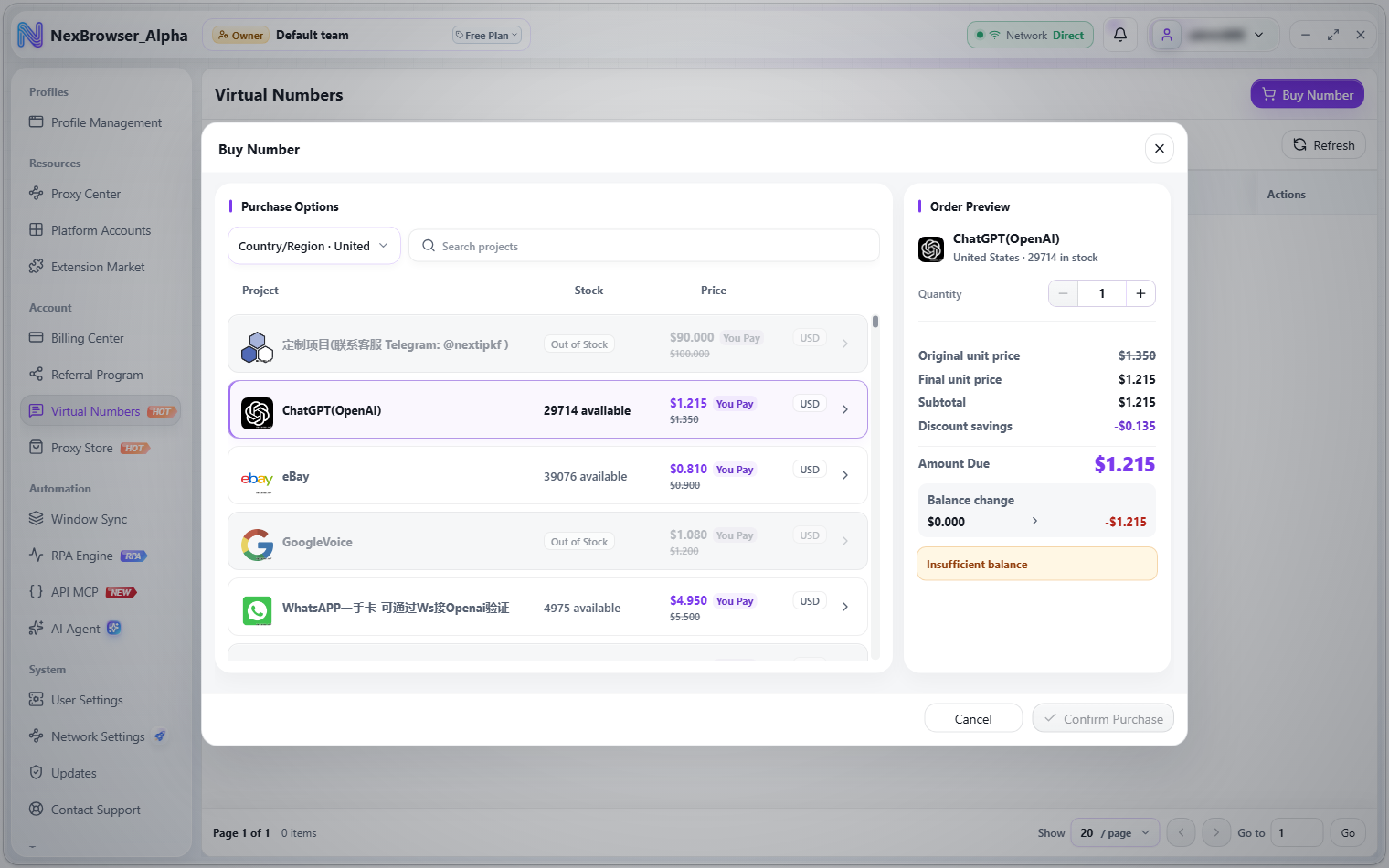
- Click "Buy Number" to open the "Buy Number" dialog.
- Choose a "Country/Region".
- Search for and click a project card. Cards show the project name, stock, and final price; discounted projects show the original price struck through and a "You Pay" tag.
- Set the "Quantity". The minimum is
1and it can't exceed the stock; going over shows "Quantity can't exceed the stock of N" and falls back automatically. - Check the order preview on the right (unit price, subtotal, discount savings, total due, balance change), then click "Confirm Purchase".
- Confirm again in the "Confirm Payment" dialog to be charged. On success you'll see "Number purchased".
Number records and codes
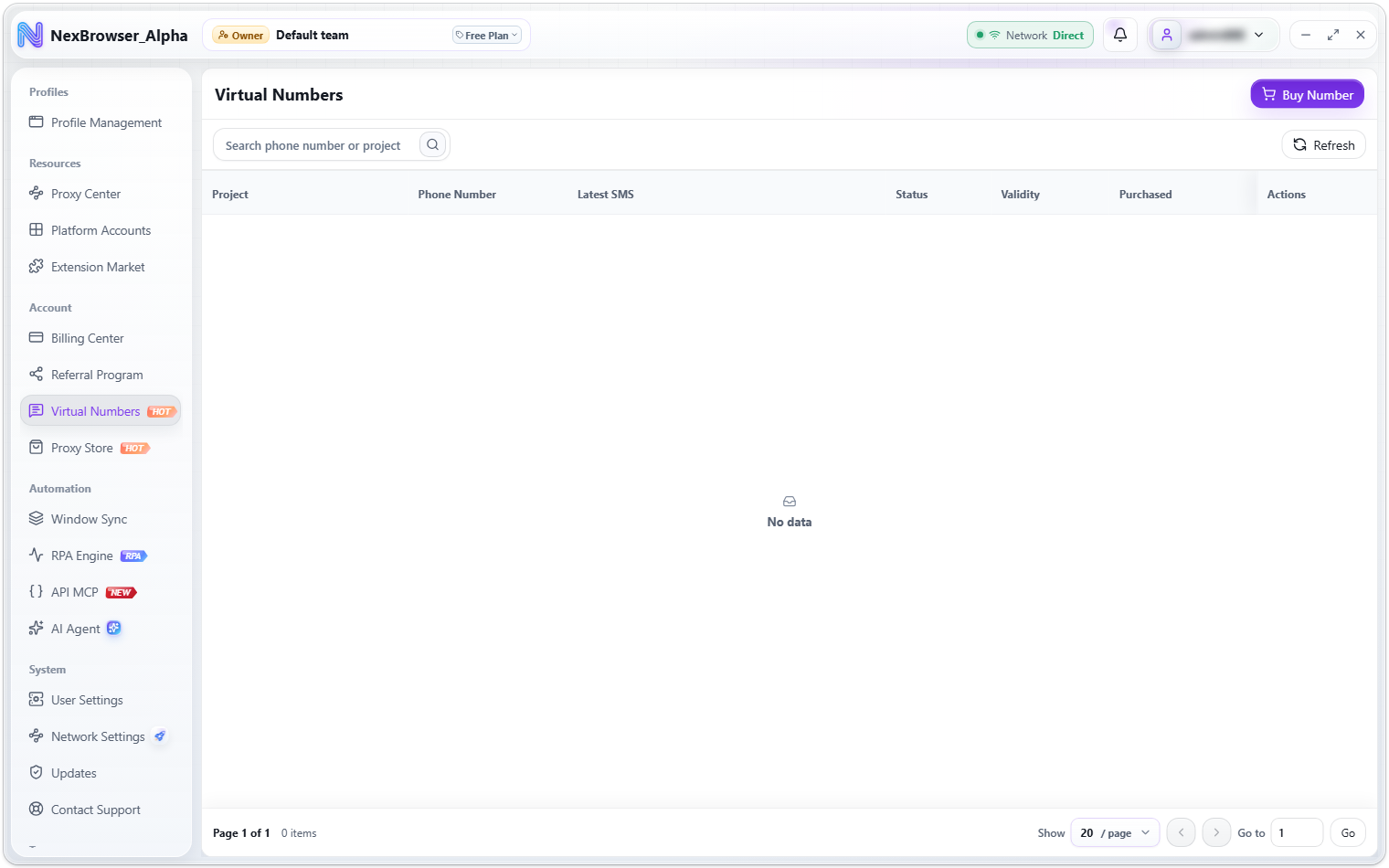
Purchased numbers go into the records table, with the columns Project, Phone Number (copyable), Latest SMS, Status, Validity, Purchased, and Actions. The search box above the list finds numbers by phone number or project.
- The "Latest SMS" column shows incoming SMS automatically, and the OTP code can be copied with one click.
- The "Refresh SMS" button pulls the latest SMS manually; it's only available for numbers in the "Waiting" or "Received" state.
- Click the SMS history button (tooltip "View N SMS in history") to open "SMS History" and see every SMS the number has received.
- Waiting numbers show the time left, such as "About N minutes left. The latest SMS appears automatically when received."; if it's been waiting too long, you'll see "May have timed out. Refresh or buy again."
Number statuses
| Status | Description |
|---|---|
| Waiting | The number is bought and waiting for an SMS |
| Received | An SMS has arrived and the code can be copied |
| Expired | The number is past its validity period; you'll see "Number expired. You can buy a new number." |
| Refunded | The refund request was accepted and the cost returned to your account balance |
Request a refund
Click "Request Refund" in a record row, check the number, project, and amount in the dialog, choose a refund reason, and click "Confirm Refund". On success you'll see "Refund request submitted", and your balance refreshes.
Refund reasons:
- No verification code received
- Number is blocked
- Already registered
- Verification code can't be sent
- Other
"Only numbers that are waiting or haven't received SMS can be refunded". Once a number receives an SMS it counts as used and can't be refunded, so complete the platform verification as soon as you can within the number's validity period.
Let AI handle verification codes
External AI clients connected through MCP, as well as the built-in Nex Agent, can use virtual numbers directly: look up available countries and projects, buy numbers, wait for the SMS and fill the code into the web page, and release waiting numbers you don't need.
- When an authorized interactive task needs a number, the AI buys and charges directly without quotation or separate fee confirmation. Eligible old numbers attributable to this task are released directly without repeated confirmation.
- Numbers bought through AI appear in the records on this page too, and are charged to your account balance.
- Wait
120seconds by default after the site sends SMS. Invalid, already registered or unsupported numbers and confirmed receiving timeouts trigger automatic replacement and sending again. Prefer a suitable alternative for the same project, then use the catalog to change country/product while matching the site and preserving required country/type constraints. Each flow has at most3attempts including the first; country/project changes do not reset it. Progress shows reasons and actual counts without requiring a reply. - A purchase network timeout or unknown payment outcome triggers automatic number-record and billing reconciliation. If it cannot be established, stop without duplicate charges. Insufficient balance stops subsequent spending in the task and its subagents; the built-in Agent displays "Insufficient account balance. Paid operations have stopped. Top up before continuing." without another proceed or top-up confirmation.
For how to connect, see MCP Integration.