Team Overview and Switching
"Team Overview" lists every team or client your account belongs to, with options to enter (switch to), edit, delete, or leave a team and to manage its plan. Profiles, proxies, platform accounts, and other resources all belong to a team, so switching teams switches your entire working context.
Opening the page
- Sidebar:
Team → Team Overview. - "Team Settings" at the bottom of the team menu in the top bar.
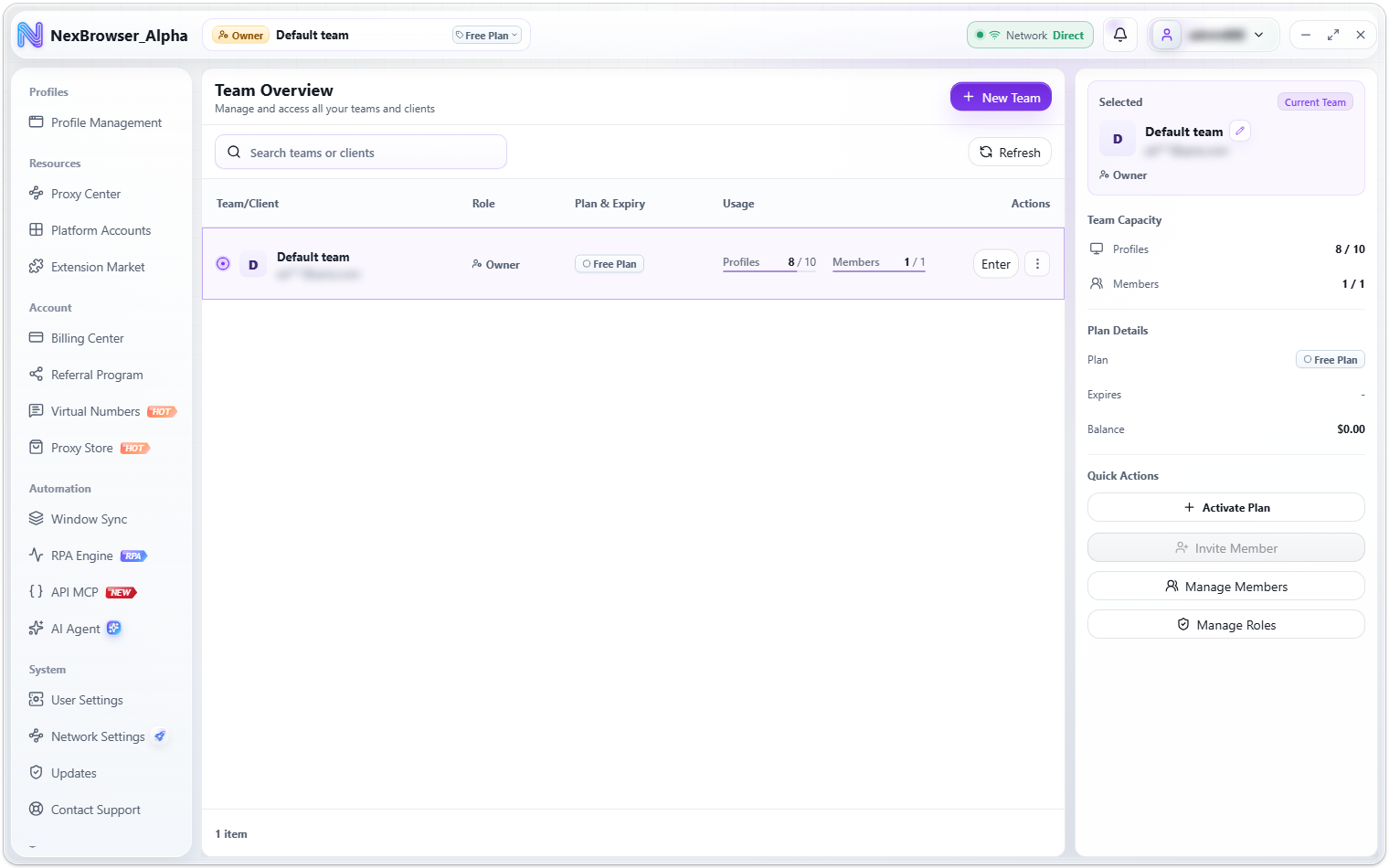
The page is titled "Team Overview" with the subtitle "Manage and access all your teams and clients". The "New Team" button is at the top right (see Team Plans for the flow).
If your account has no team when you sign in, the client opens this page directly, and any other page that needs a team also redirects here. The empty state reads "No teams are available for this account. Create a team or wait for an invitation." and offers "Refresh Teams" and "New Team" buttons.
Team list
The toolbar has a search box ("Search teams or clients"; matches team name, plan, role, or owner email) and a "Refresh" button. If a search finds nothing, you see "No matching teams or clients"; click "Clear Search" to reset. The bottom of the list shows "N items".
List columns:
| Column | Description |
|---|---|
| Team/Client | Team name and the owner's email (partially masked) |
| Role | Your role in that team, such as "Owner", "Member", or the name of the role assigned to you |
| Plan & Expiry | Plan tier badge and expiry date |
| Usage | Two usage bars for profiles and members (used / limit) |
| Actions | The "Enter" button and the "More Actions" menu |
A few details:
- Your current team is always listed first. Click any row to view that team in the details panel on the right.
- The usage bars show used / limit for profiles and members. Teams without a plan have a limit of
0; when there is no limit, "Unlimited" is shown. A bar turns to a warning color at 75% and a danger color at 90%. - There are six plan tier badges: Free Plan / Basic Plan / Pro Plan / Business Plan / Supreme Plan / Custom Plan. The Free Plan has no expiry date.
- Teams whose plan has expired are greyed out.
- The "More Actions" menu depends on your role: owners see "Activate Plan" if the team has no plan, or "Renew Plan" and "Upgrade Plan" if it does, plus "Edit Team" and "Delete Team". Other members only see "Leave Team".
- The system-created "Default team" is shown in your interface language.
If your account has no current team (for example, because your team was deleted), the client automatically switches to the first team in the list.
Details panel and quick actions
When you select a team, the details panel on the right shows, from top to bottom:
| Card | Contents |
|---|---|
| Selected | Team name, owner email, and your role. The current team has a "Current Team" badge; owners can click the pencil icon next to the name to edit the team |
| Team Capacity | Profiles and Members (used / limit) |
| Plan Details | Plan, Expires, and Balance |
| Quick Actions | Buttons that depend on your role; see below |
| Button | Shown to | Description |
|---|---|---|
| "Activate Plan", or "Renew Plan" and "Upgrade Plan" | Owner | "Activate Plan" if the team has no plan, otherwise "Renew Plan" and "Upgrade Plan". See Team Plans |
| "Enter" | Everyone | Only shown when the selected team isn't your current team; switches to it |
| "Invite Member" | Owner | See Members and Invitations |
| "Manage Members" | Owner | Opens the "Members" dialog |
| "Manage Roles" | Owner | Opens the "Roles" tab of the "Members" dialog. See Roles and Permissions |
| "Leave Team" | Non-owners | Leave the team |
Member and role actions only work on your current team:
- "Invite Member": disabled when all member seats are used, with the tooltip "Not enough member seats. Purchase more member seats first." If the selected team isn't your current team, you see "Enter this team before inviting members".
- "Manage Members": if the selected team isn't your current team, you see "Switch to "xx" before managing members".
- "Manage Roles": disabled until you enter the team, with the tooltip "Enter this team before managing roles".
Switching teams
There are two ways to switch:
- Click "Enter" on a row in the Team Overview list or in the details panel.
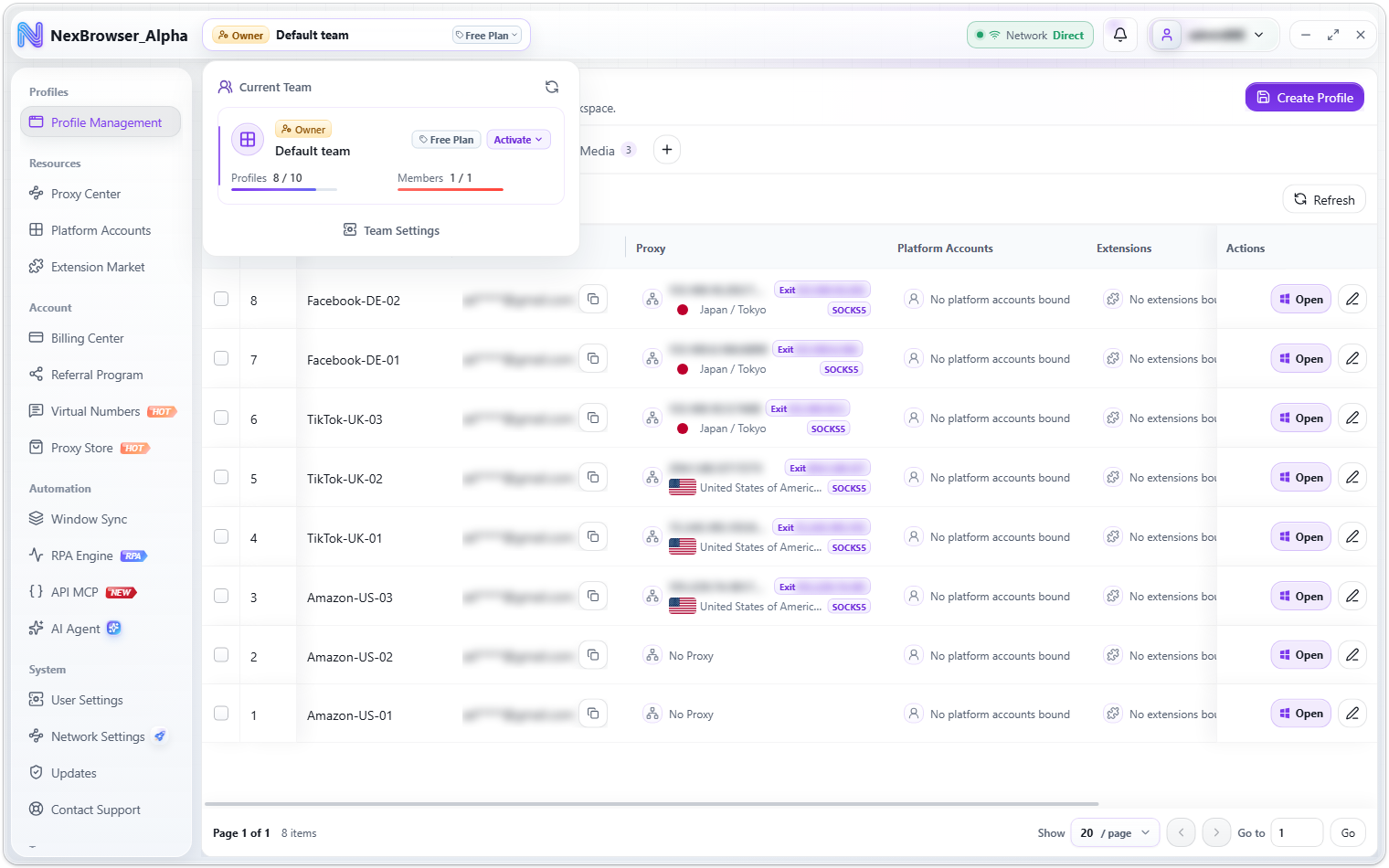
- Use the team menu in the top bar: click the team name in the top bar. The "Current Team" card at the top shows your role, the team name, the plan badge, and profile / member usage. If you belong to more than one team, a "Teams" list (with Team, Usage, and Plan columns) appears below; click a row to switch to it. "Switching" is shown while the switch is in progress. "Team Settings" at the bottom opens Team Overview.
Owners can also click the plan badge in the top bar (or the plan button in the "Current Team" card) and choose to activate, upgrade, or renew the current team's plan from the menu.
After a successful switch you see "Team switched", and profiles, proxies, accounts, permission menus, and everything else switch to the new team. If the switch fails, you see "Failed to switch team".
Three checks before switching
Any of the following blocks a switch:
| Check | Message when blocked |
|---|---|
| An RPA task is running | "An RPA task is running. Switch teams after it finishes." |
| Browser profiles are open on this device | "Profiles are still open on this device. Close them before switching teams." |
| The client can't confirm the local profile status | "Unable to check local profile status, so the team switch was blocked" |
Switching teams force-closes the standalone AI Agent window to prevent actions in the wrong team. Permission menus refresh right after the switch, and pages you don't have permission for show the access-denied page.
Edit, delete, or leave a team
- Edit: choose "Edit Team" from the row's "More Actions" menu, or click the pencil icon next to the team name in the details panel. In the "Edit Team" dialog, change the "Team Name" and "Notes", then click "Save Team". You'll see "Team updated". Only the team owner can edit a team.
- Delete: choose "Delete Team" and confirm "Delete team "xx"?". You'll see "Team deleted". Only the team owner can delete a team.
- Leave: members who aren't the owner choose "Leave Team" and confirm "Leave team "xx"?". You'll see "You left the team". Owners can't leave their own team; the message is "The team owner cannot leave their own team. Delete the team instead."
Before you delete or leave the team you're currently using, the client checks whether any browser profiles are open or RPA tasks are running on this device. If either is the case, the action is blocked.