Proxy Check
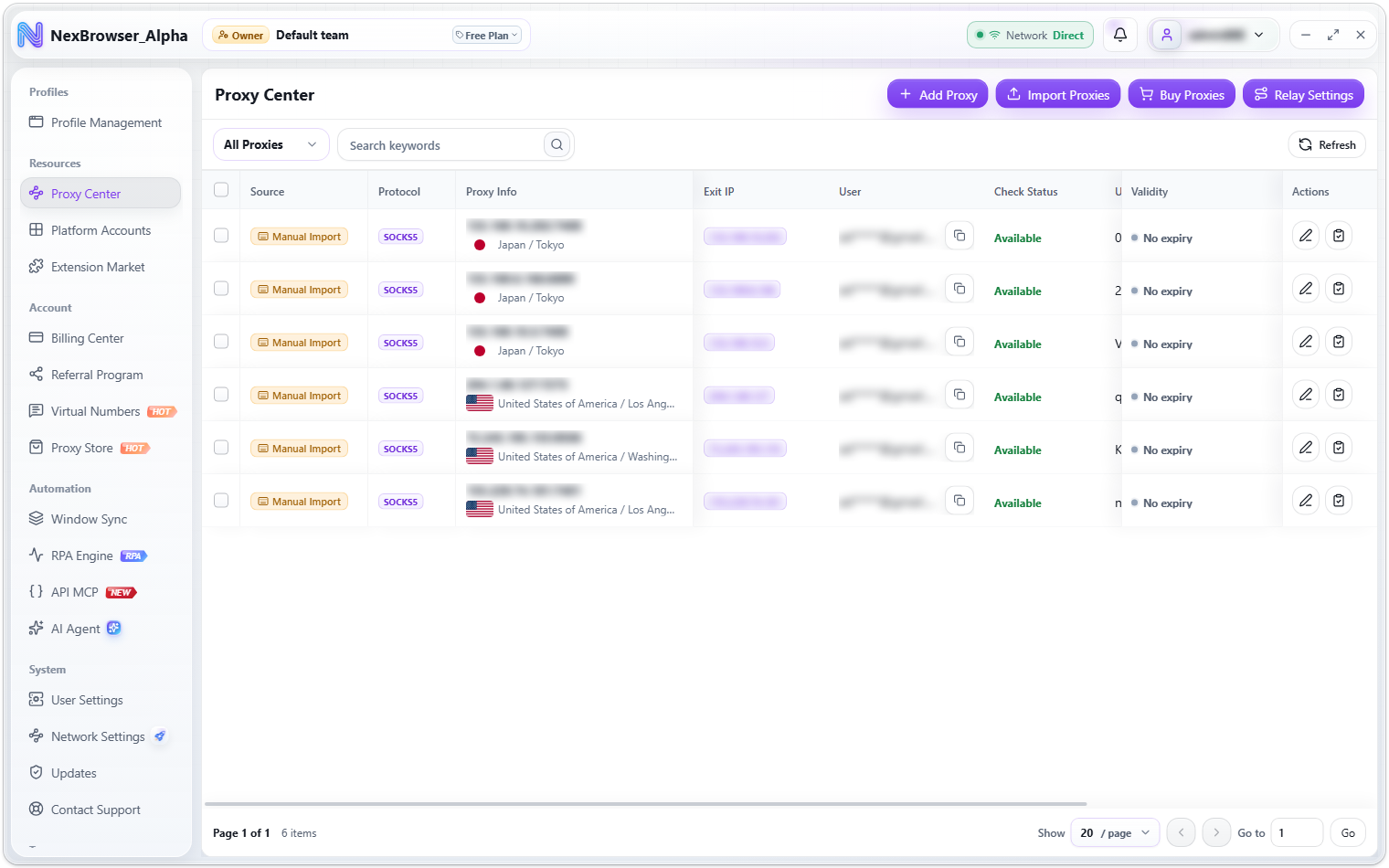
A proxy check tests the exit of a single proxy or a selection of proxies. It returns the exit IP, country, city, time zone, and latency in ms, and saves the "Available" / "Unavailable" result to the "Check Status" column in the Proxy Center.
Checking requires the proxy edit permission, which the team owner assigns under "Manage Roles". Without it, the check buttons are greyed out or hidden. See Roles and Permissions.
Where to run a check
- The "Check Proxy" icon at the end of a Proxy Center row: checks one proxy.
- "Check Proxy" on the batch action bar after selecting rows: checks the selection.
- The "Check Proxy" button in the "Add Proxy" / "Edit Proxy" dialog: see the result panel before saving.
- The "Check All" button in the "Batch Import" dialog: check before importing. See Batch Import Proxies.
A successful single check shows "Proxy check succeeded". A batch check shows "Checked N proxies" when all succeed, or "Proxy check complete: N failed" when some fail. Clicking check with nothing selected shows "Select proxies to check first".
What a check returns
| Item | Description |
|---|---|
| Exit IP | The proxy's actual exit address, filled into the "Exit IP" column |
| Country / City | Where the exit IP is located |
| Time zone | The exit IP's time zone (a profile's "Match by IP" time zone relies on this) |
| Latency | In ms, shown next to "Available" |
The "Check Status" column updates live: "Checking" (spinner) / "Available" with latency in ms / "Unavailable" / "Not checked".
Latency colors
| Latency | Color |
|---|---|
Below 250ms | Green |
250–399ms | Blue |
400ms or more | Yellow |
0ms, or 10000ms or more | Red |
The same colors are used for website tests in Network Settings and for relay node latency tests.
Check route
A check uses exactly the same route as the profile's real exit after launch, so the result reflects how the proxy will actually behave. The mode selected in Network Exit Modes (Direct / System Proxy / Relay Node) is used as the upstream route for the check.
In System Proxy mode, if no system proxy is detected, the check fails with "No system proxy detected. Configure one and switch again." In Relay Node mode with no node selected, you see "Select a relay node first". If a check is interrupted, the status shows "Unavailable" without an error dialog. If saving the result fails, you see "Failed to save check results: …".
Common check failures:
| Message | What to do |
|---|---|
| "Proxy authentication failed. Check the proxy username and password." | Verify the proxy's username and password |
| "Proxy check timed out" | The proxy or upstream route is too slow. Check that the proxy works, then try again |
| "The proxy check result is missing the exit IP or time zone" | The check service returned incomplete data. Switch the "IP Check Service" and try again |
For more network errors, see Network Diagnostics and Error Reference.
IP check service and the official fallback
Proxy checks and the "IP Info" card in Network Settings use the same IP lookup service. You can switch it with the "IP Check Service" drop-down in System → User Settings. See UI Overview and Personalization.
- If no service is configured, or the primary service fails (for example, it is rate-limited or times out), the client automatically falls back to the official services
myip.nexbrowser.netormyip.nexbrowser.cnso the check can still finish. - Each lookup on the "IP Info" card in Network Settings times out after
12seconds. - The service address must use http or https. Otherwise you see "The IP check service URL is invalid" or "The IP check service URL only supports http or https".
The footer of the "IP Info" card shows the domain of the service actually used for that lookup. If the primary service failed and the fallback was used, the footer shows the fallback rather than the configured service.