Members and Invitations
The team owner can view the member list, invite new members by email, change members' roles, and remove members. This page covers inviting and removing members, the protection rules, and member seats.
Before you start
- The "Manage Members" and "Invite Member" entries are only shown to the team owner. Other members who try these actions see messages such as "Only the team owner can invite members" or "Only the team owner can remove members".
- Member management only works on your current team. If the selected team isn't your current team, you're asked to switch first, for example "Member management only applies to the current team. Switch to "xx" before managing members." Enter the team from Team Overview first.
Member list
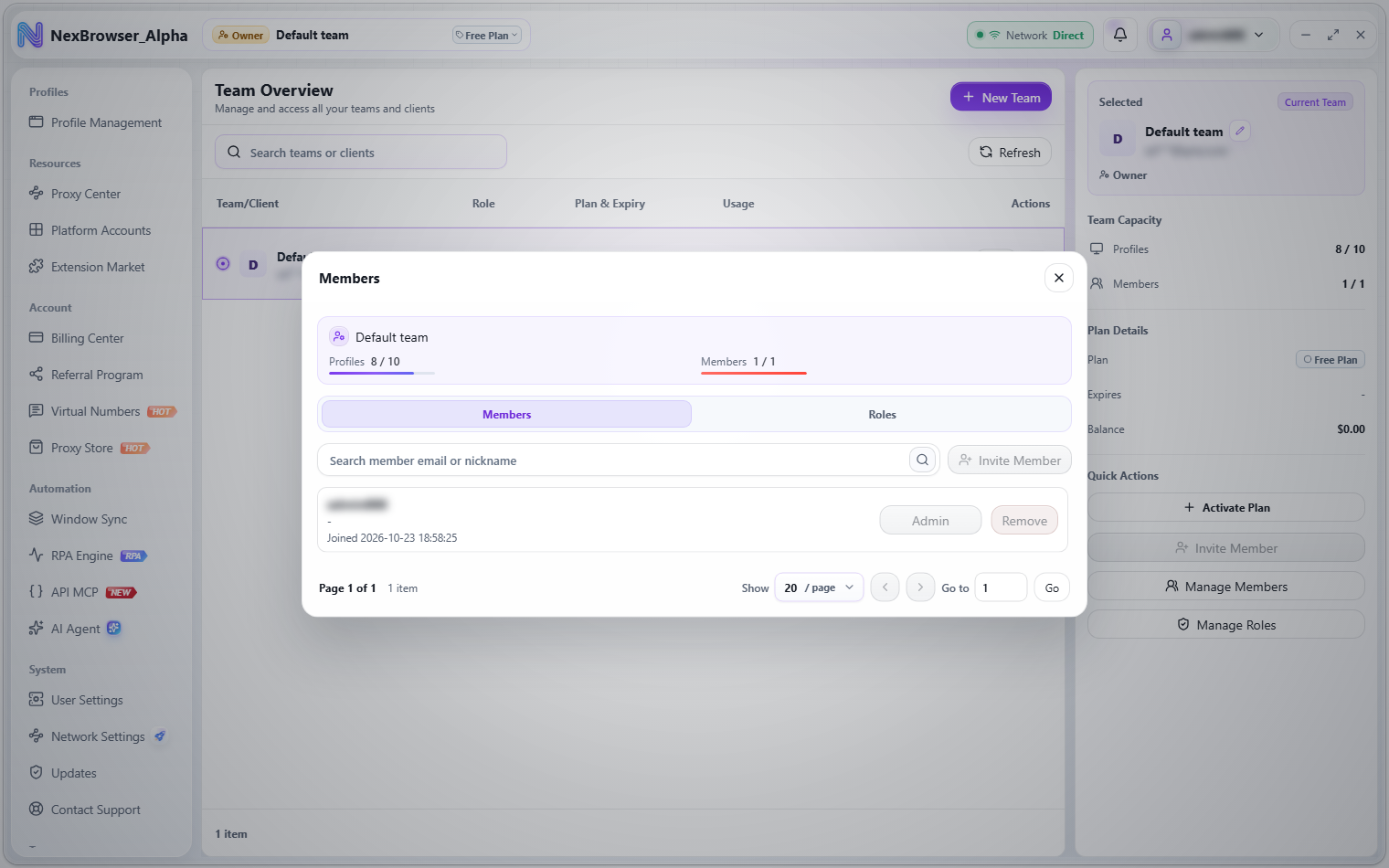
Click "Manage Members" in the Team Overview details panel to open the "Members" dialog. The top of the dialog shows the team and its profile / member usage bars, and there are two tabs: "Members" and "Roles".
Each row in the member list shows the member's nickname (or email), email, join time, a button with their current role, and a "Remove" button. You can search with "Search member email or nickname" and page through the list.
Invite a member
- Click "Invite Member" in the "Members" dialog (or in the Team Overview details panel) to open the "Invite Member" dialog.
- Enter the "Member Email". If it's empty, you see "Member email is required".
- Click "Send Invitation". On success you see "Invitation sent".
Invitations are sent by email, and the invitee must have (or create) a client account with that email address. See Sign Up and Sign In.
Remove a member
Click "Remove" on the member's row, confirm "Remove member "xx"?" in the "Remove Member" dialog, and you'll see "Member removed".
Protection rules (these two kinds of members can't be removed; the "Remove" button is greyed out and hovering shows the reason):
| Protected member | Message |
|---|---|
| Yourself (the signed-in member) | "You cannot remove the signed-in member" |
| The team owner | "The team owner cannot be removed" |
Member seats
How many members a team can hold is set by its team plan. When all member seats are used, "Invite Member" is disabled with the tooltip "Not enough member seats. Purchase more member seats first."
Member seats are the member limit of the team plan. Add more with "Upgrade Plan" by increasing the member count. Upgrades are paid from your account balance and take effect immediately, but don't extend the plan's expiry date. See Team Plans for the rules.