Opening, Closing, and Cloud Sync
This page explains what the client does when you open and close a profile: the launch stages, automatic kernel installation, profile occupancy and how to release it, encrypted data upload on close, and the limits of cross-device restore.
Before you start
- Opening or closing profiles requires the profile open permission. Without it, the "Open" button isn't shown and related actions show "You don't have permission to open profiles". See Roles and Permissions.
Opening a profile
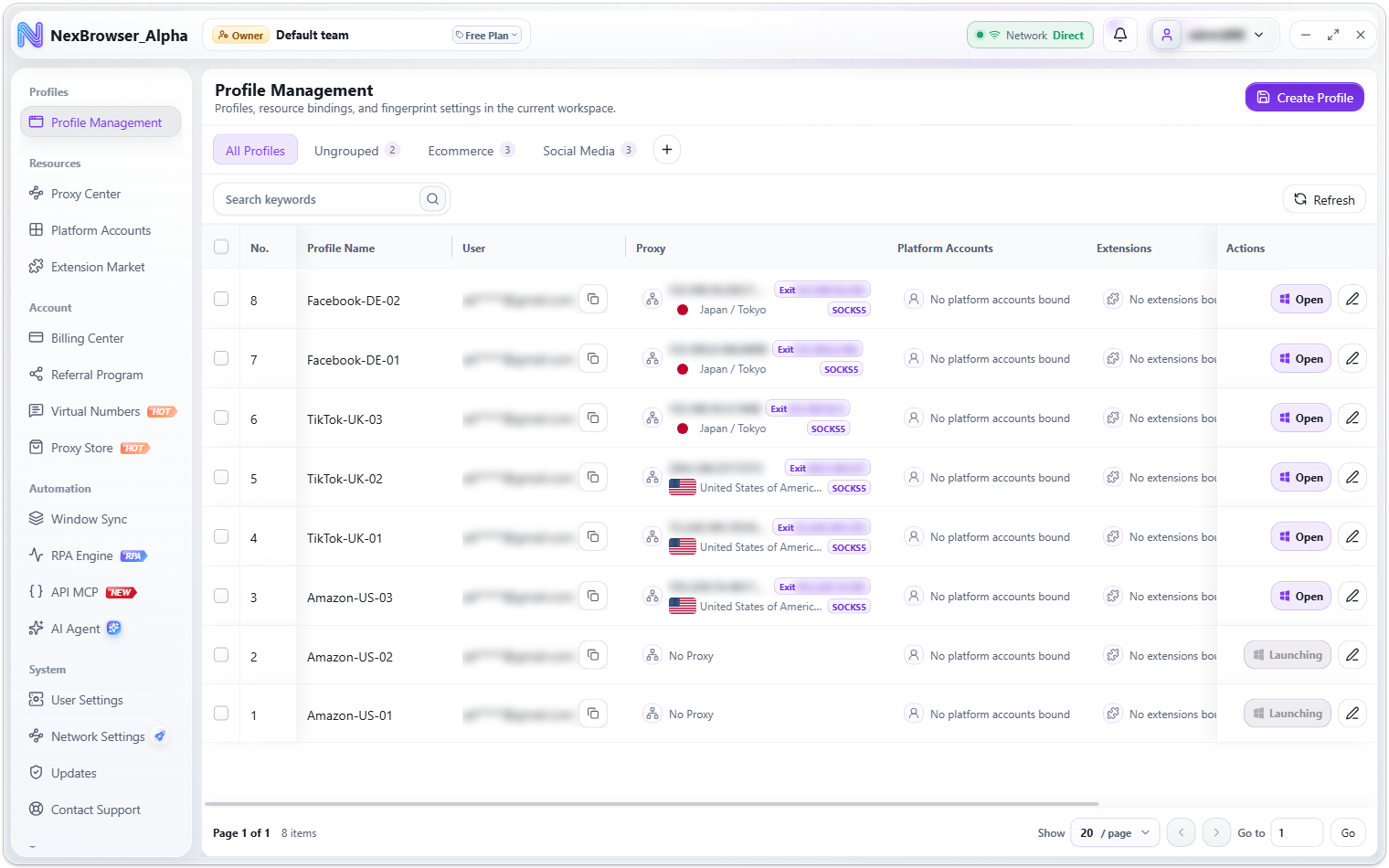
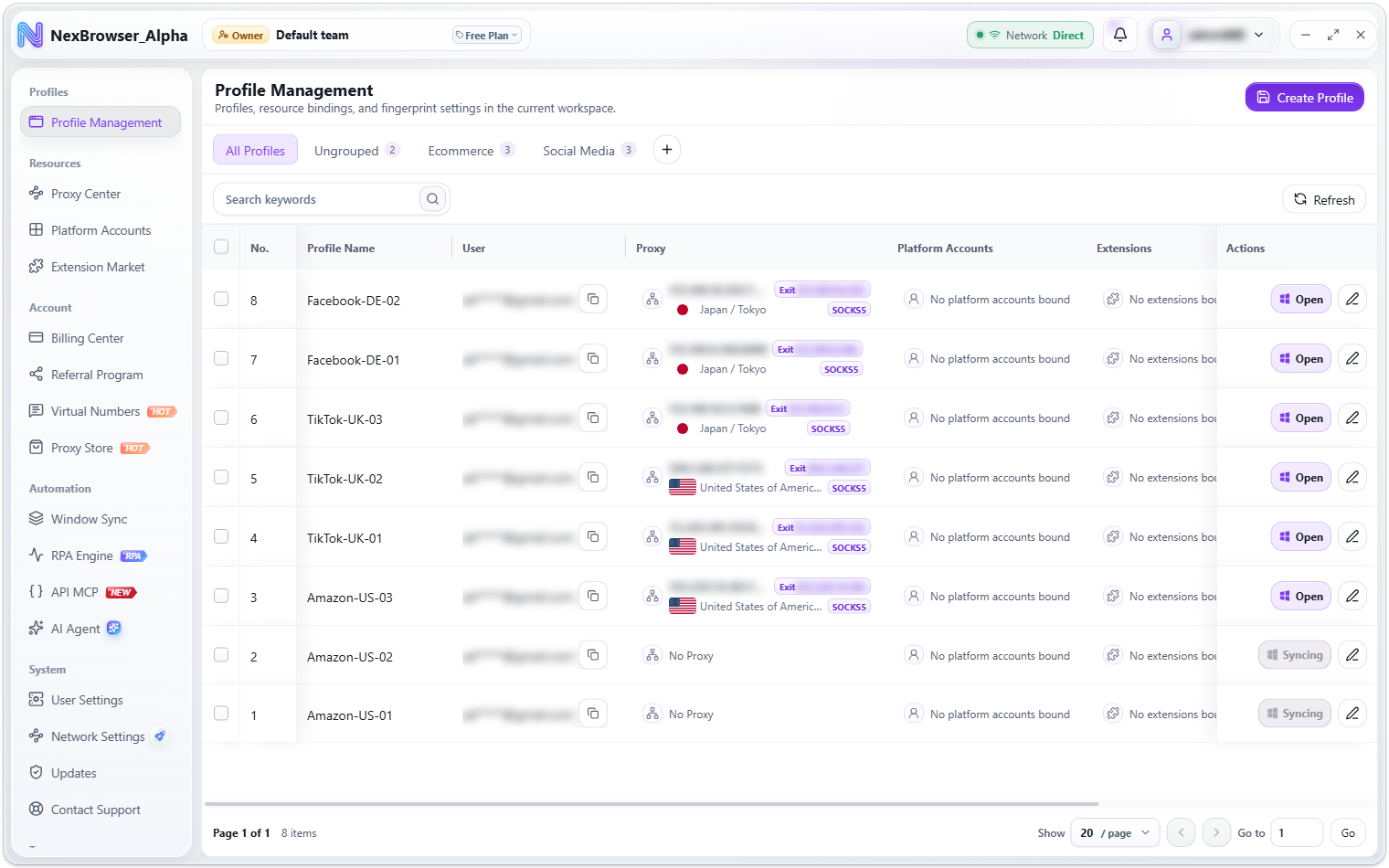
Click "Open" on a row in the profile list. The button shows the current launch stage in real time:
"Preparing" → "Syncing" → "Proxy" → "Detecting" → "Setup" → "Launching"
During launch, the client restores synced data from the cloud as needed, loads the bound platform accounts and extensions, and checks the proxy exit first. When it succeeds you'll see "Profile launched", the button changes to "Close", and an eye icon ("Bring window to front") appears next to it to bring that browser window to the front. Each open browser window shows its profile number on its taskbar icon and the profile name (up to 20 characters) on the left of the address bar, so you can tell windows apart.
Automatic kernel installation
If the Chrome kernel required by the profile's fingerprint isn't installed, the client downloads and installs it first and then launches. The button shows the download or extraction progress as a percentage, and the profile isn't marked as open during the download. If no matching download package is found, the client opens the "Updates" page and shows "Chrome N kernel package is missing. Opened Updates." See Updates. While a kernel download is in progress or has failed, a red dot appears next to "Updates" in the sidebar.
Launch failures and retrying
When a launch fails, the button turns red and shows "Retry". Failures that include diagnostics open the "Profile Launch Failed" details window; click "Copy Diagnostics" or take a screenshot and send it to support.
The client checks the proxy exit before launching and won't start the profile if the check fails, to keep your real IP from leaking. The launch is stopped with "Proxy check failed" or a more specific reason (such as "The proxy upstream is unavailable", "Proxy check timed out", or "Proxy authentication failed. Check the proxy username and password."), and the client never falls back to an old cached result. If this happens, check the proxy first; see Proxy Checks and Network Diagnostics.
Profile occupancy
While a profile is open, it's occupied by the account that opened it, and other team members can't open it at the same time. The list button reflects the occupancy:
| Button state | Meaning and what to do |
|---|---|
| "Opened", not clickable | The profile is open by another team member (hover tip: "This profile is opened by another user"). Wait until they close it before using it from your account |
| "Opened", clickable | The profile is occupied by your own account but isn't running on this device (hover tip: "This profile is in use by your account. Click to release it."). This usually happens after the client exited unexpectedly, or if you opened the profile on another computer with the same account |
Releasing your own occupancy
Click the clickable "Opened" button to open the "Profile in use" dialog ("This profile is in use by your account. Release it to open or save again."):
- Click "Release" to free the profile. You'll see "Profile released" and the button returns to "Open". If the profile is actually still running on this device, the client closes it the normal way and uploads its data.
- Click "Back" to leave everything unchanged.
The same dialog appears if you save profile settings while the profile is occupied by your account. You can't release a profile while it's opening or closing; you'll see "This profile is opening or closing. Wait for it to finish and try again."
If you opened the profile on another computer with the same account, close it normally there first, then release it here, so the data on the two computers doesn't overwrite each other.
Closing a profile and the "Syncing" state
Click "Close" to close a running profile; you'll see "Profile closed". Closing the browser window itself goes through the same process. After closing, the profile enters the "Syncing" state: local data is packaged, encrypted, and uploaded to the cloud, and the profile is released. The row's button is disabled while "Syncing"; wait for the upload to finish.
To close in a batch, select rows and use "Close Profiles" on the floating action bar. At least one selected profile must be running (otherwise you'll see "None of the selected profiles are running"). When done you'll see a summary such as "Closed N profiles", "Closed N profiles. M failed to close.", or "Closed N profiles. Sync status for M needs to be confirmed later."
If you see "Profile closed, but sync authorization failed. Check the sync status later." after closing, the data upload for this exit wasn't authorized, so the data may not have reached the cloud. Keep an eye on the profile's sync status, and if needed, open it again and close it normally.
Other incomplete-upload messages start with "Profile data not uploaded:" or "Profile data upload failed" and explain the reason. In these cases the cloud keeps the previous backup and is never overwritten with incomplete data. Follow the message; in most cases, reopening the profile and closing it normally uploads the data again.
How cloud sync works
When a profile closes, its local data (bookmarks, history, cookies, passwords/forms, Local Storage, Session, IndexedDB, open tabs) is packaged, encrypted, and uploaded according to the "Data Sync" checkboxes in Preferences. The next time the profile starts on any device, the data is downloaded and restored automatically, so the environment moves with you across devices.
- What's synced is determined entirely by the checkboxes; with all of them off, nothing is uploaded on exit.
- All sync data is encrypted before upload.
- When you exit the client, it closes all profiles first and waits for the uploads to finish; see System Requirements and Installation.
If restoring cloud data fails at launch, the profile is blocked from starting, with a message such as "Data sync failed: could not restore remote data", "Data sync failed: could not restore platform accounts", or "Data sync failed: could not read the remote state". This prevents starting with old data and then overwriting the cloud. Neither local nor cloud data is overwritten; check your network and try again. Separately, if the cloud data can't be decrypted, the restore is skipped, the profile starts normally with a notice, and closing it this time won't overwrite the cloud backup.
Recovering unfinished sync data
If data wasn't fully uploaded the last time the profile closed (for example, the client was force-quit), opening the profile next time shows "Choose how to recover unfinished sync data". Choose the data to use for this launch (only the options currently available are shown):
| Option | Description |
|---|---|
| Keep current local data | Uses the data currently on this device, keeping changes that haven't been uploaded; normal sync resumes after a clean close. If the cloud has newer data, the current cloud version is saved as a recovery copy first |
| Restore latest saved snapshot | Restores the most recently saved cookies, which may be older than the current ones; a copy is preserved first |
| Use cloud backup | Starts from the cloud backup; the local copy is preserved for later recovery |
Click "Cancel launch" to leave the profile closed and change nothing. If this computer has data that another account in the same team hasn't uploaded, you'll see "Open profile using the cloud backup": the client preserves a complete local copy first, then opens the profile from the cloud backup.
If the pending local recovery data is damaged, the client stops the profile from opening and shows "Pending local recovery data is damaged". Switching to the cloud backup takes two confirmations, and the client only switches after the cloud backup passes validation and a complete copy of the local directory has been preserved.