Sign Up and Sign In
This page explains how to create a NexBrowser client account, sign in, recover a forgotten password, change your password, and log out.
Sign up (create an account)
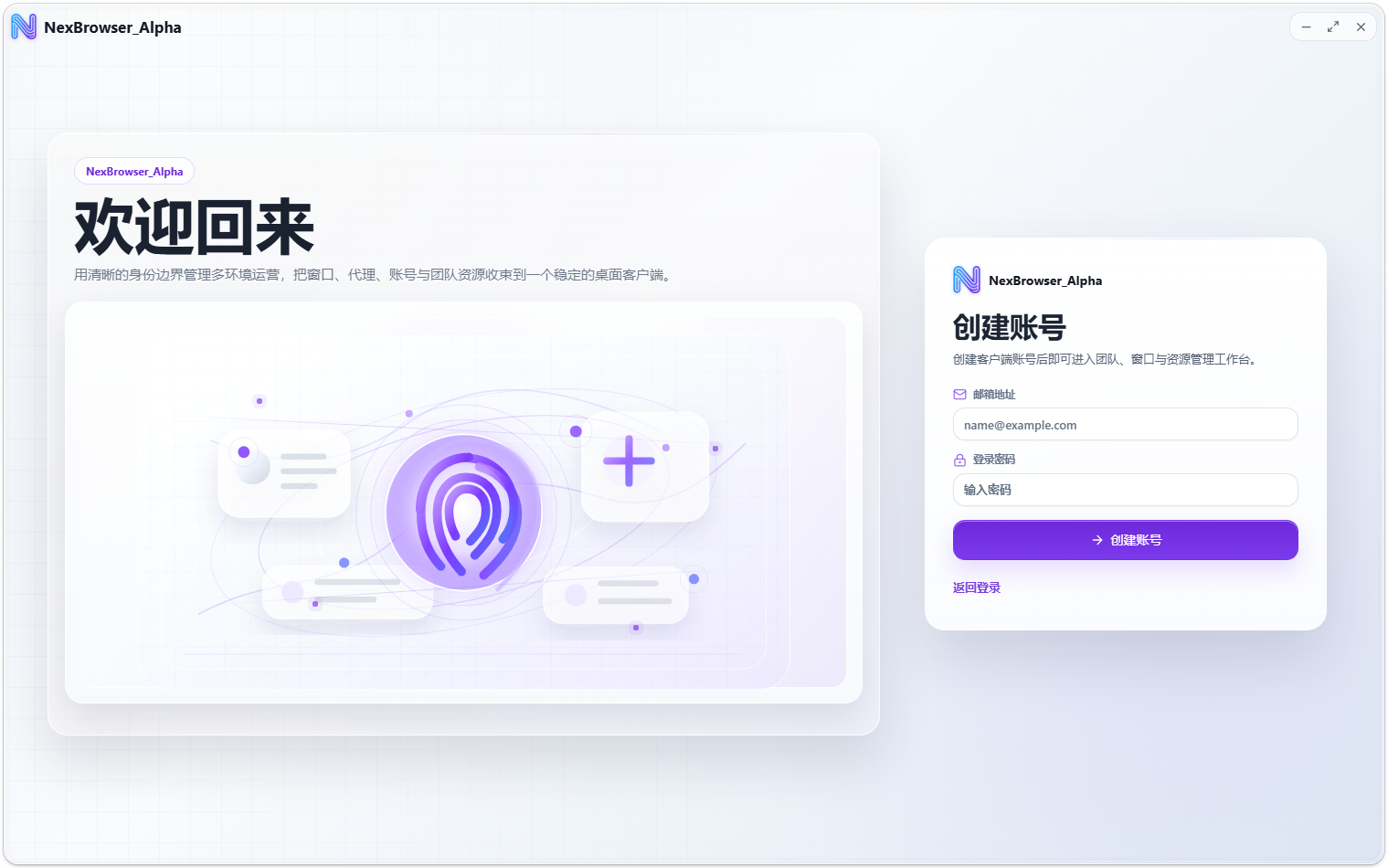
- Start the client. On the sign-in page, click the "Create Account" link to open the sign-up page.
- Enter your "Email" (for example
[email protected]) and "Password". - Click the "Create Account" button. A "Verify to Create Account" CAPTCHA dialog may appear; complete the verification as prompted.
- Once registration succeeds, you go straight to the client's Profile Management page.
Click the "Back to Sign In" link at any time to return to the sign-in page.
Signing up doesn't require an email verification code, but you do need to pass the CAPTCHA. If you sign up through an invite link shared by a friend, you're linked to them as their referral, and they earn commission at their commission rate. See Referral Program and Commission Withdrawal.
Sign in
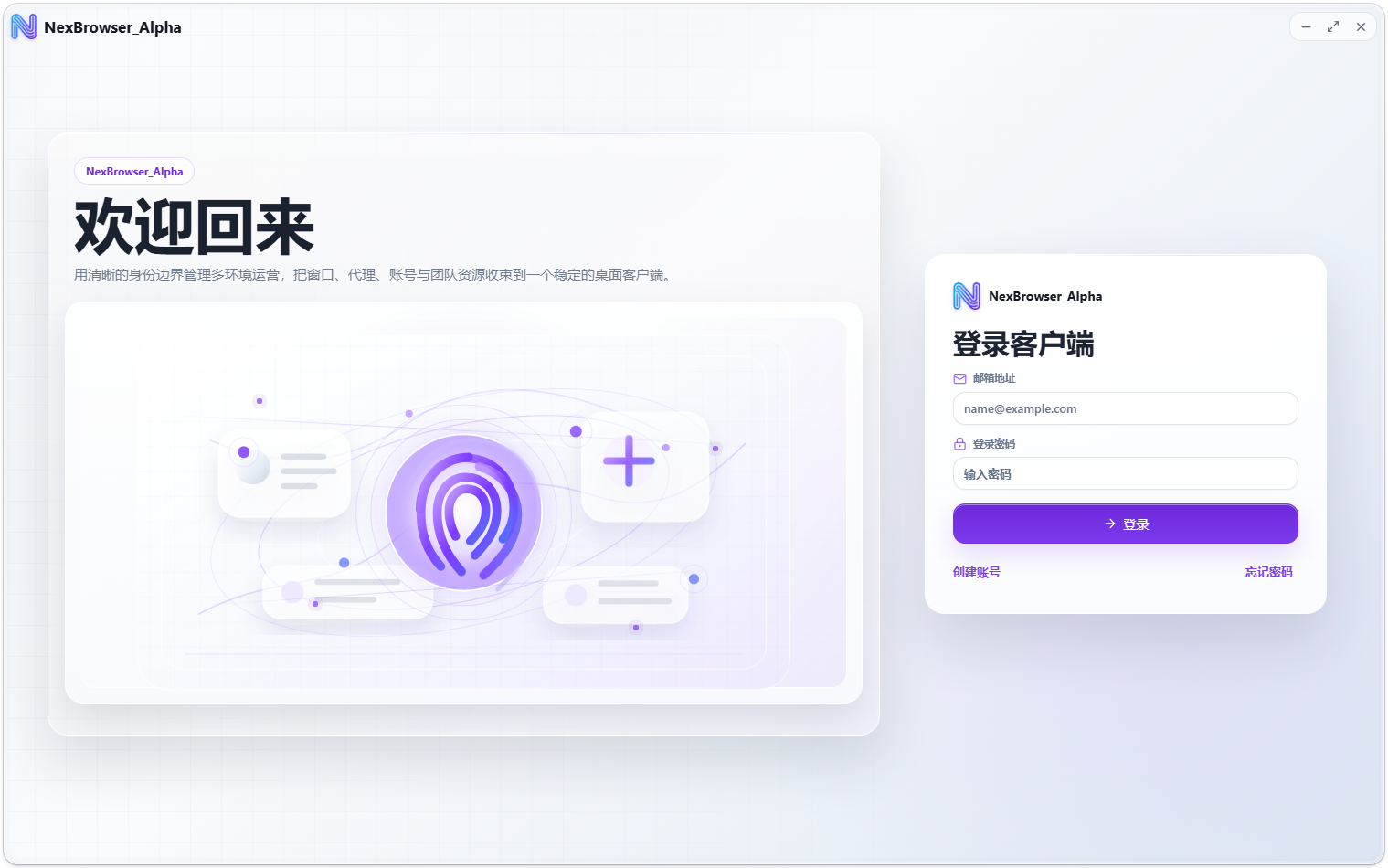
- Start the client to open the sign-in page (titled "Sign In").
- Enter your "Email" and "Password", then click "Sign In" or press Enter.
- After signing in: accounts that belong to a team go to the Profile Management page; accounts without a team go to the Team Overview page (see Team Overview and Switching).
After you sign in, the client keeps you signed in on this device. The client never stores your password, so after you log out you need to enter your email and password again to sign in.
Forgot password
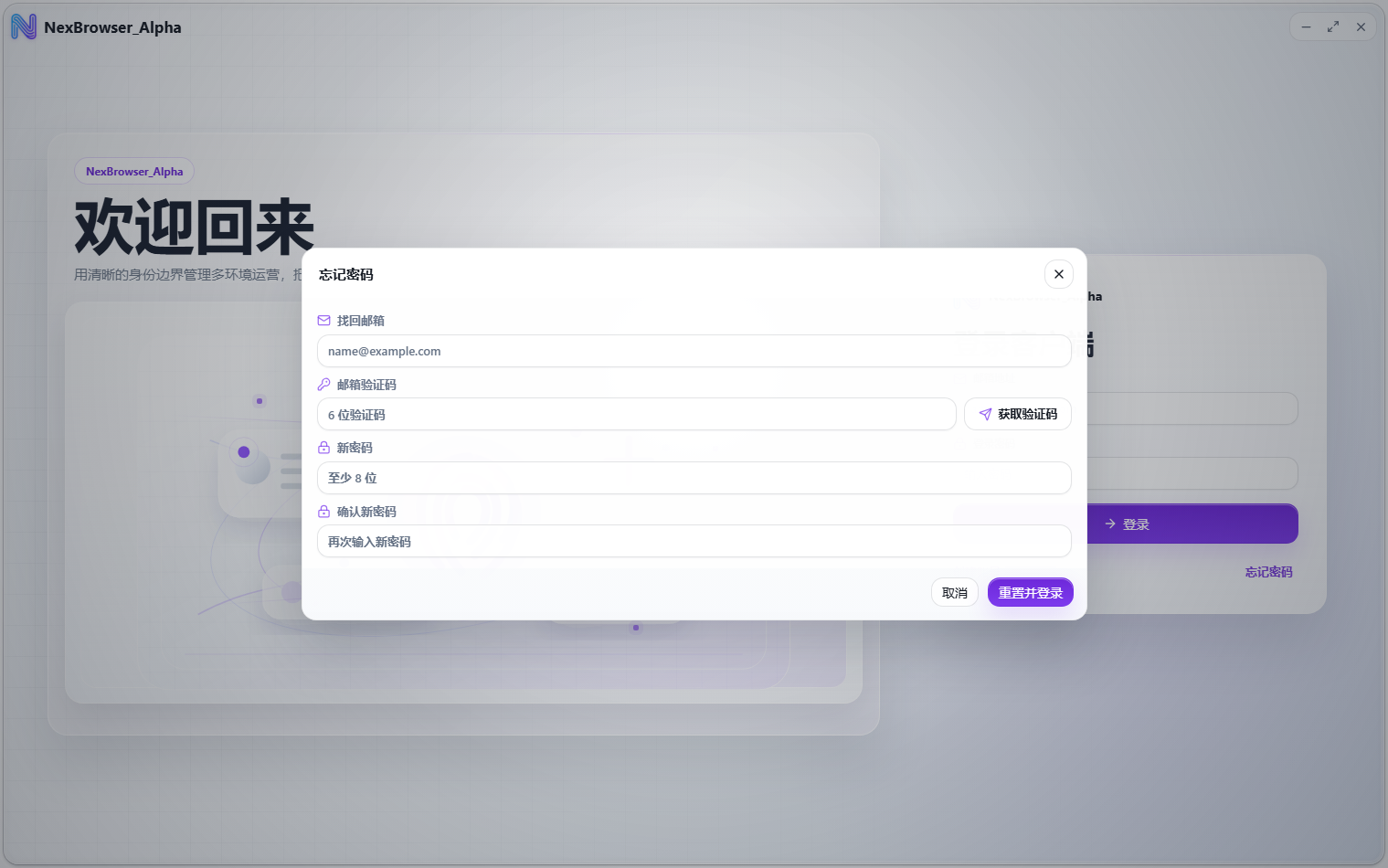
- On the sign-in page, click "Forgot Password" to open the "Forgot Password" dialog.
- Enter your "Account Email" and click "Get Code". A "Get Email Verification Code" CAPTCHA dialog may appear; after you pass it, click "Send Code".
- When the code is sent you'll see "Verification code sent. Check your email." The code has 6 digits, and you can't request another one for 60 seconds (the button shows "Retry in 60s").
- Enter the "Verification Code", "New Password", and "Confirm New Password", then click "Reset and Sign In".
The new password must be at least 8 characters, and both entries must match.
After a successful reset you'll see "Password reset. You are now signed in." and go straight into the client, with no need to return to the sign-in page.
Change your password
While signed in, click your avatar in the top bar to open the user menu, then click "Change Password":
- Enter your "Current Password", "New Password", and "Confirm New Password" (at least 8 characters, both entries matching).
- Click "Save New Password" and complete the "Change Password Verification" CAPTCHA if prompted.
- You'll see "Password changed". Your current sign-in credentials are refreshed, so you don't need to sign in again.
Log out
Click your avatar in the top bar to open the user menu. It shows your nickname, email, "Balance" with a "Top Up" button, plus "Change Password" and the theme and interface language switches. Click "Log Out".
The client asks you to confirm in the "Confirm Log Out" dialog, which explains that logging out clears your current sign-in credentials and returns you to the sign-in page. If browser profiles or RPA tasks are still running on this device, the dialog lists them and warns about the risk. When you're sure, click "Log Out Anyway".
The main client window and the standalone AI Agent window share the same sign-in. Logging out or switching accounts signs out all windows at once, including the standalone Agent window.