Fingerprint Settings
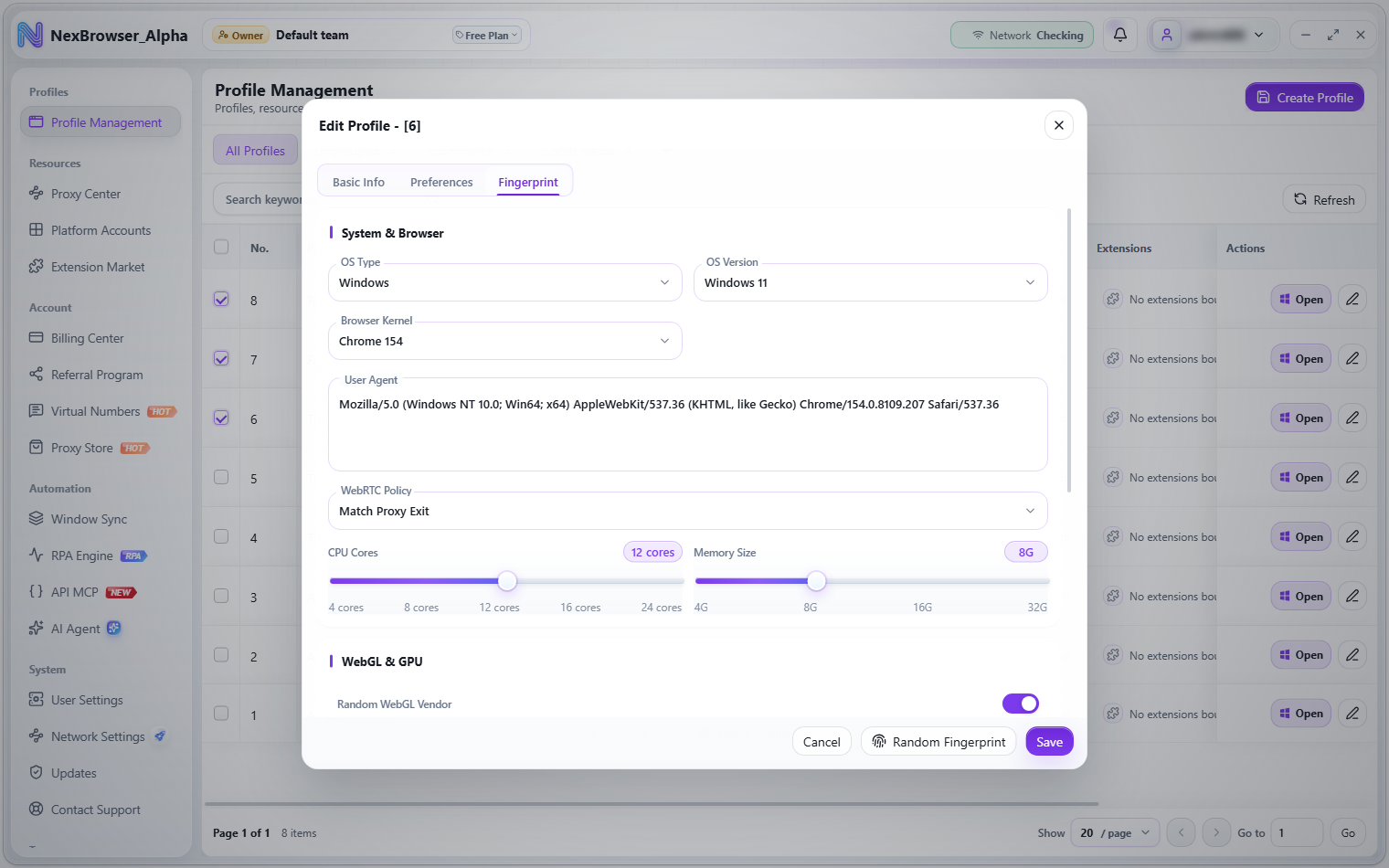
"Fingerprint" is the third tab of the create/edit profile dialog. Its editable fields fall into four sections: System & Browser, WebGL & GPU, Fingerprint Noise, and Device & Security. The "Random Fingerprint" button at the bottom of the dialog regenerates a complete fingerprint in one click (the button shows "Generating" while it works).
System & Browser
| Field | Description | Default |
|---|---|---|
| OS Type | Windows / macOS / Linux | Windows |
| OS Version | Windows 11/10, macOS 14/13, Linux ALL | Windows 11 |
| Browser Kernel | The Chrome major versions offered by the platform. Each item shows its status on the right: Downloaded / Downloading / Not Downloaded. Falls back to Chrome 146 if nothing is available | Newest version downloaded on this device |
| User Agent | Text box; can be edited manually | Generated with the fingerprint |
| WebRTC Policy | Match Proxy Exit / Disable WebRTC / Real Network | Match Proxy Exit |
| CPU Cores | Slider: 4/8/12/16/24 cores | 12 |
| Memory Size | Slider: 4/8/16/32G | 8G |
When you change OS Type, OS Version, or Browser Kernel, the client regenerates a random fingerprint and updates User Agent and related fields. A User Agent you edited by hand is overwritten, so make manual adjustments after switching.
You can pick a kernel marked "Not Downloaded": the client downloads it automatically when you open the profile, or you can download it ahead of time in Updates. When editing an existing profile, choosing an older kernel than the current one shows the "Switch to an older kernel" dialog, warning that some data written by the newer kernel (such as cookies, history, and saved passwords) may not be readable by the older kernel. Click "Switch anyway" to proceed.
WebGL & GPU
| Field | Description | Default |
|---|---|---|
| Random WebGL Vendor | Toggle | On |
| WebGL Vendor | Shown and submitted only when "Random WebGL Vendor" is on | Generated with the fingerprint |
| WebGL Renderer | Shown and submitted only when "Random WebGL Vendor" is on | Generated with the fingerprint |
| GPU Acceleration | Toggle | Off |
When "Random WebGL Vendor" is off, the WebGL vendor and renderer are decided by the system automatically, and any values entered in the form have no effect.
Fingerprint Noise
| Field | Description | Default |
|---|---|---|
| Inject Random Noise | Adds slight random noise to Canvas, WebGL, audio, and ClientRects fingerprints. When off, these fingerprints are generated from a fixed seed and stay stable | Off |
Turn noise on when you want each visit to look slightly different. Keep it off when you need the same environment to stay consistent over time (for example, when warming up accounts), so the fingerprint never changes.
Device & Security
| Field | Description | Default |
|---|---|---|
| Ignore TLS Errors | Toggle | Off |
Fingerprint items generated by the system
The following fingerprint fields are generated automatically by the system when the profile is saved. The form has no way to edit them; this is not a bug:
- Resolution (default
1920×1080) - Fonts
- Canvas seed/value
- Audio context value
- Speech voice list
- ClientRects value
- WebGL mirror, WebGPU
- Device name, MAC address
- Port scan protection, sandbox switch
To change these values, regenerate the whole set with the "Random Fingerprint" button or a batch fingerprint reset.
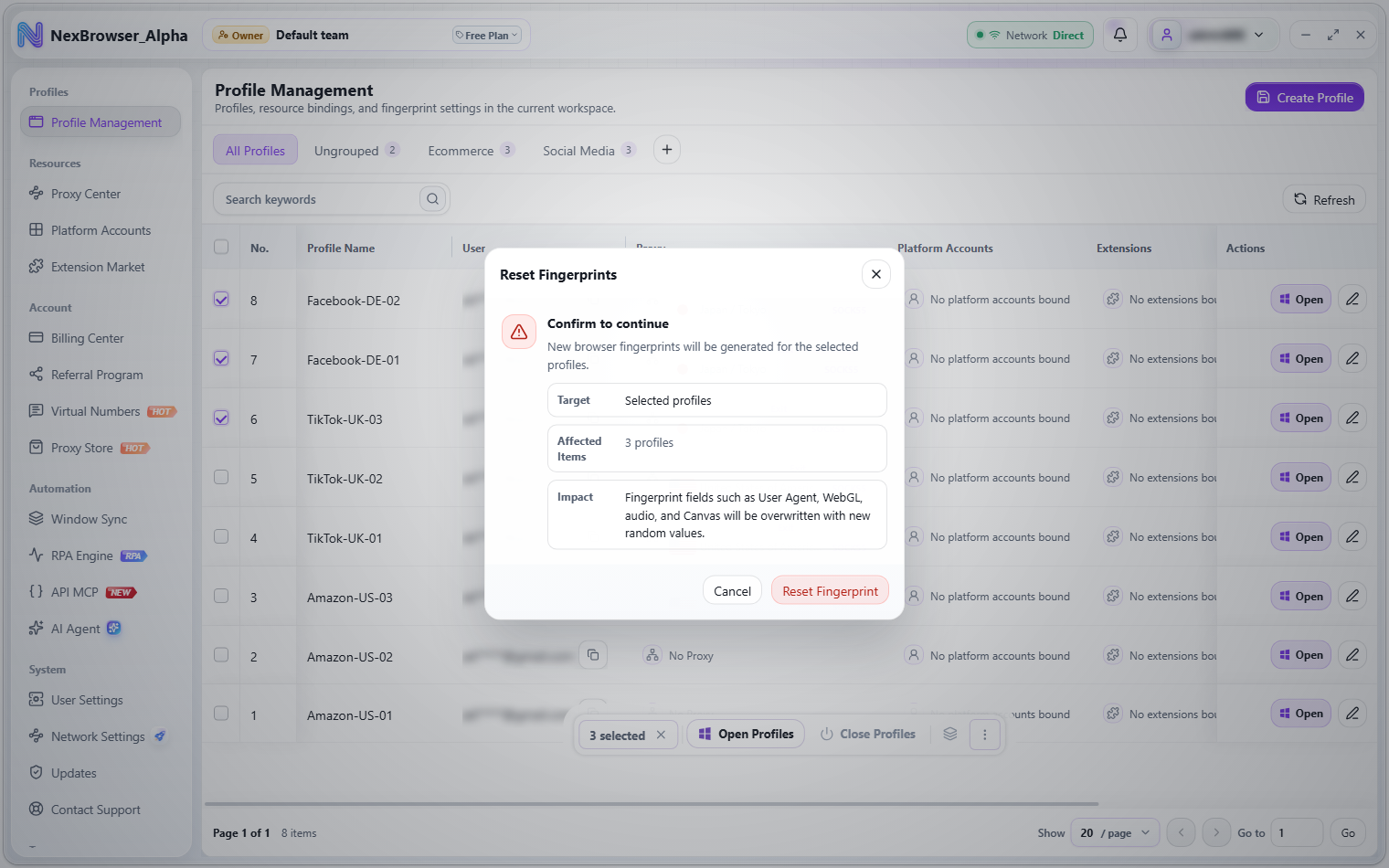
Resetting fingerprints
Select profiles in the profile list, then use "Reset Fingerprint" in the floating action bar's "More Actions" menu to regenerate their fingerprints. You'll see "Fingerprints reset" when it succeeds. The selected profiles must be closed. This requires the fingerprint reset permission; without it, the item isn't shown in the action bar. See Roles and Permissions.
The "Reset Fingerprints" dialog states: fingerprint fields such as User Agent, WebGL, audio, and Canvas will be overwritten with new random values; consistency with the previous environment will change after the reset, which may affect accounts currently under risk review. Be careful with accounts you are actively operating.