Roles and Permissions
The team owner can create custom roles (such as operations, finance, or read-only member), tick permissions in the permission matrix, and assign the roles to members. This page is the main reference for permissions across the client: whenever another page says "requires the XX permission", it refers to the reference tables here.
How permissions work
- The client shows menus and enables buttons according to the permissions ticked in your role.
- The team owner can do everything. Members without an assigned role are "Member".
- Owner-only actions (managing plans, inviting / removing members, managing roles, and so on) are separate from role permissions and can't be granted through a role.
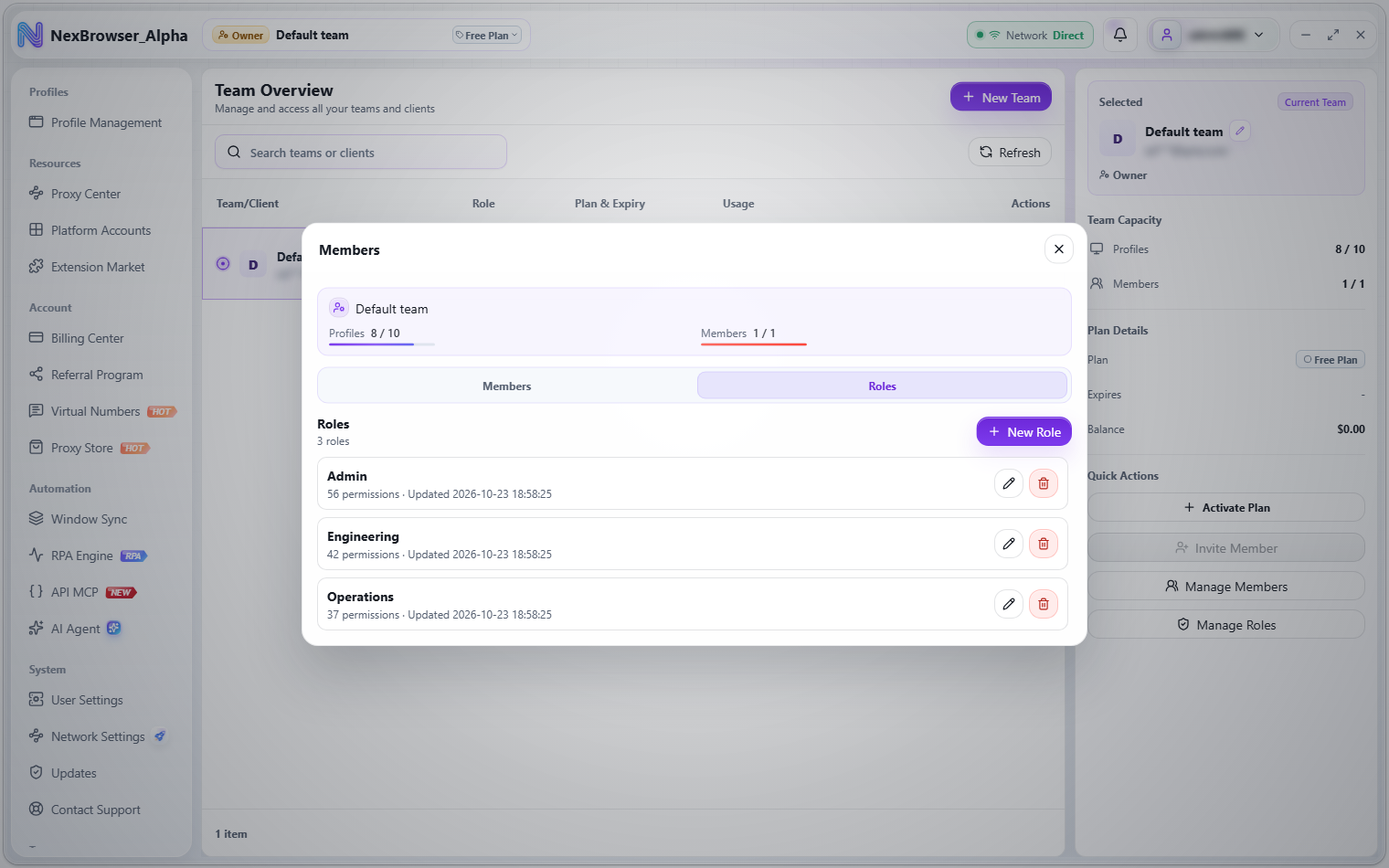
- Preset roles such as "Admin", "Engineering", and "Operations" are shown in your interface language and can be viewed and edited like custom roles.
Managing roles
Before you start: only the owner sees "Manage Roles", and you can only manage roles for your current team. If you haven't entered the team, the button is disabled with the tooltip "Enter this team before managing roles". If role data can't be loaded, you see "Failed to load roles. Try again later."
Open the "Roles" tab of the "Members" dialog, or click "Manage Roles" in the Team Overview details panel. The "Roles" list shows "N roles" next to its title. Each role card shows the role name and "N permissions · Updated time", plus edit and delete icon buttons. If there are no roles yet, you see "No roles".
Add or edit a role
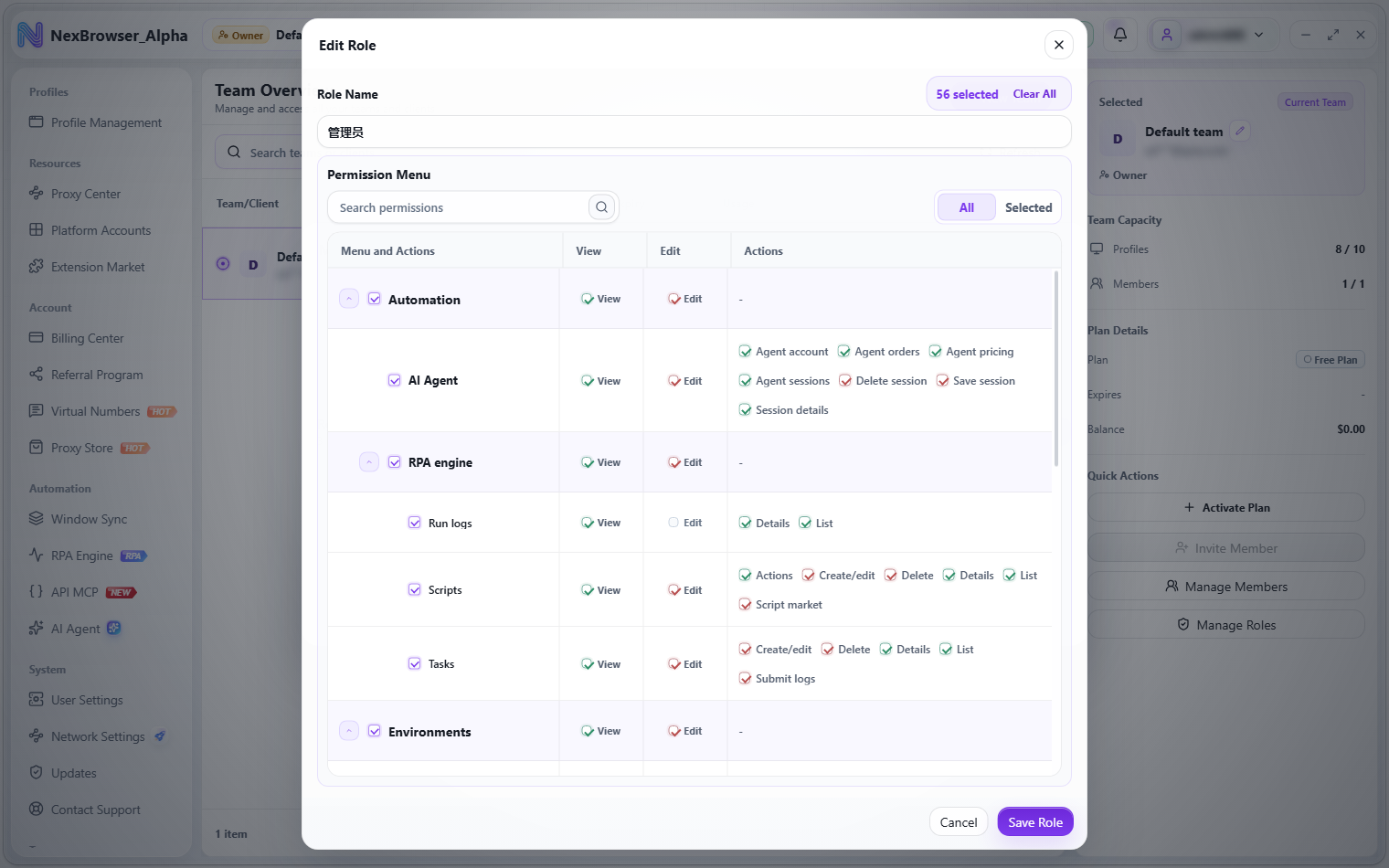
- Click "New Role" (or the edit button on a role card) to open the "New Role" / "Edit Role" dialog.
- Enter a "Role Name" (the placeholder suggests "For example: Operations, Finance, Read-only member"). If it's empty, you see "Role name is required".
- Tick permissions in the "Permission Menu" matrix. Its columns are Menu and Actions, View, Edit, and Actions. You can use "Search permissions" and the All / Selected filter; the dialog shows "N selected" at the top, and "Clear All" removes every selection.
- Click "Save Role". A "Confirm New Role Permissions" / "Confirm Role Permission Update" dialog shows the role name, the number of permission actions, and how many were added or removed.
- Click "Save Role Permissions". You'll see "Role created" or "Role updated".
To delete a role, click the delete button on its card, confirm "Delete role "xx"?" in the "Delete Role" dialog, and you'll see "Role deleted".
Assign a role
- In the member list, click the member's role button to open the "Change Member Role" dialog. The top shows the member's name and "Current role: xx".
- Choose "Member" or a role (each role shows "N permissions" below it).
- The "Confirm Role Change" dialog shows the member, the current role, the new role, and the number of new permissions. Click "Change Role" and you'll see "Member role updated".
What "Member" means, and protection rules
Choosing "Member" in "Change Member Role" clears the member's role and keeps basic member access only.
Protection rules:
| Protected member | Message |
|---|---|
| Yourself | "Your own role cannot be changed" |
| The team owner | "The team owner's role cannot be changed" |
What happens without permission
When a member lacks a permission, the client behaves the same way everywhere:
- The button is disabled (greyed out) or hidden, with a message such as "No permission to …" or "You don't have permission to …".
- Without a menu-level permission, the sidebar item is unavailable and the page shows the "No Access" page: "Your role in the current team does not include this feature. Ask the team owner to update your role permissions." with "Back", "Switch Team", and "Refresh Permissions" buttons.
- After you switch teams, permission menus refresh immediately, and pages you can't access in the new team also show the "No Access" page.
Permission reference
The tables below list the permissions in the matrix by module, with the typical message when the permission is missing.
Profiles and groups
| Permission | Typical message without it |
|---|---|
| Create profiles, save profile edits | "You don't have permission to save profiles" |
| View profile details (required for editing and opening profiles) | Works together with the save and open permissions, e.g. "You don't have permission to edit profiles" |
| Open and close profiles (also requires viewing profile details) | "You don't have permission to open profiles" / "You don't have permission to close profiles" |
| Delete profiles | "You don't have permission to delete profiles" |
| Reset fingerprints | "You don't have permission to reset fingerprints" |
| Window Sync (multi-profile control), choosing profiles for RPA tasks | "You don't have permission to use Window Sync" |
| View profile groups | The group tab bar is unavailable |
| Create, rename, and reorder profile groups | The corresponding buttons are disabled |
| Delete profile groups | The corresponding buttons are disabled |
Proxies
| Permission | Typical message without it |
|---|---|
| View the proxy list | The list is unavailable |
| Add, edit, import, and check proxies, edit notes | "No permission to add proxies", "No permission to import proxies", "No permission to check proxies", etc. |
| Delete proxies | "Delete Proxies" isn't shown on the batch action bar |
| Get proxy renewal quotes | Renewal is unavailable: "No permission to renew proxies" |
| Place proxy renewal orders | Renewal is unavailable: "No permission to renew proxies" |
| Browse and buy long-term proxies | Purchase is unavailable: "You don't have permission to buy long-term proxies" |
| Browse and buy short-term proxies | Purchase is unavailable: "You don't have permission to buy short-term proxies" |
| Extract short-term proxies | "Extract" is unavailable: "You don't have permission to extract short-term proxies" |
| View proxy orders | The order list is unavailable |
Extensions
| Permission | Typical message without it |
|---|---|
| Open and browse the Extension Market | The sidebar item and market tab are unavailable |
| View downloaded extensions, open a profile's extension picker | "You don't have permission to view extensions" / "You don't have permission to configure this" |
| Download, update, and pin extensions | "You don't have permission to save extensions" |
| Upload custom extensions | "You don't have permission to upload extensions" |
| Delete extensions | "You don't have permission to delete extensions" |
Platform accounts
| Permission | Typical message without it |
|---|---|
| View the platform account list | The list is unavailable |
| Add and edit platform accounts, edit notes | "No permission to add platform accounts" / "No permission to edit platform accounts" / "No permission to save platform accounts" |
| Delete platform accounts | "No permission to delete platform accounts" |
Virtual numbers (SMS)
| Permission | Typical message without it |
|---|---|
| Open the Virtual Numbers page | The sidebar item is unavailable |
| View number records | The record list is unavailable |
| Check project stock | The purchase dialog is unavailable |
| Buy numbers (requires the page, stock, and purchase permissions together) | "You don't have permission to buy numbers" |
RPA automation
| Permission | Typical message without it |
|---|---|
| View the task list | The list is unavailable |
| View task details | Details are unavailable |
| Create, edit, run, and stop tasks | "You don't have permission to perform this action" |
| Delete tasks | "You don't have permission to delete tasks" |
| View the script list, choose scripts in tasks | The list is unavailable |
| View script details (required to edit and export scripts) | "You don't have permission to view script details" / "You don't have permission to export scripts" |
| Create, edit, import, and save scripts | "You don't have permission to create scripts" / "You don't have permission to edit scripts" / "You don't have permission to import scripts" / "You don't have permission to save scripts" |
| Delete scripts | "You don't have permission to delete scripts" |
| View the script action list (required to create and edit scripts) | "You don't have permission to load script actions" |