Proxy Center
The Proxy Center is where you manage all of your team's proxy IPs: see each proxy's source, protocol, exit IP, check status, and validity, with search, source filtering, pagination, and inline notes editing. Open it from the sidebar: Resources → Proxy Center.
Viewing the proxy list requires the proxy view permission, which the team owner assigns under "Manage Roles". Without it, the list is unavailable. See Roles and Permissions.
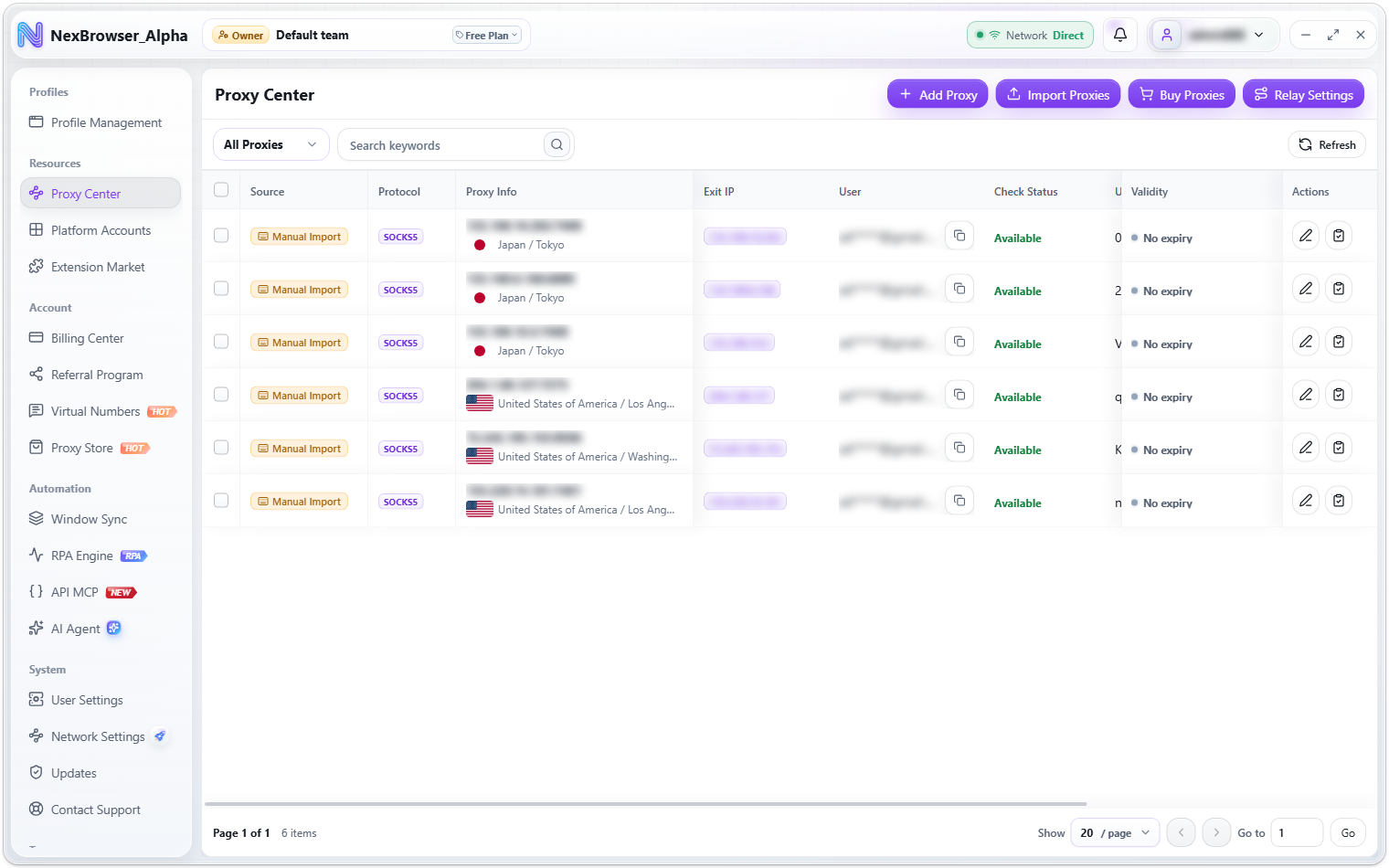
Page layout
The page header has four buttons:
| Button | What it does |
|---|---|
| "Add Proxy" | Opens the single-proxy dialog described below |
| "Import Proxies" | Opens the "Batch Import" dialog. See Batch Import Proxies |
| "Buy Proxies" | Goes to the Proxy Store |
| "Relay Settings" | Goes to Network Settings. See Network Exit Modes |
The list toolbar has a "Proxy Source" filter, a search box, and a "Refresh" button. The source filter has three options: "All Proxies", "Manual Import", and "Purchased".
List columns
| Column | Description |
|---|---|
| Source | Manually imported or purchased |
| Protocol | SOCKS5 / HTTP / HTTPS |
| Proxy Info | Proxy host and port |
| Exit IP | Exit IP returned by the most recent check; shows - if never checked |
| User | The member who owns the proxy |
| Check Status | "Checking" (spinner) / "Available" with latency in ms / "Unavailable" / "Not checked" |
| Username / Password | Proxy credentials |
| Notes | Editable inline |
| Validity | Expiry date for purchased proxies; long-term purchased proxies also show a small "Renew" button (see Proxy Store) |
| Actions | "Edit Proxy" and "Check Proxy" icon buttons |
Expired proxies are shown greyed out.
Add or edit a proxy
Click "Add Proxy" in the page header, or the "Edit Proxy" icon at the end of a row. This requires the proxy edit permission; without it the button is greyed out with the tooltip "No permission to add proxies". See Roles and Permissions.
| Field | Description | Default |
|---|---|---|
| Protocol | Three options only: SOCKS5 / HTTP / HTTPS | SOCKS5 |
| Host | Required. If empty, "Enter a host" appears below the field | None |
| Port | Required and must be a whole number from 1 to 65535; otherwise you see "Enter a port" or "Enter a port between 1 and 65535" | None |
| Username / Password | Optional. Leading and trailing spaces are removed when you save | None |
| Notes | Optional, e.g. what the proxy is for, the account, or business notes | None |
A successful save shows "Proxy saved".
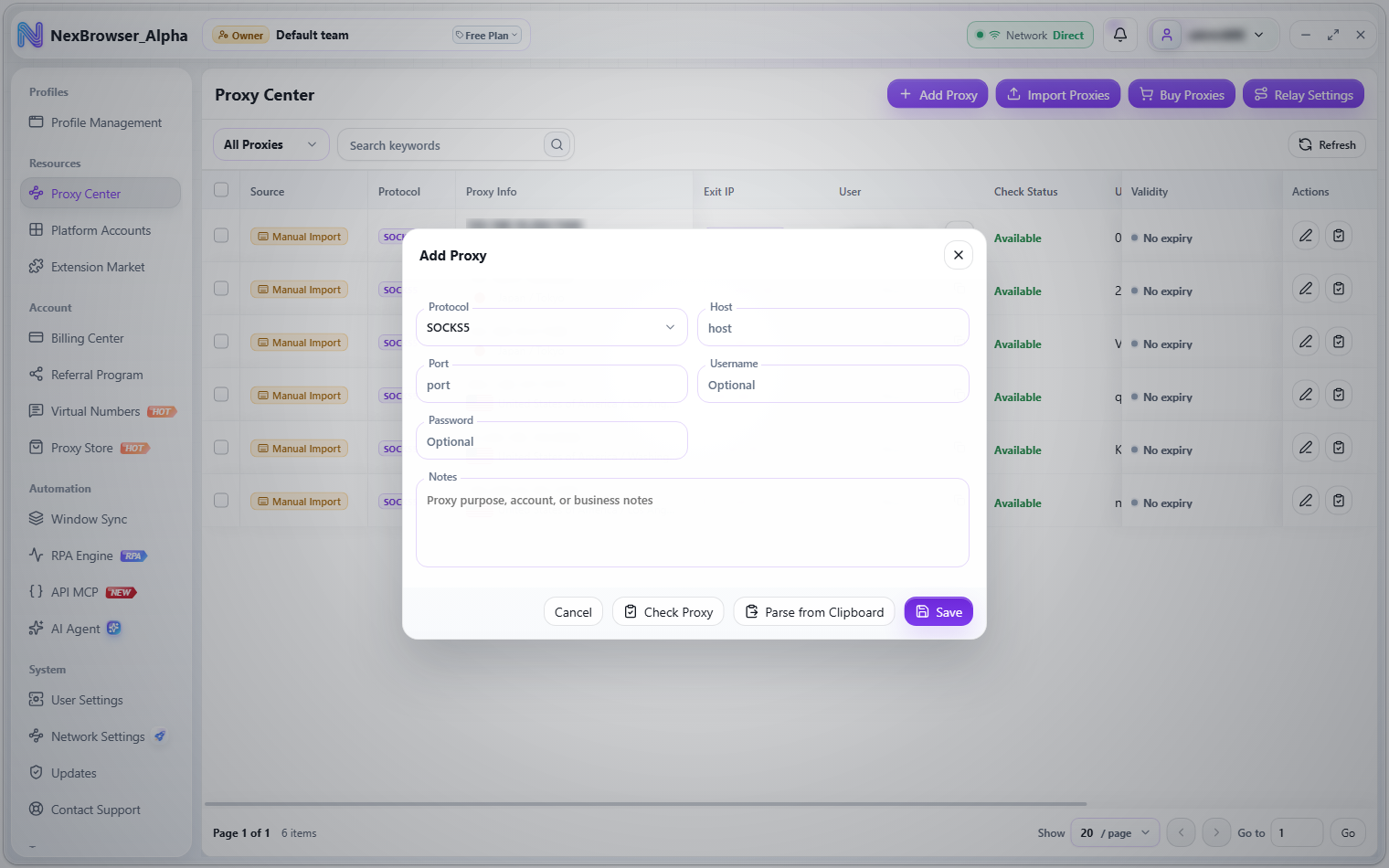
When adding a proxy, the "Parse from Clipboard" button at the bottom of the dialog reads the first line of proxy text on your clipboard and fills in the form (the button is hidden when editing an existing proxy). It accepts the same formats as Batch Import. If the clipboard is empty you see "No proxy found in the clipboard"; if the format isn't recognized, "Unrecognized proxy format in the clipboard"; if the clipboard can't be read, "Unable to read the clipboard. Check the system clipboard permission."
Before saving, you can click "Check Proxy" in the dialog. The "Check Result" panel shows the status and latency, plus the exit IP, location, and time zone. If the check fails, the proxy is marked "Unavailable". For details, see Proxy Check.
Row checks and batch actions
- The "Check Proxy" icon at the end of a row checks that one proxy. It can't be clicked again while the check is running.
- When you select rows, a batch action bar appears at the bottom showing "N selected", with "Check Proxy" and "Renew Proxy" buttons. "Delete Proxies" is in the "More Actions" menu on the right of the bar. Use the clear button on the bar to deselect everything.
- The bar only shows actions your role is allowed to use: without the proxy edit permission there is no "Check Proxy", without the renewal permission no "Renew Proxy", and without the delete permission no "Delete Proxies". See Roles and Permissions.
- Before a batch delete, a confirmation asks "Delete the N selected deletable proxies?". When it finishes you see "Operation succeeded". For renewals, see Proxy Store.
Long-term proxies bought from the Proxy Store can't be deleted manually. A batch delete skips them automatically, and the confirmation reads "Delete the N selected deletable proxies? Long-term purchased proxies kept: M." If none of the selected proxies can be deleted, "Delete Proxies" is unavailable. Short-term purchased proxies (lifetime under 1 day) and manually imported proxies can be deleted.