Five-Minute Quick Start
This page walks you through the shortest end-to-end path in NexBrowser in five steps: sign up, create a team, create a profile, bind a proxy, and open the profile. Each step covers only the essentials; follow the links for details.
Step 1: Sign up
On the sign-in page, click "Create Account", enter your email and password, and pass the CAPTCHA. Registration completes and you enter the client automatically. No email verification code is needed. See Sign Up and Sign In.
Step 2: Create a team
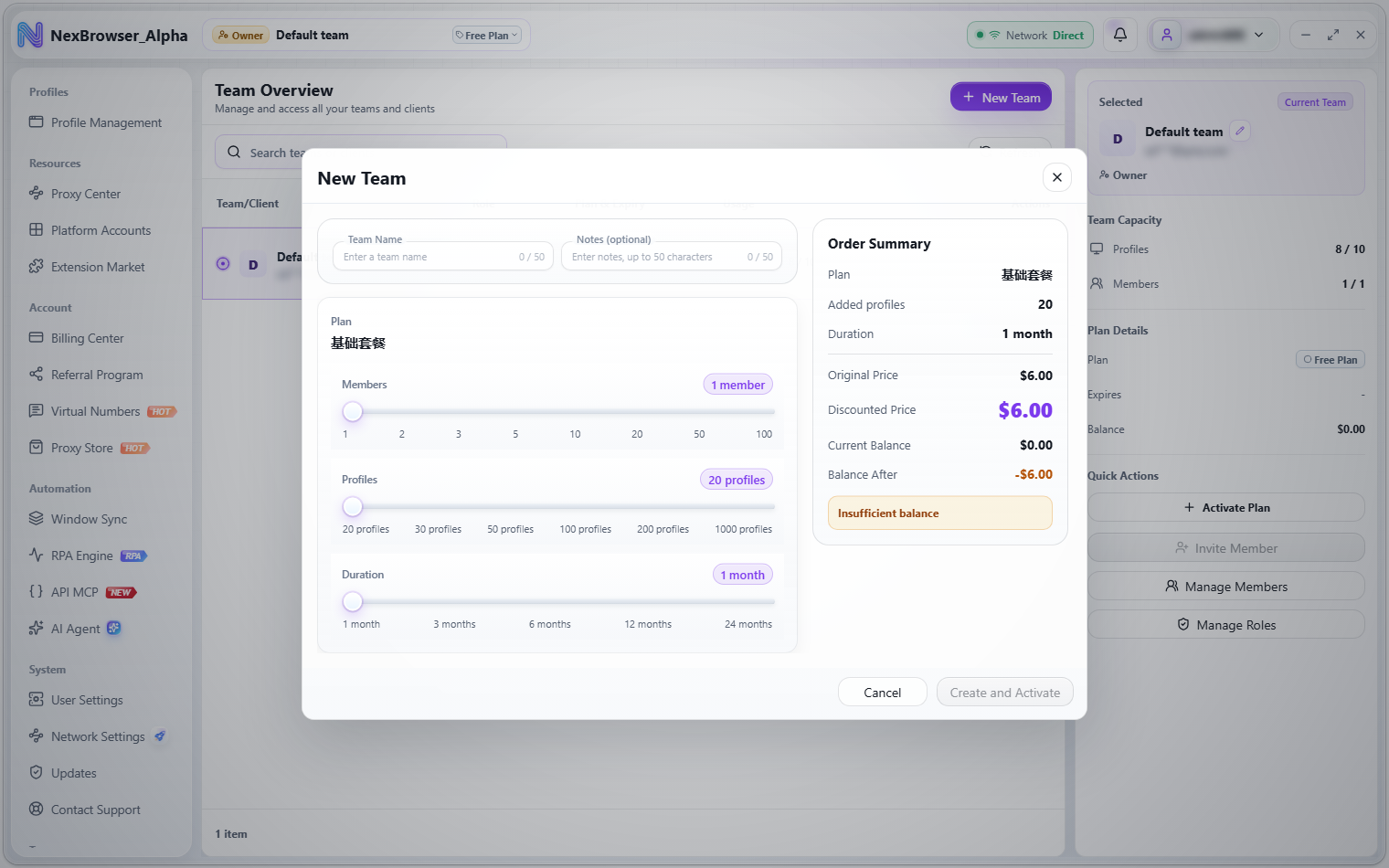
Profiles, proxies, and other resources all belong to a team. An account without a team lands on the Team Overview page after signing in. Click "New Team", enter a team name, choose the plan, number of members, number of profiles, and duration, then click "Create and Activate" and confirm the payment. You'll see "Plan activated" and the client switches to the new team automatically. See Team Plans.
When you create a team you must choose and pay for a team plan, charged to your account balance. If your balance is too low you'll see "Insufficient balance"; top up first in the Billing Center. If plan activation fails, the empty team that was just created is deleted automatically.
Step 3: Create your first profile
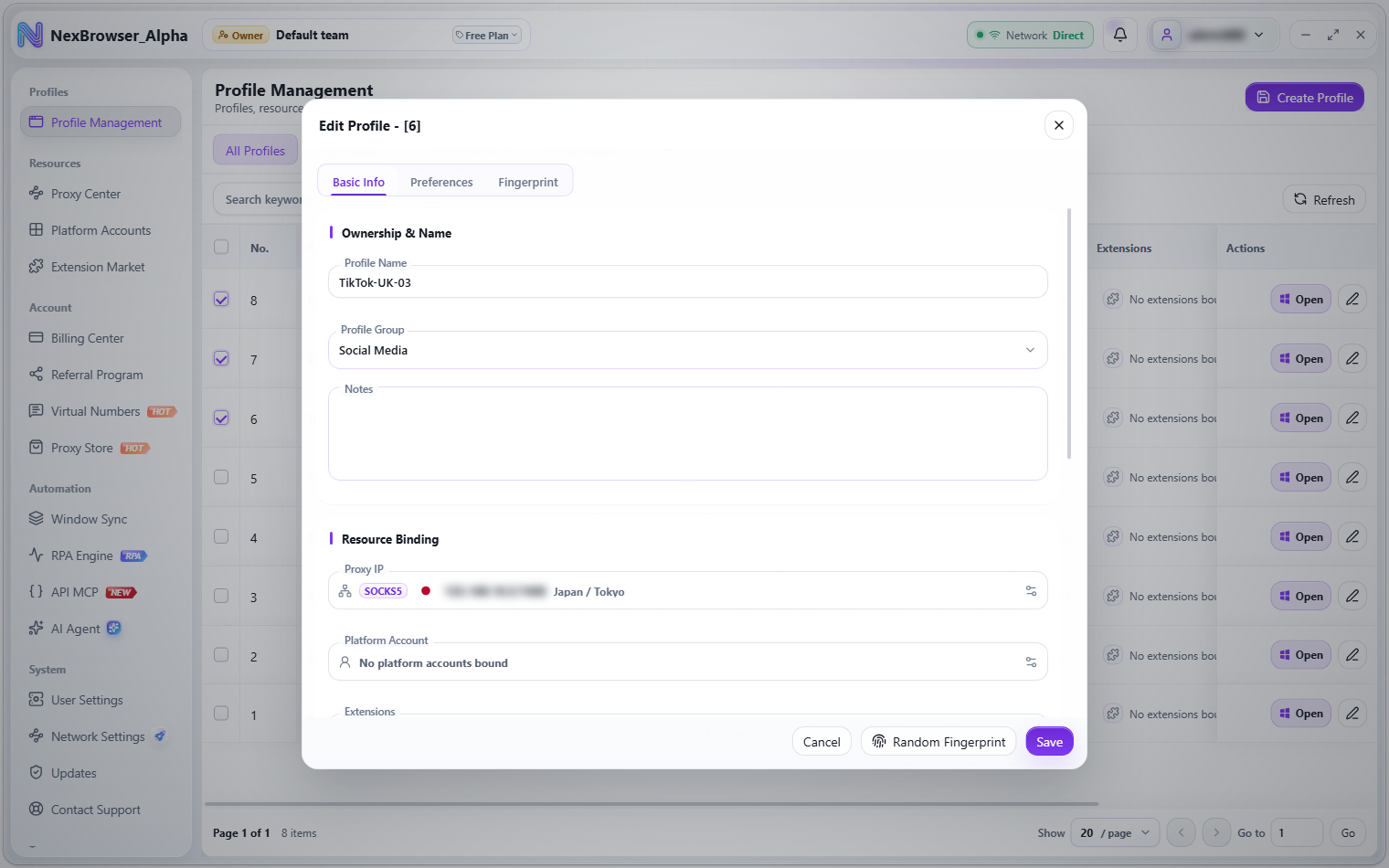
Go to Profile Management and click "Create Profile" in the top-right corner. A random fingerprint is generated as soon as the dialog opens, so beginners can keep the defaults: enter a profile name (the default is "Profile-" followed by the last five digits of a timestamp) and click "Save". See Create Profiles.
Step 4: Bind a proxy
In the "Resource Binding" section of the create/edit dialog, click the "Proxy IP" field to open the "Select Proxy" dialog. Pick a proxy you've already imported, or click "Add Proxy" to create one on the spot. If you don't need a proxy, choose "No Proxy" in the first row and the profile connects directly through your current network. See Proxy Center.
Step 5: Open the profile
Back in the profile list, click "Open" on that row. The button shows each launch stage in turn (Preparing, Syncing, Proxy, Detecting, Setup, Launching), and you'll see "Profile launched" when it succeeds. If the required Chrome kernel is missing, the client downloads it first and then launches. See Opening, Closing, and Cloud Sync.
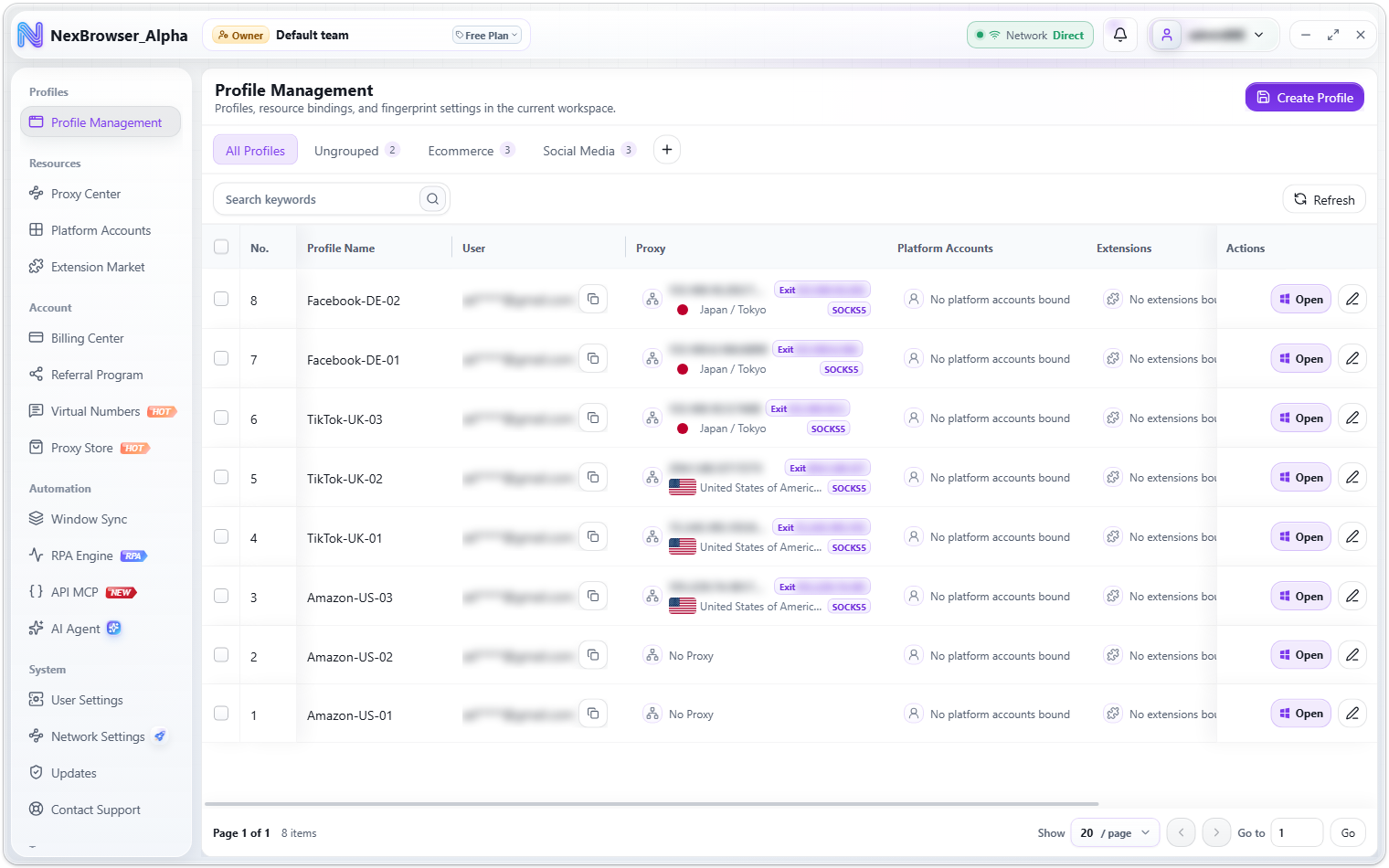
A profile with a proxy checks the proxy exit before launching. If the check fails, the launch is stopped (to prevent your real IP from leaking) and you'll see "Proxy check failed" or a more specific reason, such as "The proxy upstream is unavailable" or "Proxy check timed out". This is by design; check the proxy's availability in the Proxy Center first.