Create Profiles
A profile is the basic unit of work in NexBrowser: each profile is an independent fingerprint browser environment with its own fingerprint, proxy, and data. This page explains how to create profiles and the quantity and quota rules for batch creation.
Before you start
- You're signed in to the client and belong to a team.
- You need the profile save permission. Without it, the "Create Profile" button isn't shown and related actions show "You don't have permission to save profiles". See Roles and Permissions.
Creating profiles
- Go to
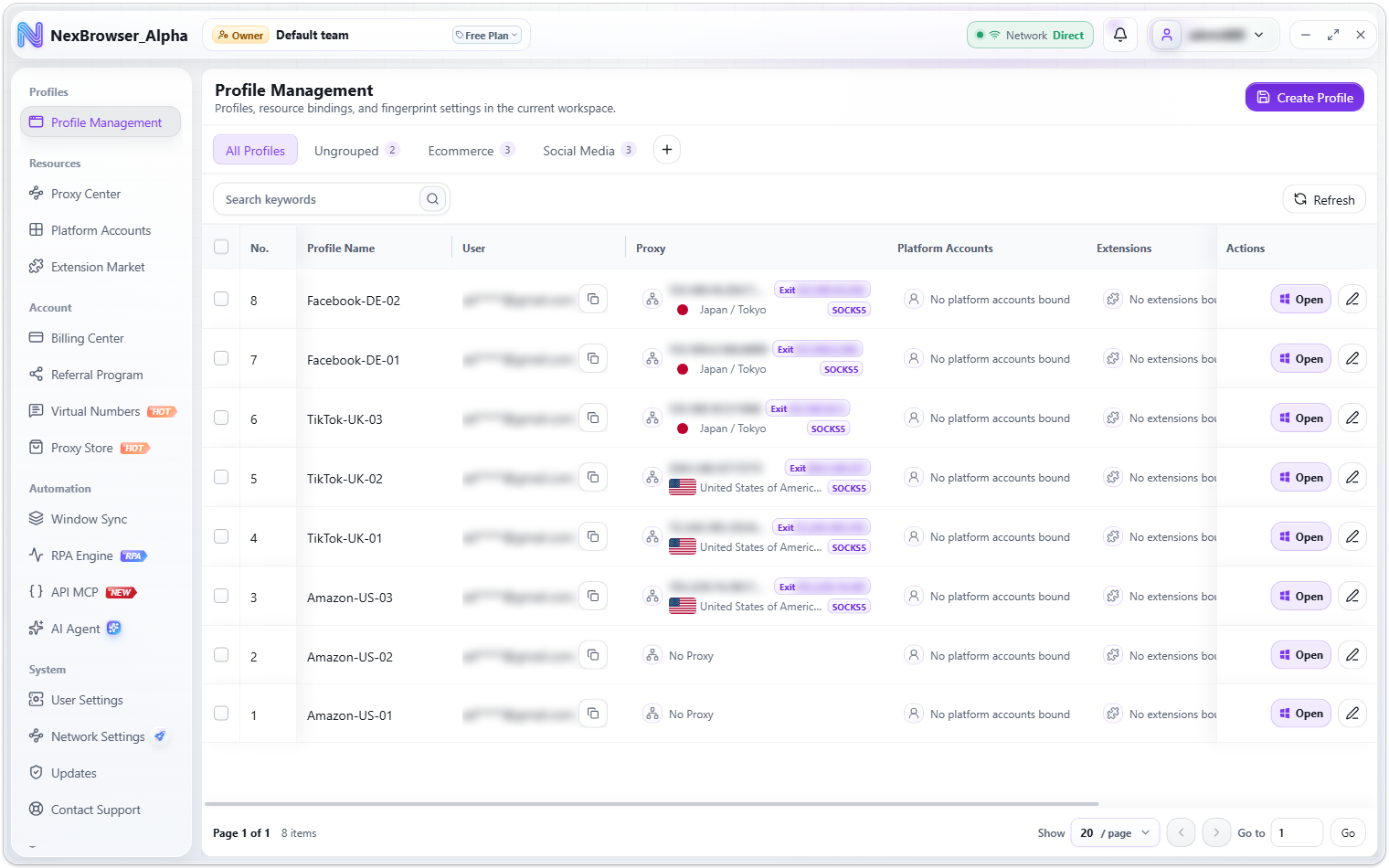
Profile Managementand click "Create Profile" in the top-right corner. - In the "Create Profile" dialog, configure the three tabs: "Basic Info", "Preferences", and "Fingerprint". For field details see Basic Info Settings, Preference Settings, and Fingerprint Settings.
- Use the "Quantity" stepper at the bottom of the dialog to set how many profiles to create.
- Click "Save". In a batch, profiles are submitted one by one with a "Creating profiles N/M" progress bar. When finished you'll see "Profile created" (or "N profiles created" for a batch).
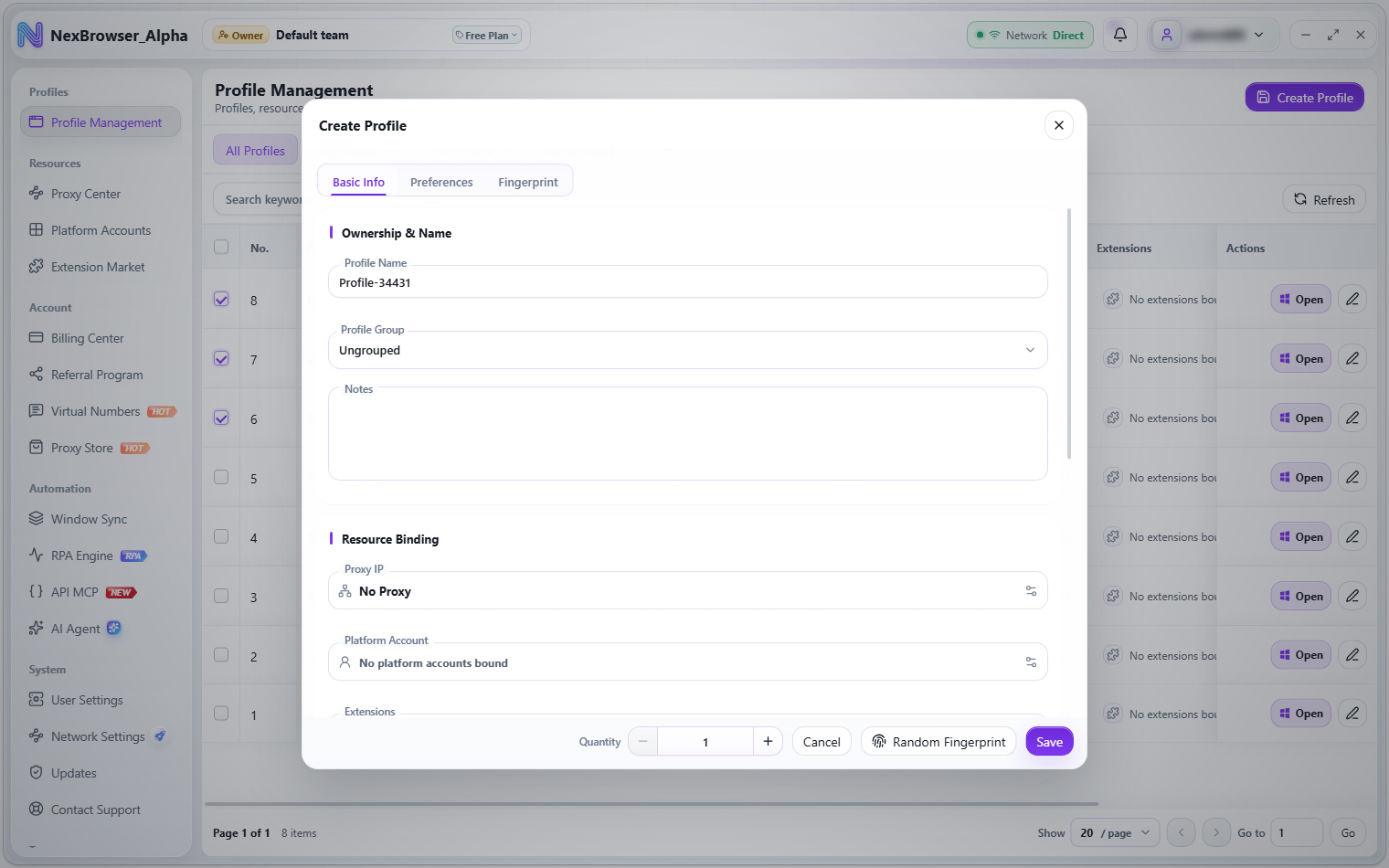
When you open the "Create Profile" dialog, the client generates a random fingerprint automatically. If you click "Save" without changing anything, you get a profile with a complete, working fingerprint. To randomize again, click "Random Fingerprint" at the bottom of the dialog.
Defaults and naming rules
| Item | Rule |
|---|---|
| Profile Name | Defaults to "Profile-" followed by the last five digits of a timestamp. It can't be empty; leaving it blank shows "Profile name is required" |
| Batch names | A sequence suffix is added automatically, such as Name-01, Name-02 |
| Startup Page | Defaults to https://nexscan.net/ |
| Web Language, Default Time Zone, Location Coordinates | All default to "Match by IP" |
| Browser Kernel | Defaults to the newest Chrome kernel already downloaded on this device; if none is downloaded yet, the newest version in the list |
Quantity and quota limits
- You can create up to
50profiles in one batch. - The quantity is also limited by the team's profile quota. Hover over "Quantity" to see a hint such as "This team can create N more, up to 50 per batch."
- When the quota is full, the "Save" button is disabled and you'll see "This team's profile quota is full. Switch teams or change your plan." or "The workspace profile quota is full. Change your plan." To expand your quota, see Team Plans.
- While profiles are being created, the dialog can't be closed and tabs can't be switched. Wait for the progress to finish.
Editing an existing profile
- Click the "Edit Profile" icon button at the end of the row in the profile list.
- The edit dialog title shows the profile number, such as "Edit Profile - [12]". The tabs are the same as when creating; "Quantity" isn't shown when editing.
- Click "Save". You'll see "Profile saved".
Editing requires the profile edit permission; without it you'll see "You don't have permission to edit profiles". You don't need the dialog to change notes: edit them inline in the "Notes" column of the list. See Profile List Management.
Before you edit a profile, rebind its resources from the list, change its notes, move it to a group, or reset its fingerprint, the client confirms the profile is closed on this device. If it's still running you'll see "Close the profile before editing". If the profile is still in use by your own account (for example after the client exited unexpectedly), saving shows the "Profile in use" dialog; release it and save again. See Opening, Closing, and Cloud Sync.
When editing, if you switch "Browser Kernel" to an older version than the current one, the "Switch to an older kernel" dialog appears: some data written by the newer kernel (such as cookies, history, and saved passwords) may not be readable by the older kernel, which can sign you out or break some features. Click "Switch anyway" to proceed; to keep all data intact, choose the same or a newer kernel.