Relay Node Management
In Relay Node mode, all node sources are managed on the Relay Node tab of Network Settings: import remote subscriptions, create local groups, paste node links manually, and test, sort, rename, and select nodes.
Before you start, switch to the "Relay Node" tab in Network Exit Modes.
Add node sources
The "Custom Subscription Groups" toolbar has three buttons:
| Button | Dialog | Description |
|---|---|---|
| "Subscription" | "Add Subscription" | Enter the "Subscription URL". If "Notes (optional)" is left blank, the subscription name is fetched automatically |
| "Group" | "New Group" | Enter a "Group Name" to create a local group for manual nodes |
| "Node" | "Add Nodes Manually" | Choose a "Group", then paste one link per line in "Node Links" |
Adding a subscription shows "Subscription added: name (N nodes)"; if the URL is empty you see "Enter a subscription URL". Creating a group shows "Group created: name".
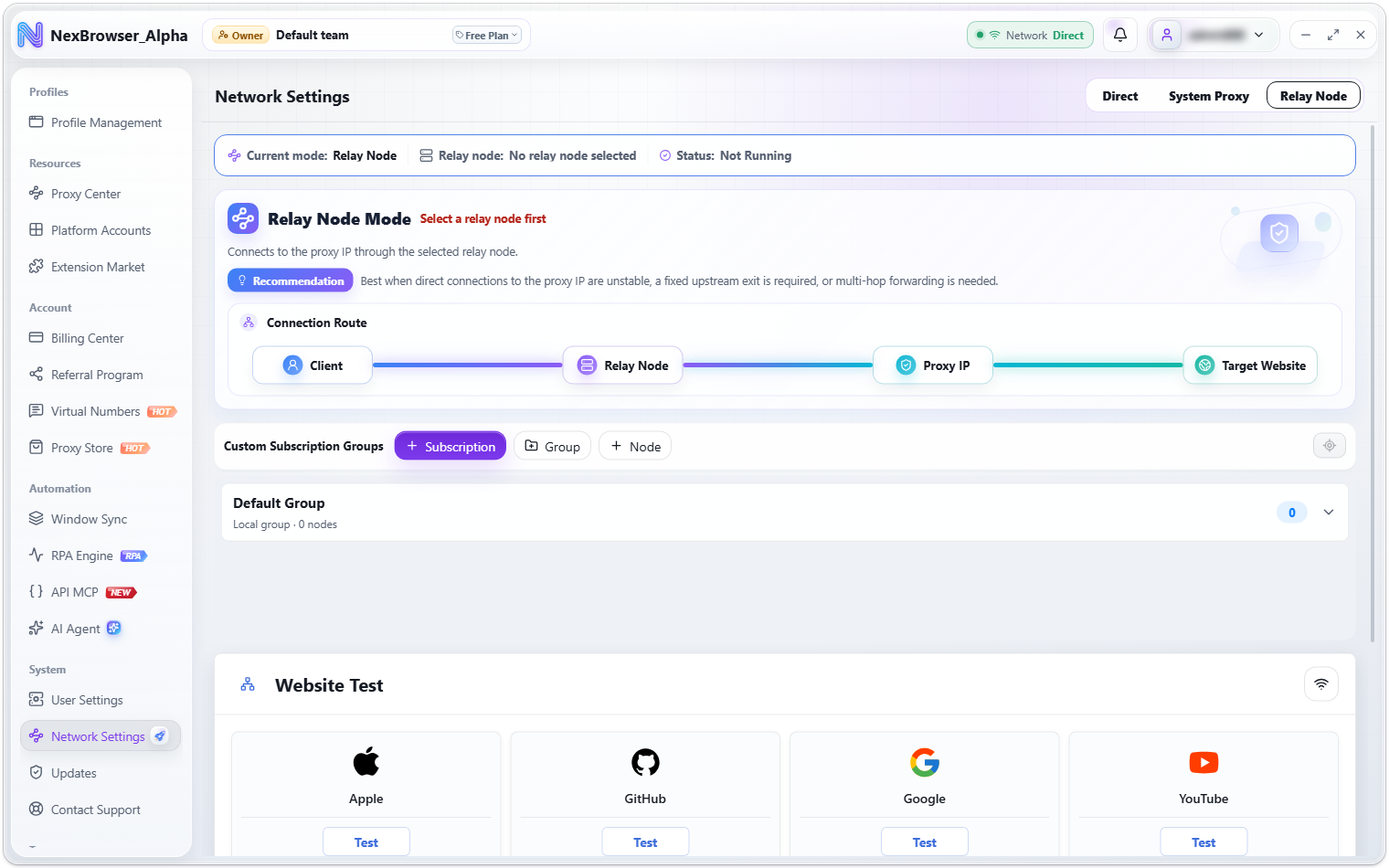
Adding a subscription URL that already exists doesn't create a duplicate group. It refreshes that subscription and shows "Subscription refreshed: name (N nodes)", keeping any custom name you gave it. If the import fails, you see "Subscription import failed. Check the subscription URL and try again."
Protocols supported for manual nodes
When adding nodes manually, enter one node link per line. End a line with #notes to use that text as the node name. Supported protocol prefixes:
vless://, vmess://, trojan://, ss://, hysteria://, hysteria2://, hy2://, tuic://, anytls://
Each line is validated when you save: the protocol must be supported, the server address and port must be valid, and any required credentials must be present. If even one line is unsupported or incomplete, nothing is saved and you see "Fix the N invalid or incomplete node links before saving". Correct or remove those lines, then save again.
A successful save shows "Added N manual nodes". Nodes are de-duplicated by link; if they all exist already, you see "Nodes already exist; nothing added".
Node cards show a protocol tag (Vless / Vmess / Trojan / SS / Hysteria / Hysteria2 / TUIC / AnyTLS / Socks5 / HTTP, etc.) and capability tags (UDP / XUDP / TFO / MPTCP / SMUX).
Group and node actions
- Each group row shows the name, the expiry date (or "Never expires"), traffic used / total, the update date, and the node count. Local groups are labeled "Local group". Drag a group row to reorder groups.
- When a group is expanded, its toolbar offers "Latency Test" (whole group), sorting (Default / Latency / Name), "Refresh Subscription" (subscription groups only), and "Delete Group" (not available for the "Default Group").
- Click a node card to select it as the current relay node. Each card also has "Rename Node" and "Test Latency"; nodes in local groups can be removed with "Delete Node".
- The "Locate active node" button at the top right expands and scrolls to the node currently in use.
Testing a whole group
"Latency Test" measures every node in the group. Results are reused for 30 minutes (testing a single node manually always re-tests). Results show the latency in ms or "Timeout", using the same colors as Proxy Check.
Deleting and automatic fallback
Deleting a subscription or node asks for confirmation ("Delete Proxy Subscription" / "Delete Proxy Node"). The dialog warns that if one of the nodes is in use, the selection will be cleared, and that "Profiles or scripts that use this node must select a relay node again." If the relay route is no longer usable after deletion, the client falls back automatically: to System Proxy mode if a system proxy is detected, otherwise to Direct.