Basic Info Settings
"Basic Info" is the first tab of the create/edit profile dialog. It has five sections: Ownership & Name, Resource Binding, Profile Environment, Window Layout, and Media & Location. This page describes each field.
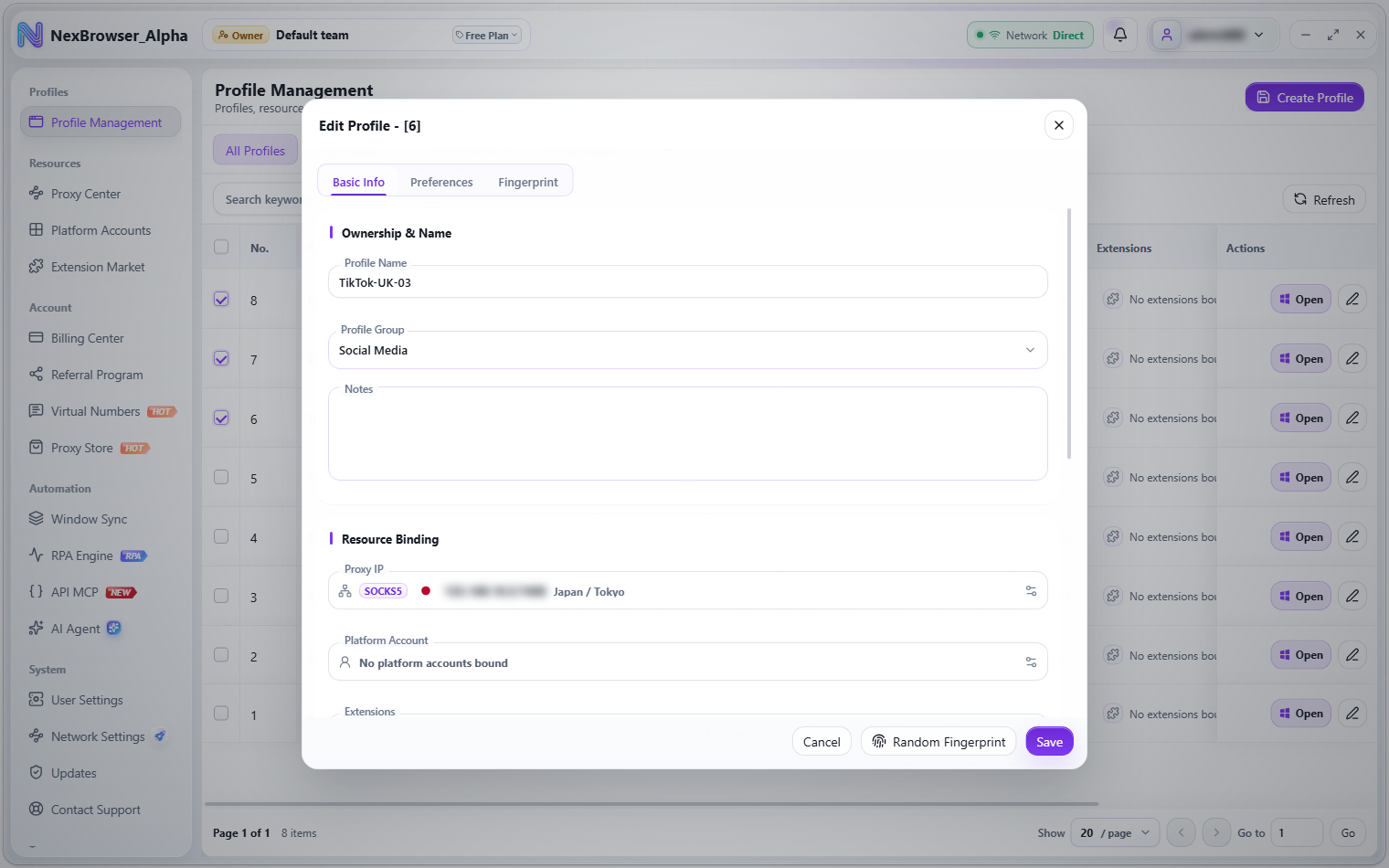
Ownership & Name
| Field | Description | Default |
|---|---|---|
| Profile Name | The profile's display name; can't be empty | "Profile-" plus the last five digits of a timestamp |
| Profile Group | The group the profile belongs to, including "Ungrouped". To create and manage groups, see Profile List Management | Ungrouped |
| Notes | Free text; can also be edited inline in the "Notes" column of the profile list | Empty |
Resource Binding
| Field | Description |
|---|---|
| Proxy IP | Single choice. Click to open the "Select Proxy" dialog. The first row is always "No Proxy" (the profile connects directly through the current network) |
| Platform Account | Multiple choice. The dialog shows the hint "Platform accounts will be filled in with the Bitwarden extension." See Platform Accounts |
| Extensions | Multiple choice. Requires the extension view permission; without it you'll see "You don't have permission to view extensions". See Extension Market |
All three selection dialogs support keyword search and pagination. The "Select Proxy" list shows Protocol, Exit IP, Check Status (Available / Unavailable / Not Checked), and Proxy Info. The "Add Proxy" button in the top-right corner (requires the proxy save permission; otherwise you'll see "You don't have permission to add proxies") creates a proxy on the spot. It can parse a proxy line from the clipboard ("Proxy parsed from the clipboard") and "Check Proxy" for the exit IP, location, and time zone ("Proxy check succeeded"). See Proxy Center.
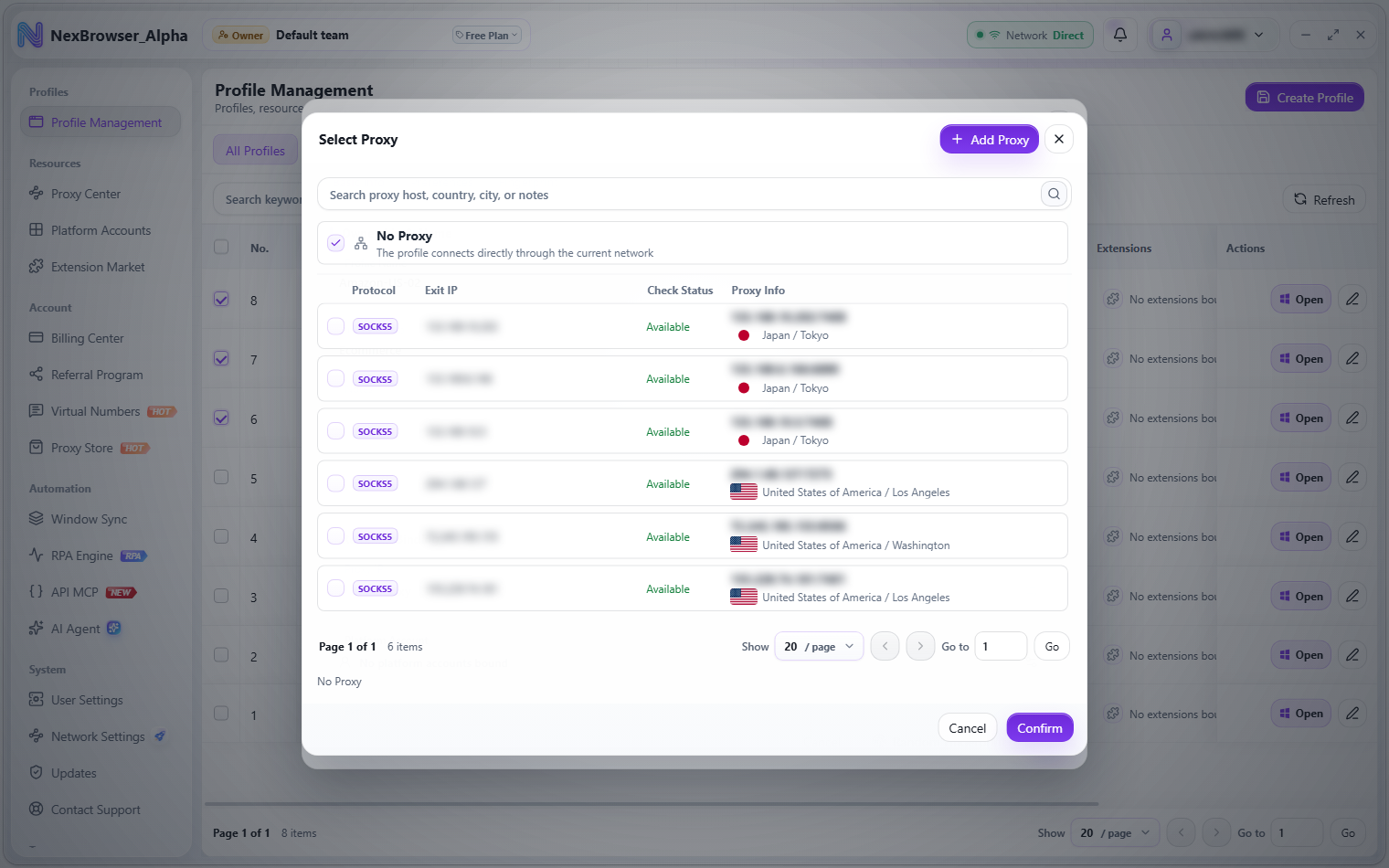
When you open a selection dialog from a cell in the profile list, clicking "Confirm" saves that row immediately ("Resource settings saved"). When you open it from the create/edit dialog, "Confirm" only fills in the form draft; you still need to click "Save". Rebinding from the list requires the profile to be closed.
Profile Environment
| Field | Description | Default |
|---|---|---|
| Web Language | Searchable list, including "Match by IP" | Match by IP |
| Default Time Zone | Searchable list, including "Match by IP" | Match by IP |
When Web Language, Default Time Zone, or Location Coordinates is set to "Match by IP", the profile fills in the language, time zone, and coordinates from the proxy exit IP check each time it launches. If the exit country changes, the old time zone isn't reused; the latest check result always wins. That way, after you rebind a proxy, the language and time zone keep matching the exit without manual changes.
Window Layout
| Field | Description | Default |
|---|---|---|
| Start Position | Center / Top Left / Top Right / Bottom Left / Bottom Right / Left / Right / Custom; the first seven anchor points position the window automatically | Left |
| Window Width, Window Height | Shown only when Start Position is "Custom" | 1280×800 |
| Start X, Start Y | Shown only when Start Position is "Custom" | — |
When you open profiles in a batch, this start position isn't used; profiles are tiled in an automatic grid across the screen work area instead. See Profile List Management.
Media & Location
| Field | Description | Default |
|---|---|---|
| Location Permission | Block / Ask / Allow | Ask |
| Location Coordinates | "Match by IP" or "Manual Coordinates" (enter "Longitude,Latitude"); editable only when Location Permission isn't "Block" | Match by IP |
| Allow Audio | Toggle | On |
| Load Images | Toggle | On |
| Allow Video | Toggle | On |
The screen resolution defaults to 1920×1080. It can't be edited in the form; it's managed automatically along with the fingerprint. See Fingerprint Settings.