Network Diagnostics and Error Reference
Two diagnostic cards at the bottom of Network Settings, together with the network status capsule in the top bar, help you judge whether the network is reachable in the current exit mode. A reference table of common network error messages is at the end of this page.
Website Test card
The "Website Test" card tests whether Apple, GitHub, Google, and YouTube are reachable in the current exit mode, and how fast:
- Click a site's "Test" button to test it alone, or the Wi-Fi icon at the top right, "Test All Websites", to test all four.
- While running, a site shows "Testing". The result is the latency in ms or "Timeout". Each test times out after
12seconds.
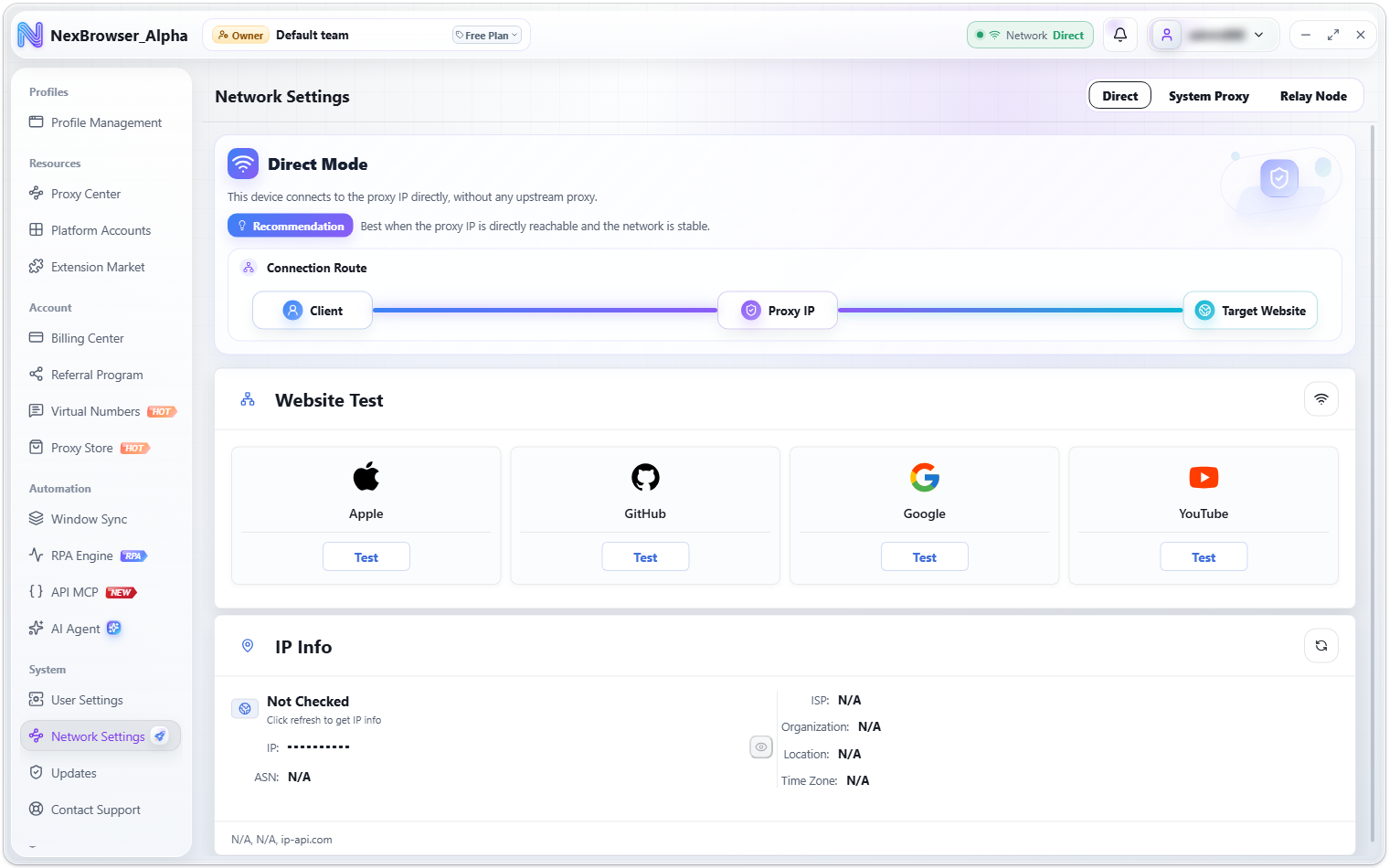
Website tests go through the exit route you have selected, so they reflect real reachability in the current mode. The results also feed the network health status: if any site is reachable the status is "Running"; if all fail, it is reported as an error for the current mode (see the top-bar capsule below).
IP Info card
The "IP Info" card looks up details about the current exit IP. Click the refresh button at the top right, "Refresh IP Info", to fetch it:
| Element | Description |
|---|---|
| IP address | Masked by default (••••••••••). Click the eye icon, "Show IP" / "Hide IP", to toggle |
| Fields | ASN, ISP, Organization, Location, Time Zone |
| Footer | Route mode, country code, and the domain of the check service actually used |
If the lookup fails, a message gives the reason, such as "IP detection service did not respond" or "IP detection service returned no data". For switching the check service and the official fallback, see Proxy Check.
Both cards cache their results per network mode for 5 minutes and re-test automatically once that expires. When you switch modes, they re-test for the new mode automatically.
Top-bar network status capsule
The status capsule in the top bar checks network health about once a minute (a failed check is retried automatically):
| State | Capsule shows |
|---|---|
| Healthy | The current mode: "Direct", "System Proxy", or "Relay Node" |
| Checking | "Checking" |
| Check failed | Depends on the mode: "Network error" (Direct), "Proxy error" (System Proxy), or "Node failure" (Relay Node) |
Click the capsule to open Network Settings on the current mode.
Common network error messages
Network errors always show a fixed message without internal details. Use this table to decide what to do:
| Message | Meaning and what to do |
|---|---|
| "No system proxy detected. Configure one and switch again." | No system proxy was found in System Proxy mode. Start your proxy software (Clash, V2RayN, etc.), then switch modes again |
| "Select a relay node first" | No node is selected in Relay Node mode. Select one in Relay Node Management |
| "Proxy check failed" / "Batch proxy check failed" / "Proxy check timed out" | The exit check failed. Check that the proxy and the upstream route work |
| "Proxy authentication failed. Check the proxy username and password." | The proxy rejected the credentials. Verify the proxy's username and password in the Proxy Center |
| "The proxy upstream is unavailable" | The proxy wasn't reachable when the profile launched. Profiles don't launch if the check fails, so your real IP isn't exposed. Check the proxy in the Proxy Center first |
| "The proxy check result is missing the exit IP or time zone" | The check service returned incomplete data. Switch the "IP Check Service" in User Settings and try again |
| "System proxy check failed" / "System proxy detection is not supported on this platform" | The system proxy couldn't be read. Check your system proxy settings or use another mode |
| "Subscription import failed. Check the subscription URL and try again." | The subscription couldn't be fetched or parsed. Check the URL and try again |
| "Failed to switch the network of running profiles. Restart the affected profiles and try again." / "Some running profiles are missing the shared proxy context. Restart the affected profiles and try again." | Running profiles couldn't switch networks after a mode change. Restart the affected profiles |
| "Failed to start the proxy chain. Check the proxy settings and try again." | The chained route (upstream + profile proxy) failed to start. Check the relay node and the profile's proxy |
| "Network check failed. Try again later." | A general network check failure. Try again later, or look at the two diagnostic cards first |
| "IP detection is unavailable. Restart the client." / "Website testing is unavailable. Restart the client." | The diagnostic cards' check channel isn't working. Restart the client and try again |
| "Failed to download the browser kernel. Check your network and try again." / "Client update failed. Check your network and try again." | The download route isn't working. Check your network, then retry in Version Updates |
| "The website test URL cannot be empty" / "The website test URL is invalid" / "The website test URL only supports http or https" | The website test address is wrong. Use a valid http or https address |
| "The Network Kernel is in use by running profiles. Close all profiles before updating." | Close all running profiles before updating the Network Kernel. See Version Updates |
| "Network Kernel update failed" / "Failed to read the Network Kernel version. Try again later." | The Network Kernel download or version check failed. Retry later in Version Updates |
Error messages are fixed text and don't include server internals. Combine the Proxy Center "Check Status" column with the two diagnostic cards on this page to work out whether the problem is the proxy itself, the upstream route (system proxy / relay node), or the check service.