Proxy Store
The Proxy Store is the built-in place to buy NEX's own proxies: long-term residential IPs are bought by the day for a fixed region, and short-term residential IPs are bought by volume and extracted worldwide on demand. Open it from the sidebar: Account → Proxy Store, or click "Buy Proxies" in the Proxy Center header.
Buying and viewing orders require the corresponding proxy purchase and order permissions, which the team owner assigns under "Manage Roles". Without them, the buttons are greyed out (for example, "Buy Proxy" shows "You don't have permission to buy proxies"). See Roles and Permissions.
Purchase dialog and types
Click "Buy Proxy" in the header to open the "Buy NEX Proxy" dialog. It has two type tabs at the top (if you only have permission to buy one type, the other tab is unavailable):
| Tab | Description |
|---|---|
| "Long-Term IP (Residential)" | "Fixed region · Billed by day" |
| "Short-Term IP (Residential)" | "Buy by volume · Extract on demand" |
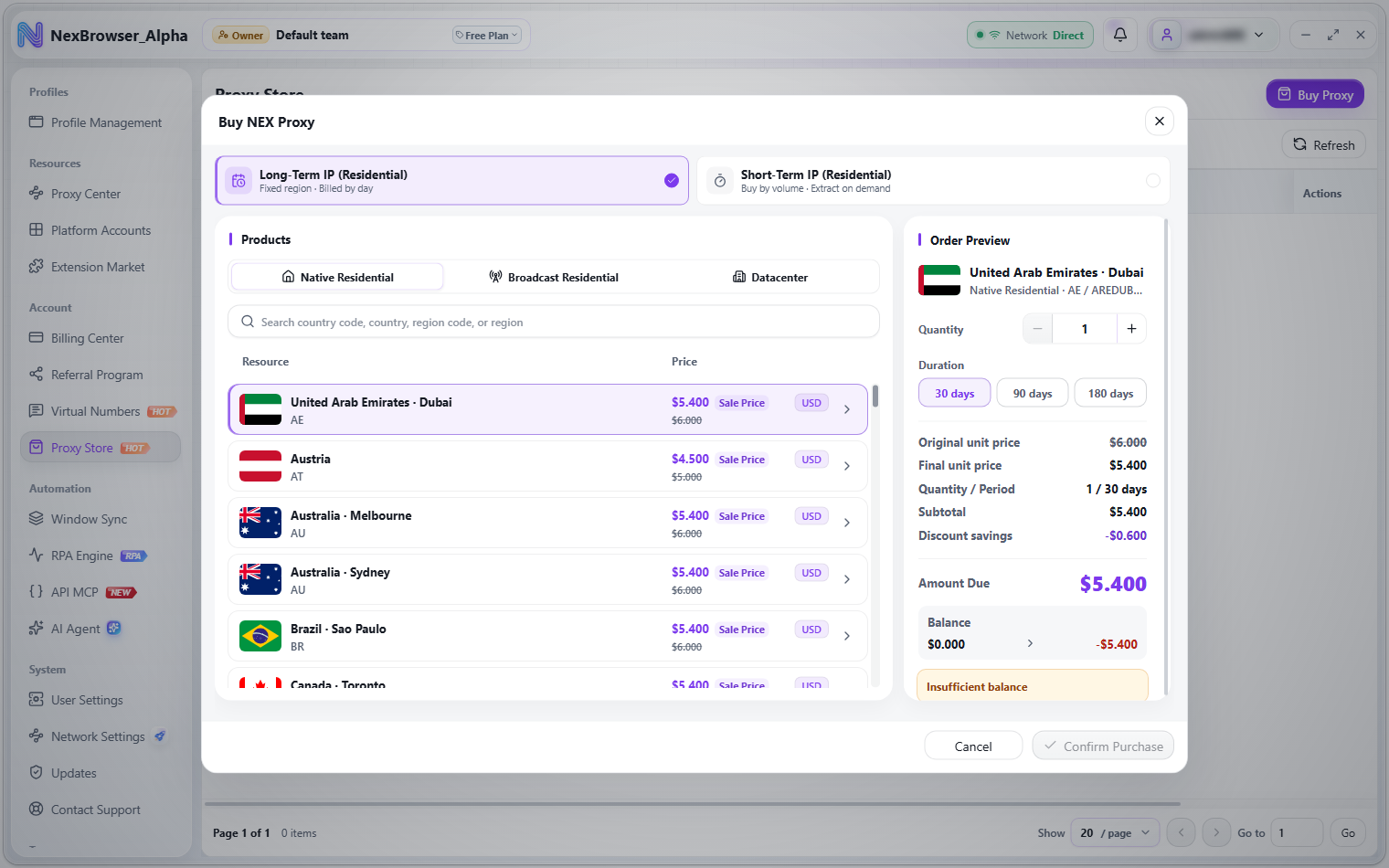
Buy long-term IPs
- Pick a product category tab: "Native Residential", "Broadcast Residential", or "Datacenter" (other product type names include "Static Residential", "Residential Broadcast", and "Mixed Proxy").
- Search for and select a region. You can search by country code, country, region code, or region.
- Set the quantity with the stepper (minimum
1). - Choose the duration:
30/90/180days. Products on sale show the original unit price, the final unit price, and the discount savings. - The order preview on the right updates live with the unit price, quantity / period, subtotal, current balance, and balance after. When everything looks right, click "Confirm Purchase", then confirm again in the "Confirm Payment" dialog to be charged.
A successful purchase shows "Proxy purchased". Long-term proxies are delivered straight to the Proxy Center list.
Buy short-term IPs
- Switch to the "Short-Term IP (Residential)" tab and choose a package card ("N-IP Package"). Short-term IPs are real residential Socks5 proxies that support Http(s)/Socks5.
- Click "View Extractable Regions" to search the worldwide country list and confirm coverage.
- Click "Buy Short-Term IP", then confirm again in the "Confirm Payment" dialog to be charged.
A successful purchase shows "Short-term proxy purchased". What you buy is an extraction quota; you then extract IPs from the order, as described below.
Once you confirm in the "Confirm Payment" dialog, the amount is deducted from your account balance right away. If your balance is too low, the order preview shows "Insufficient balance" and the submit button is unavailable — top up first in Billing Center and Top-Up. If the balance can't be read, you see "Balance is unavailable. Refresh and try again."
Proxy orders
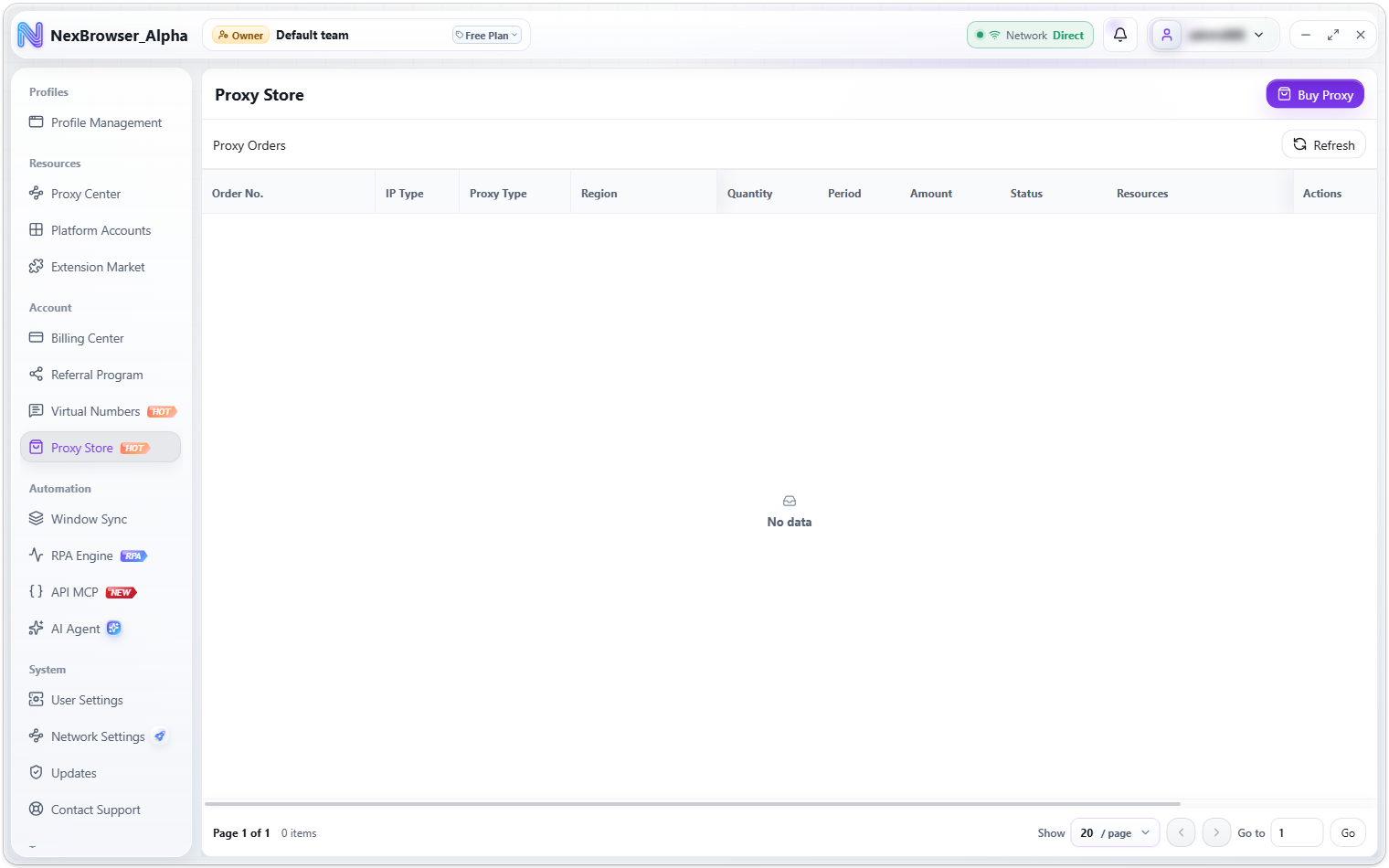
The Proxy Store opens on the "Proxy Orders" list (use "Refresh" at the top right to reload it). Columns: Order No., IP Type (Long-Term / Short-Term badge), Proxy Type, Region, Quantity (extracted or succeeded / total), Period (N days / short-term), Amount, Status, Resources (the first proxy address; hover to see all "N entries"), Created, and Actions.
Order status badges: "Succeeded", "Partially Succeeded", "Failed", "Processing", and "Extractable" (short-term).
Extract short-term IPs
When a short-term order's status is "Extractable", an "Extract" button appears at the end of the row:
- Click "Extract" to open the "Extract Short-Term Proxy" dialog. It shows the order number, extracted / total, and the remaining extractable quota.
- Search for and select a region by country code, Chinese name, or English name. If you don't select one, you see "Select a region to extract from".
- Set how many to extract with the stepper. You can extract up to
50at a time; above that you see "You can extract up to N at a time" and the value is reduced automatically. - Click "Confirm Extraction". On success you see "Extracted. Check it in the Proxy Center."
Extracted IPs are added to the Proxy Center list, not the store page. Once the whole quota is extracted, the order changes to "Succeeded". Clicking extract after the quota is used up shows "This short-term order has no remaining quota to extract".
Renew proxies
Long-term purchased proxies can be renewed before or after they expire. Use the small "Renew" button in the Proxy Center "Validity" column (one proxy), or select rows and click "Renew Proxy" on the batch action bar (several proxies; all of them must be long-term purchased proxies, otherwise the button shows "Only long-term purchased proxies can be renewed").
- The "Renew Proxy" / "Renew N Proxies" dialog lists each proxy with its quote and expiry badge. You can remove individual proxies with "Remove from renewal".
- Choose the renewal duration:
30/60/90/180days. - The "Cost Confirmation" section at the bottom shows the item, quantity, period, total, current balance, and balance after.
- Click "Confirm Renewal", then confirm in the "Confirm Payment" dialog to be charged and renewed. After submitting you see "Proxy renewal request submitted".
Renewal rules:
| Rule | Description |
|---|---|
| Who can be renewed | Purchased proxies whose original validity is at least 1 day; short-term IPs can't be renewed |
| Renewal durations | 30 / 60 / 90 / 180 days |
| Expiry calculation | If the current plan is still valid, renewal extends its expiry date |
| Permission | Requires the proxy renewal permission, assigned by the team owner under "Manage Roles" |
Rows whose quote comes back without a price show "Product discontinued" and are excluded from the total. Remove them before submitting; otherwise you see "No renewable proxies. Remove discontinued products and try again."