Interface Overview and Personalization
This page gives you a map of the client interface: which pages each sidebar group contains, what's in the top bar, how to switch the interface language, and what you can personalize under System → User Settings.
Sidebar map
| Group | Pages | Purpose |
|---|---|---|
| Profiles | Profile Management | Create, open, and manage fingerprint browser profiles |
| Resources | Proxy Center, Platform Accounts, Extension Market | Manage the proxies, accounts, and extensions bound to profiles |
| Account | Billing Center, Referral Program, Virtual Numbers, Proxy Store | Top up your balance, earn referral commission, buy virtual numbers and proxies |
| Automation | Window Sync, RPA Engine, API MCP, AI Agent | Multi-window control, script automation, and AI agents. "API MCP" is the entry point for developer features; see the "Local API Reference" tab |
| System | User Settings, Network Settings, Updates, Contact Support | Personal preferences, network exit mode, component updates, and support |
| Team | Team Overview (including member and role management) | Teams, plans, members, and permissions |
"Window Sync" and "AI Agent" open in separate windows; all other entries switch pages inside the main window. While a kernel download is in progress or has failed, a red dot appears next to "Updates".
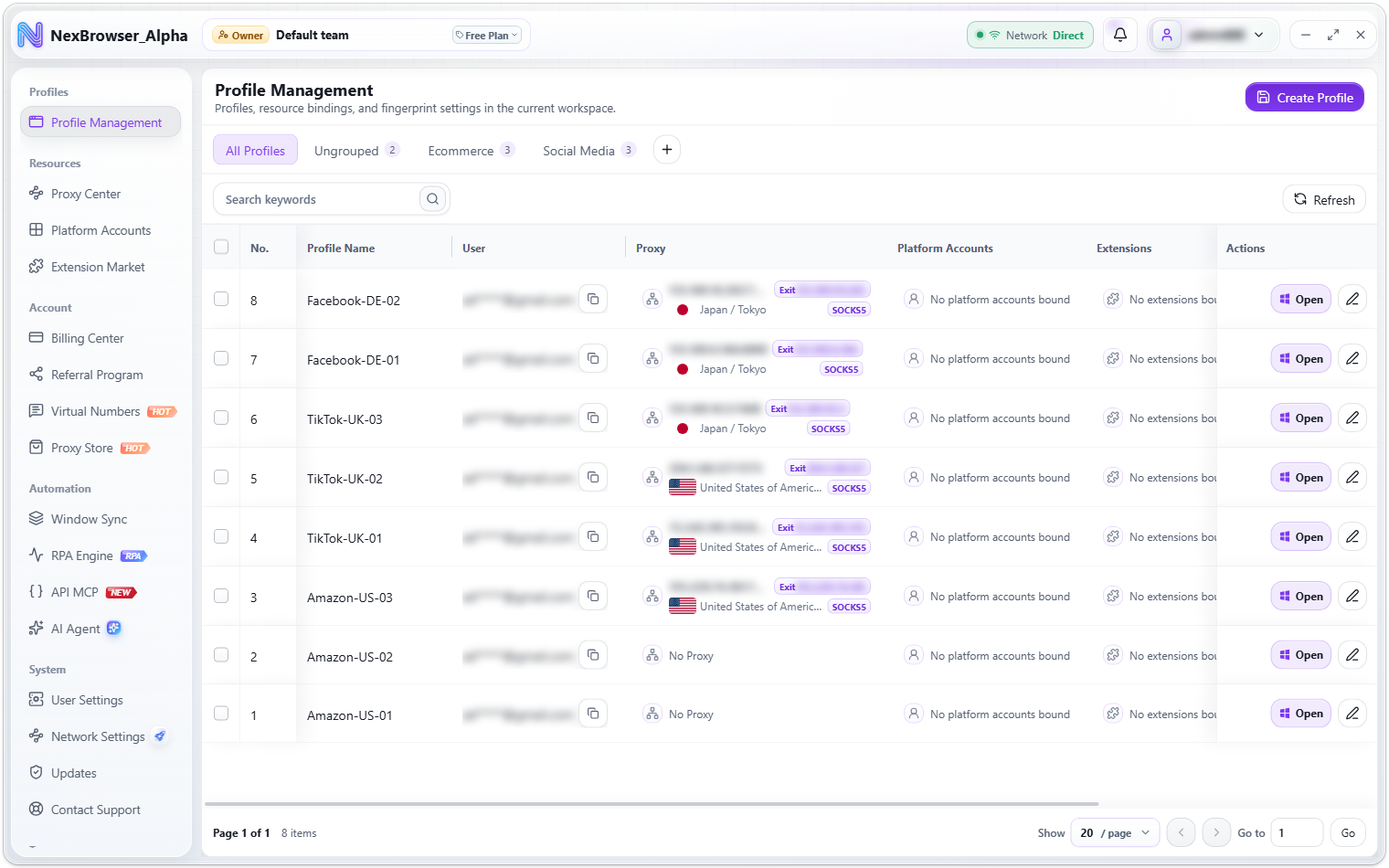
Top bar
| Item | Description |
|---|---|
| Team switcher | Shows the current team. Open it to see the team list and switch teams. See Team Overview and Switching |
| Network mode | Shows the current network exit mode (Direct, System Proxy, or Relay Node) and its status. Click it to open Network Settings. See Network Exit Modes |
| Notifications | System notices such as client updates and kernel or extension downloads. Use "Mark All as Read" to clear them |
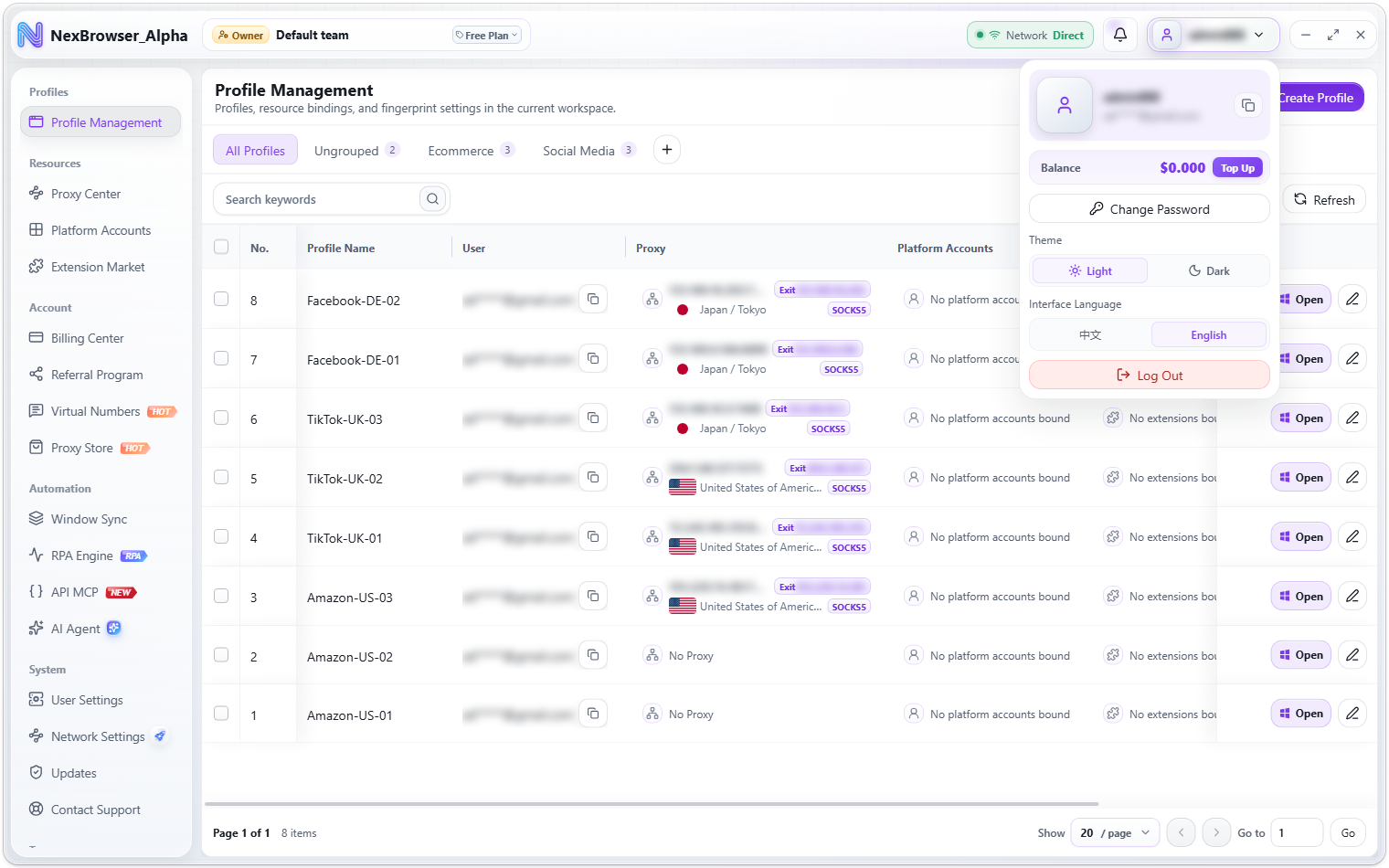
| User menu | Click your avatar to see your nickname and email, "Balance" with "Top Up", "Change Password", "Theme", "Interface Language", and "Log Out". See Sign Up and Sign In |
Switching the interface language
The client interface is available in "中文" (Chinese) and "English". On first launch, it follows the Windows display language (Chinese on Chinese systems, English on all others). When you switch, the main window, standalone windows, and tray menu all change immediately, with no restart. There are three ways to switch:
- Tray menu: Right-click the tray icon → "Language", then choose from the submenu.
- User menu: Click your avatar in the top bar and pick a language under "Interface Language".
- User Settings: Change "Interface Language" under
System → User Settings → Preferences, then click "Save Settings".
The interface language is saved to your account; you'll see "Language synced" when that succeeds. If it can't reach the server right away, you'll see "The language is applied locally. Sync is pending." and the client still shows the new language on this device.
The interface language only changes the client's own display. The language websites see inside a browser profile is set by the profile's "Web Language". See Basic Info Settings.
User Settings
Open System → User Settings. The page has three tabs: "Preferences", "Storage & Cleanup", and "Startup & Account", with "Refresh" and "Save Settings" buttons at the top.
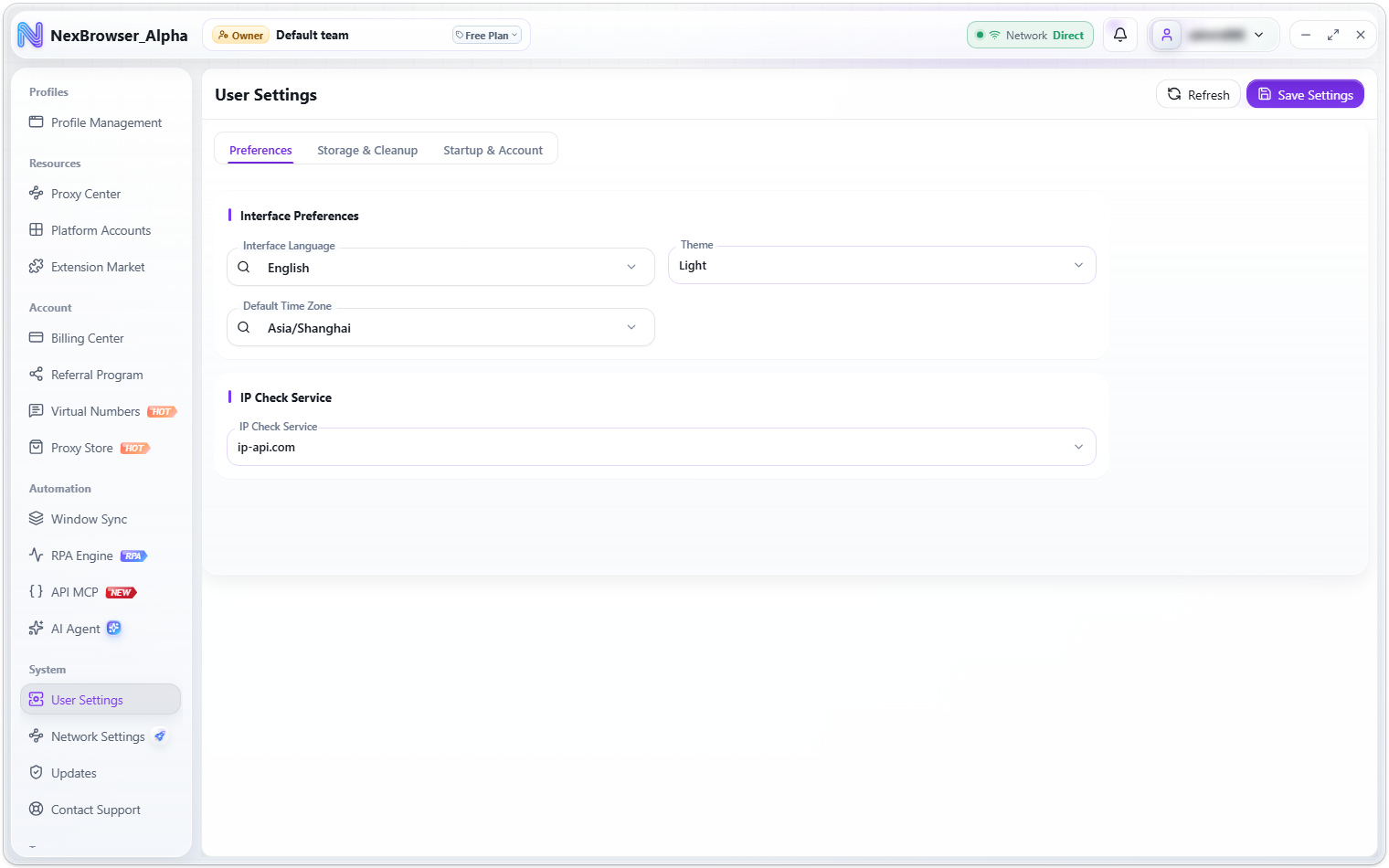
Preferences
| Field | Description | Default |
|---|---|---|
| Interface Language | The client's display language: "中文" or "English". Searchable | Follows the system language |
| Theme | "Light" or "Dark"; previews as soon as you select it | — |
| Default Time Zone | Searchable list | Asia/Shanghai |
| IP Check Service | The IP lookup service to use. Options are provided by the platform; if none are available it shows "No services available" | — |
You can also change the theme directly from the user menu or with "Toggle Theme" in the tray menu; it takes effect immediately.
Storage & Cleanup
| Field | Description | Default |
|---|---|---|
| Profile Cache Directory | Where profile cache data is stored. Read-only; click "Choose Folder" to change it (see below) | New installs: C:\Users\<username>\AppData\Local\NexBrowser\NexBrowserData |
| Cleanup Interval | 1/3/7/14/30 days | 7 days |
| Cleanup Threshold | 256M/512M/1G/2G/4G | 1G |
| Disk Limit | 5/10/20/50/100 G | 20G |
| Memory Limit | 2/4/8/16/32 G | 8G |
Cleanup Interval, Cleanup Threshold, and Disk Limit all apply to the profile cache directory.
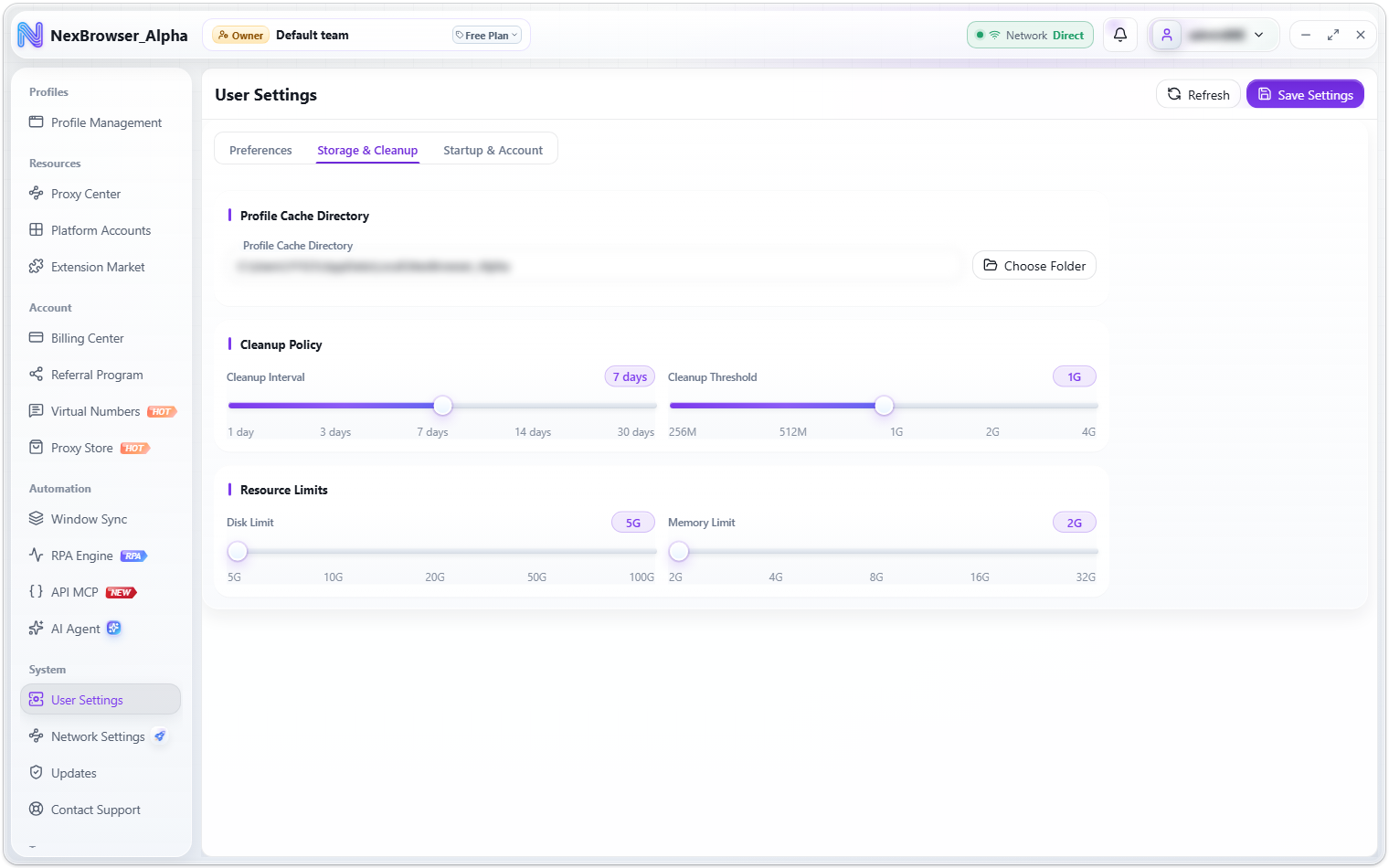
You can't switch while any profile is running or syncing; you'll see "Close all browser profiles and wait for sync to finish before switching the cache directory". After you click "Choose Folder" and pick a new folder, the "Confirm Cache Directory Change" dialog appears. Data in the old directory is never deleted automatically:
- Migrate and Switch: Copies the profile data from the old directory to the new one, then switches. Don't close the client during migration; you'll see "Profile cache directory migration complete" when it's done. Available only when the old directory has data and the new one is empty.
- Switch Without Migrating: Changes the directory only. Sign-in states, cookies, extensions, and profile settings are not copied, so profiles in the new directory may be empty.
- Cancel Change: Keeps the current directory.
A cache directory change takes effect as soon as you confirm it; you don't need to click "Save Settings". If the client can't confirm your original cache directory (for example, the drive was removed), the page shows "Cache directory needs confirmation" at the top. Click "Choose Original Directory or Confirm New One" to locate your original data directory.
Startup & Account
| Field | Description | Default |
|---|---|---|
| Show Welcome Page on Startup | Toggle | On |
| Launch at Startup | Toggle; adds the client to the system login items. If unsupported, you'll see "Launch at startup is not supported on this system" | Off |
| Keyboard Shortcuts | Text area | Empty |
Except for the cache directory, changes don't take effect until you click "Save Settings" at the top; you'll see "User settings saved". If you leave the page with unsaved changes, the "Save User Settings?" dialog appears ("Your user settings have changed but have not been saved."). Choose "Save and Leave" or "Don't Save"; with "Don't Save", any unsaved theme change is reverted.