Platform Accounts
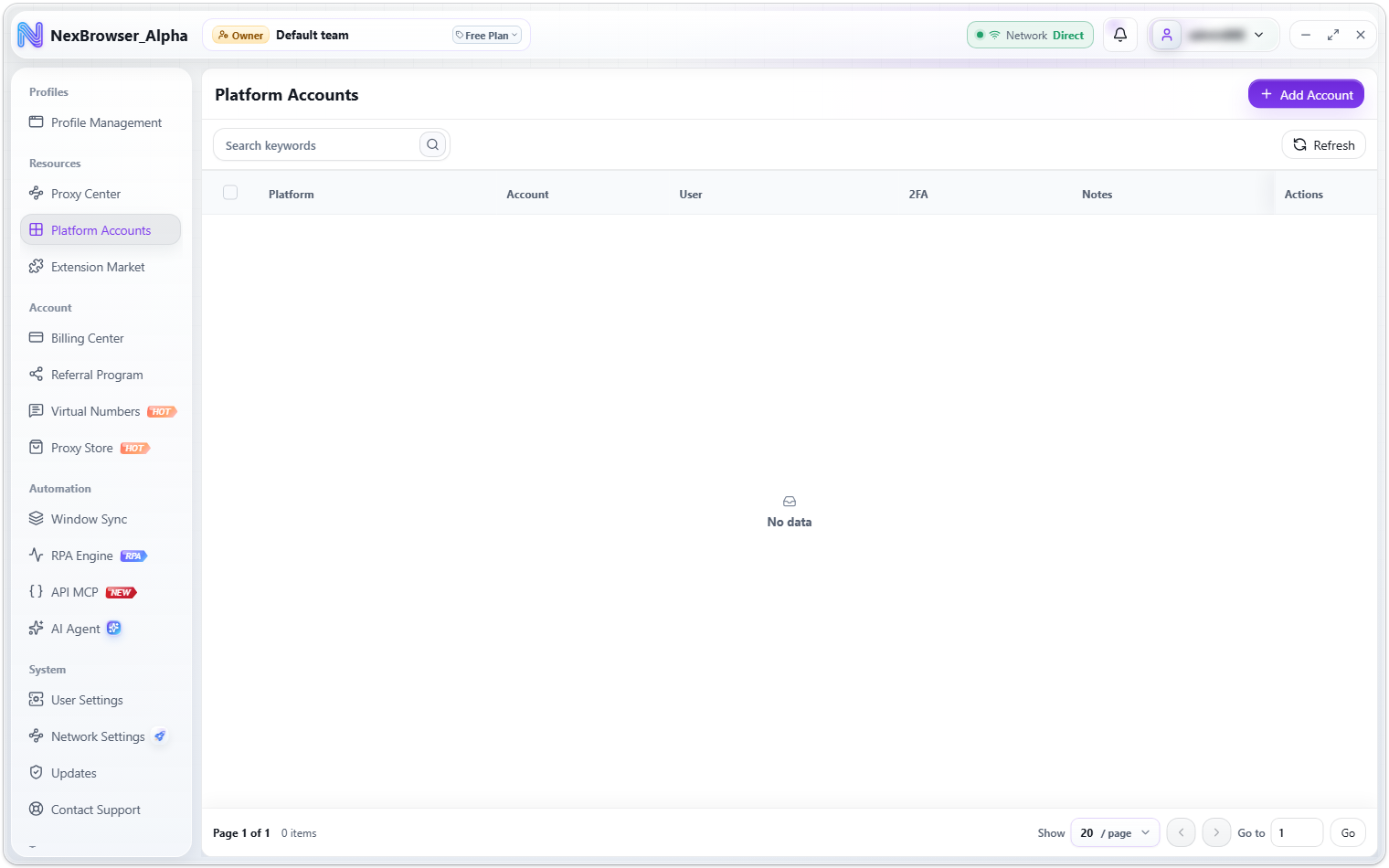
"Platform Accounts" keeps the login credentials for your business platforms (such as TikTok or Amazon) in one place: platform, account, password, 2FA key, and notes. Once saved, you can bind them to browser profiles in Profile Management for autofill and automatic sign-in inside the profile.
Open it from the sidebar: Resources → Platform Accounts.
Before you start
Viewing the list, adding/editing, and deleting each require a separate team permission. Without them, the buttons are greyed out with a hint such as "No permission to add platform accounts", "No permission to edit platform accounts", "No permission to save platform accounts", or "No permission to delete platform accounts". See Roles and Permissions.
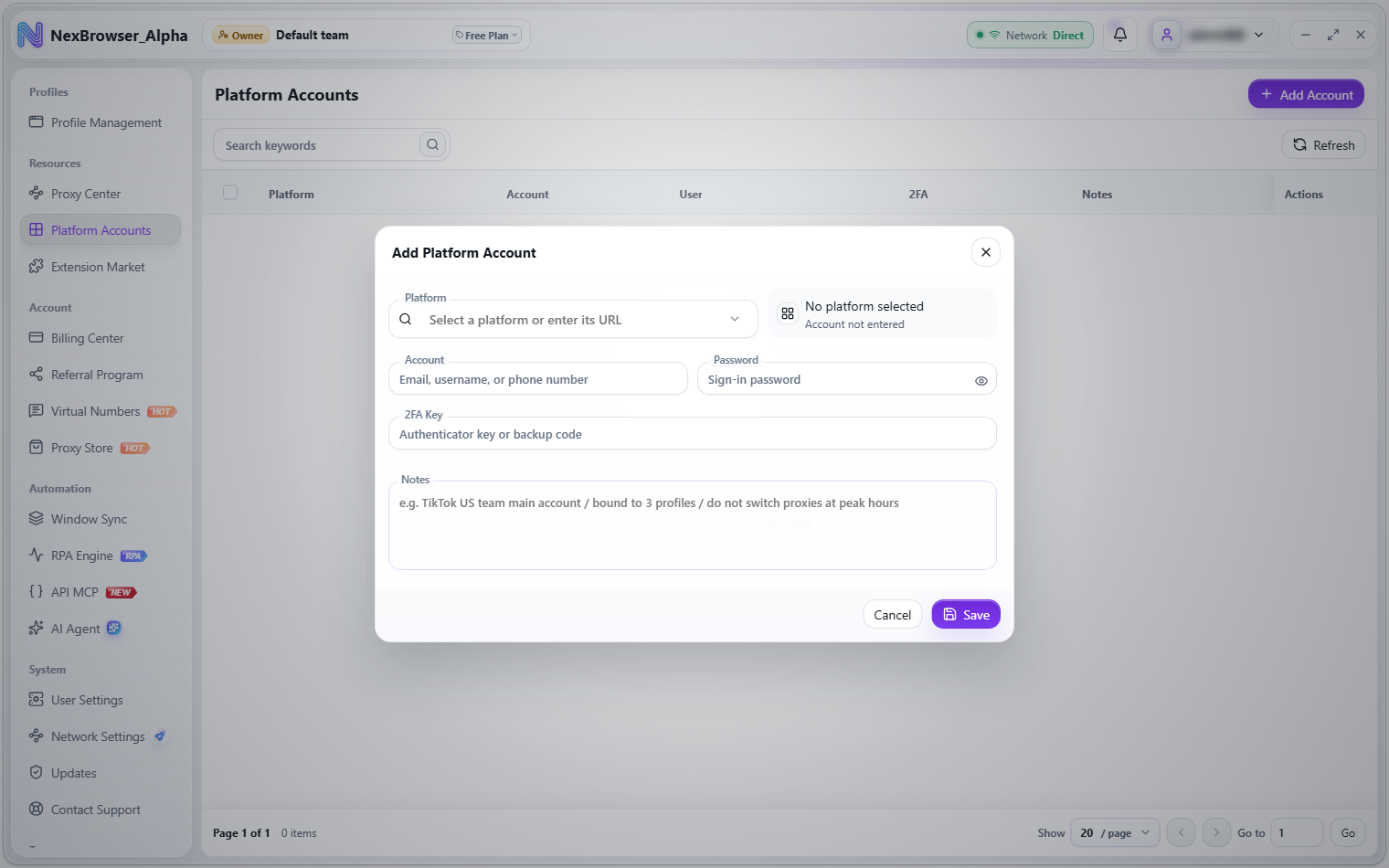
Add a platform account
- Click "Add Account" to open the "Add Platform Account" dialog.
- Fill in the fields (see the table below). The top of the dialog previews the current platform as you type.
- Click "Save". You'll see "Platform account created" (or "Platform account updated" after editing).
| Field | Description |
|---|---|
| "Platform" | Search for an existing platform, or type the platform's URL directly (placeholder: Select a platform or enter its URL). Leaving it empty shows "Enter or select a platform" |
| "Account" | Email, username, or phone number. Leaving it empty shows "Account is required" |
| "Password" | The login password. Click the eye icon to switch between "Show password" and "Hide password" |
| "2FA Key" | Authenticator key or backup code |
| "Notes" | Any notes |
When you save, leading and trailing spaces are removed from the account, password, and 2FA key, so you don't need to worry about stray whitespace when pasting from a spreadsheet.
Manage the list
List columns: Platform, Account, User, 2FA, Notes, Actions.
- The Notes column can be edited inline (requires the save permission).
- The Actions column has an "Edit" button that opens the "Edit Platform Account" dialog.
- Above the list are a search box and a "Refresh" button. The list is paginated, and you can change the page size.
Bind to profiles and autofill
From the "Resource Binding" group in the profile create/edit dialog, or from the platform account cell in a profile list row, open the "Select Platform Accounts" dialog (search placeholder: "Search platform account, platform, or notes") and select one or more platform accounts for the profile. The top of the picker shows the hint: "Platform accounts will be filled in with the Bitwarden extension."
After binding, when you open the profile and visit the platform's login page, the built-in password extension fills in the account and password automatically. For how this is stored, see Password Vault.
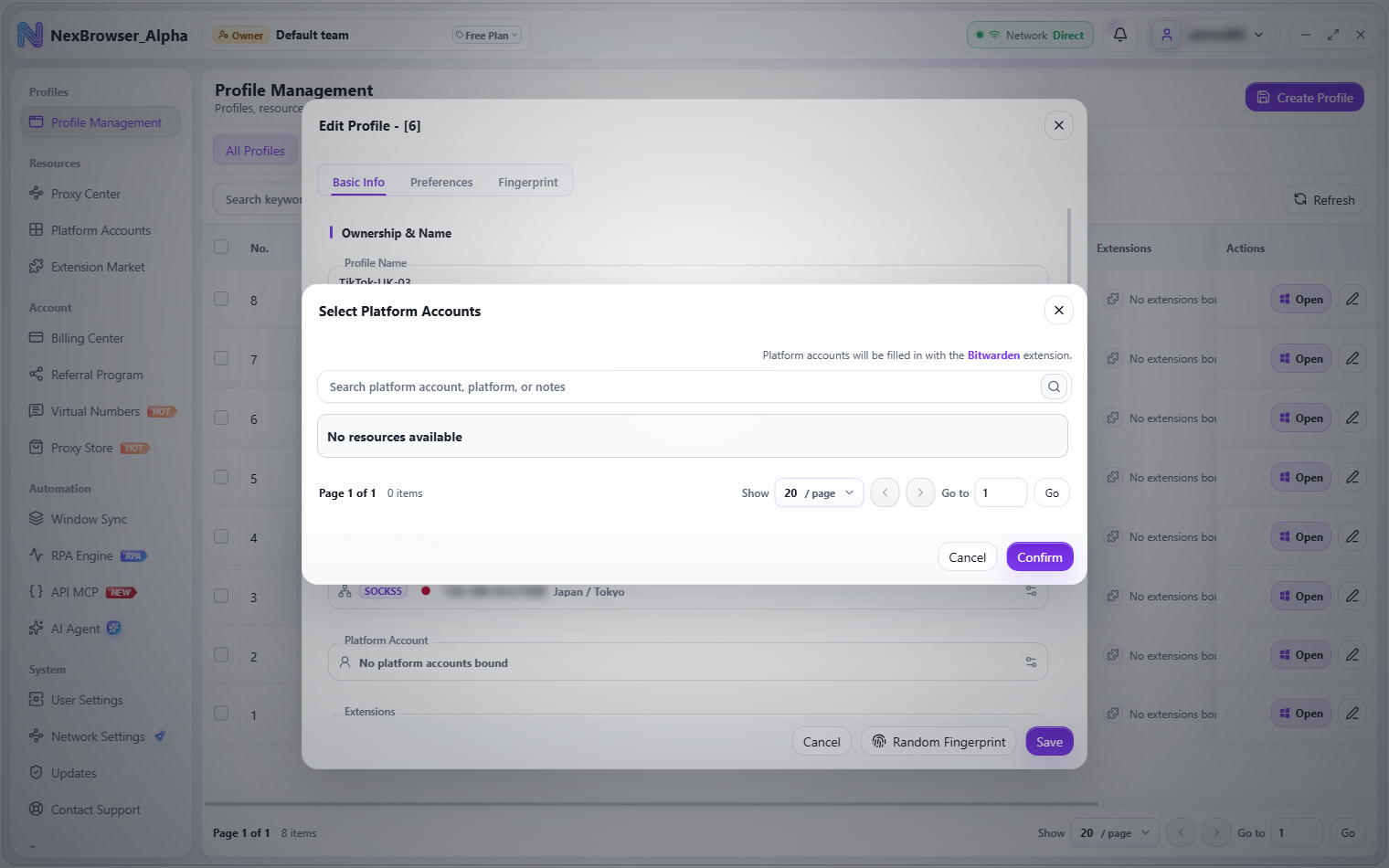
When you open the picker from a profile list row, clicking "Confirm" saves the binding for that row immediately ("Resource settings saved"). When you open it from the profile edit dialog, confirming only fills in the draft; the binding takes effect after you click "Save".
Bulk delete
After you select rows, the floating action bar at the bottom shows a "Delete Accounts" button (hidden if you don't have the delete permission). Clicking it asks: "Delete the selected N platform accounts?" After you confirm, you'll see "Platform accounts deleted".
Bulk deleting platform accounts asks for confirmation, and once confirmed it can't be undone. Before deleting, make sure no profile still uses these accounts.
Related pages
- Password Vault
- Basic Info Settings (resource binding)
- Roles and Permissions