Profile List Management
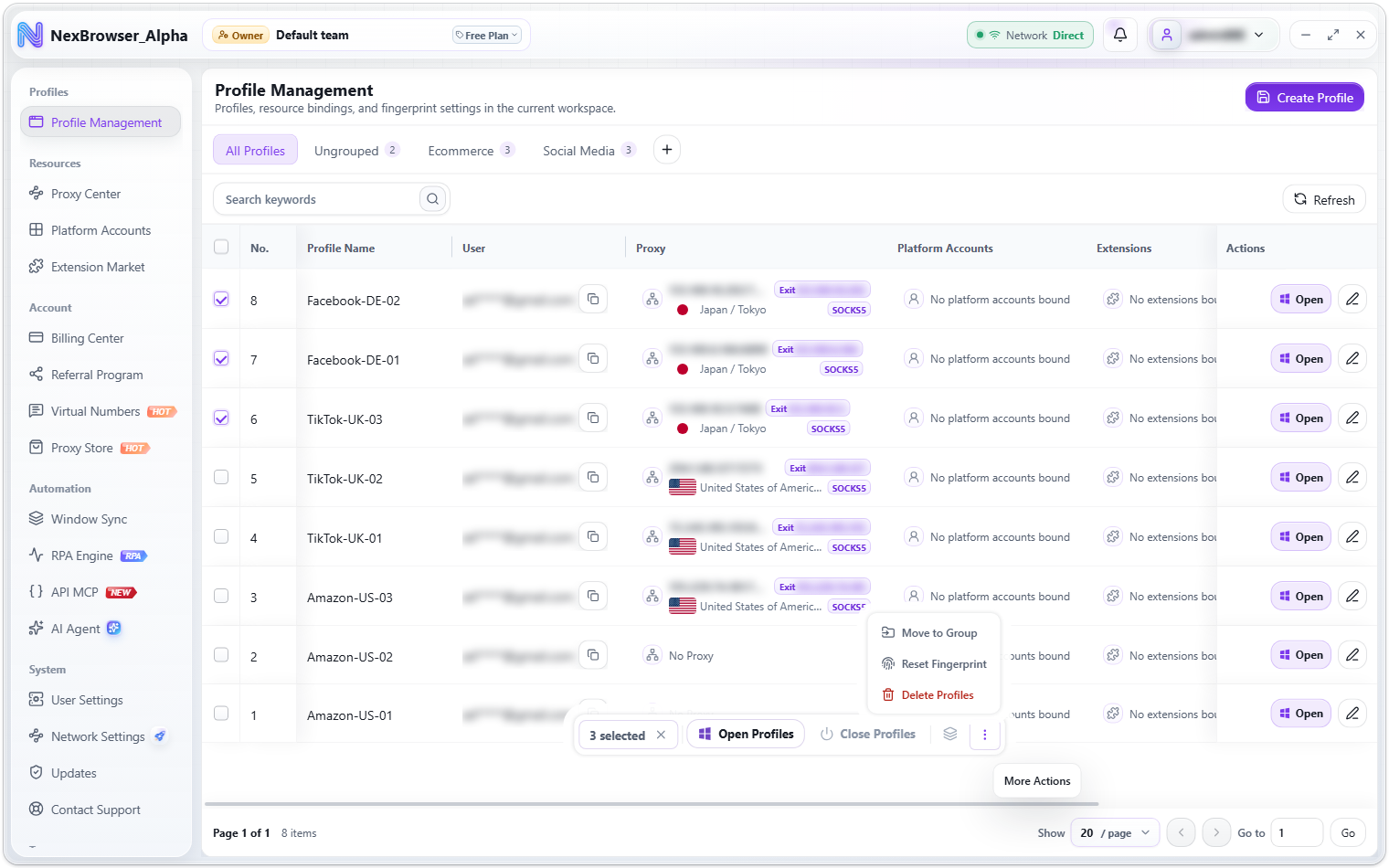
The profile list is where you work with profiles day to day. This page covers group filtering, search and pagination, inline quick edits, and the batch action bar that appears when you select profiles.
List and search
The list has these columns: No., Profile Name, User, Proxy, Platform Accounts, Extensions, Notes, Created, and Actions.
- Use the search box at the top ("Search keywords") to search by keyword. The "Refresh" button on the right reloads profiles and groups.
- Drag the header edge of the "Profile Name" and "User" columns to resize them.
- The pagination footer switches pages and the number of items per page.
- The list can't be sorted by column; profiles are always ordered by number.
- The Actions column contains the "Open"/"Close" button, an eye icon ("Bring window to front") that appears while the profile is running, and the "Edit Profile" icon button. For button states, see Opening, Closing, and Cloud Sync.
Inline resource rebinding and notes
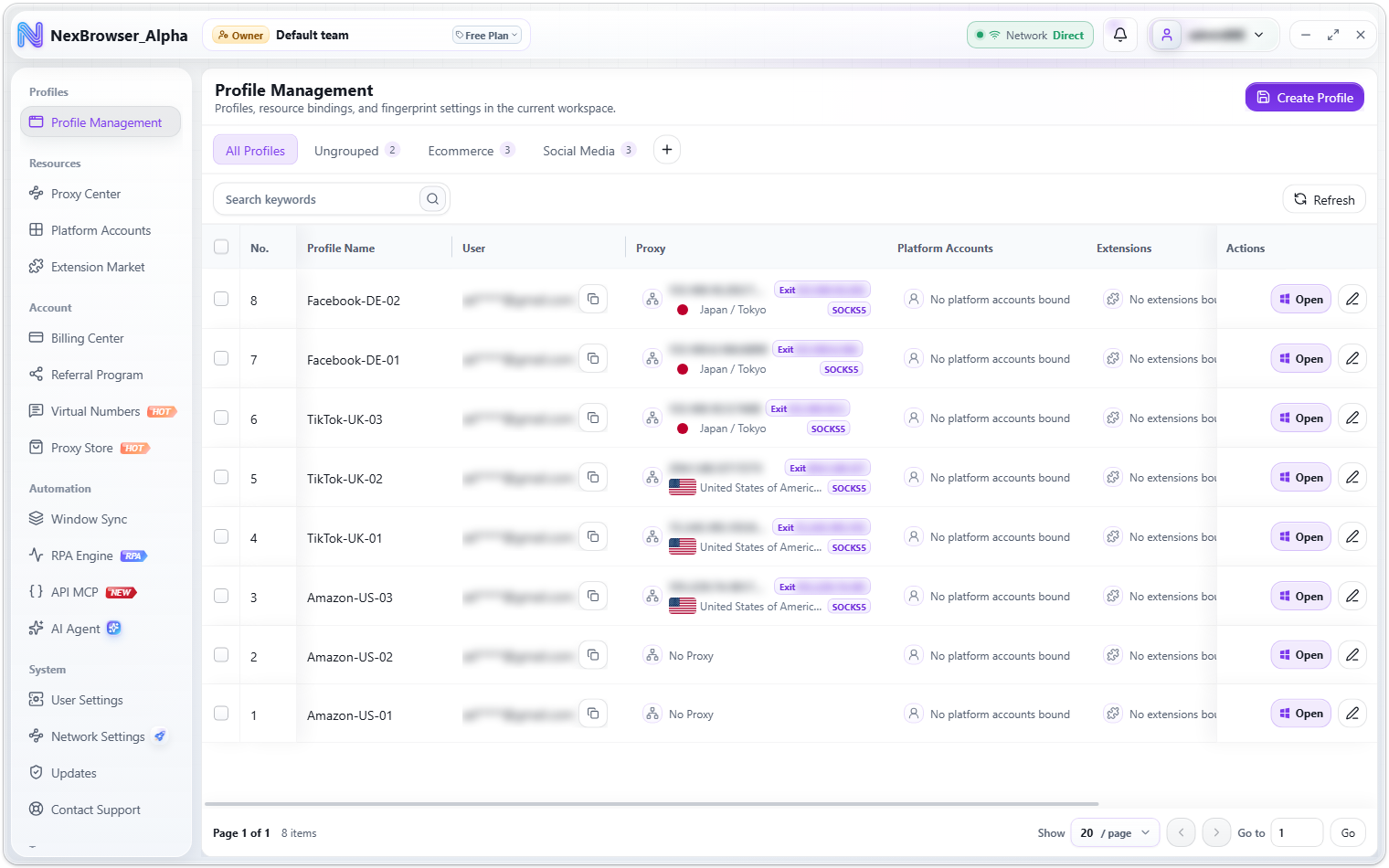
- Click the Proxy, Platform Accounts, or Extensions cell to open a selection dialog and rebind that row's resources. After saving you'll see "Resource settings saved". This entry point saves on confirm; you don't need the edit dialog.
- The Notes column can be edited inline: click the note (an empty one shows "Add a note"), then press Enter or click the save icon to save ("Note saved"). Press Esc to cancel.
Both inline rebinding and note editing require the profile to be closed. While it's running you'll see "Close the profile before editing".
Profile groups
Groups are filter tabs shared across the team. Above the list you'll see "All Profiles", "Ungrouped", and your custom groups, each tab showing how many profiles it contains.
| Action | Where | Notes |
|---|---|---|
| Create a group | "+" on the tab bar ("New Group") | Opens the "New Group" dialog. "Group Name" can be up to 64 characters, with an N/64 counter. You'll see "Group created" |
| Rename | Hover a custom group → "Rename" | You'll see "Group saved" |
| Delete a group | Hover a custom group → "Delete Group" | Profiles in the group move to "Ungrouped" |
| Reorder | Drag a group by its handle | You'll see "Group order saved" |
| Move profiles into a group | The "Profile Group" field in the create/edit dialog, or "Move to Group" on the batch action bar | A batch move shows "Profile groups updated" |
Group actions require the corresponding group view, save, or delete permissions; without them, the related entry points aren't available. See Roles and Permissions.
The delete confirmation states "This group has N profiles. They will be moved to Ungrouped after deletion." Profiles in the group aren't deleted; they just move to "Ungrouped". The group itself, however, can't be restored from the client once deleted.
Batch action bar
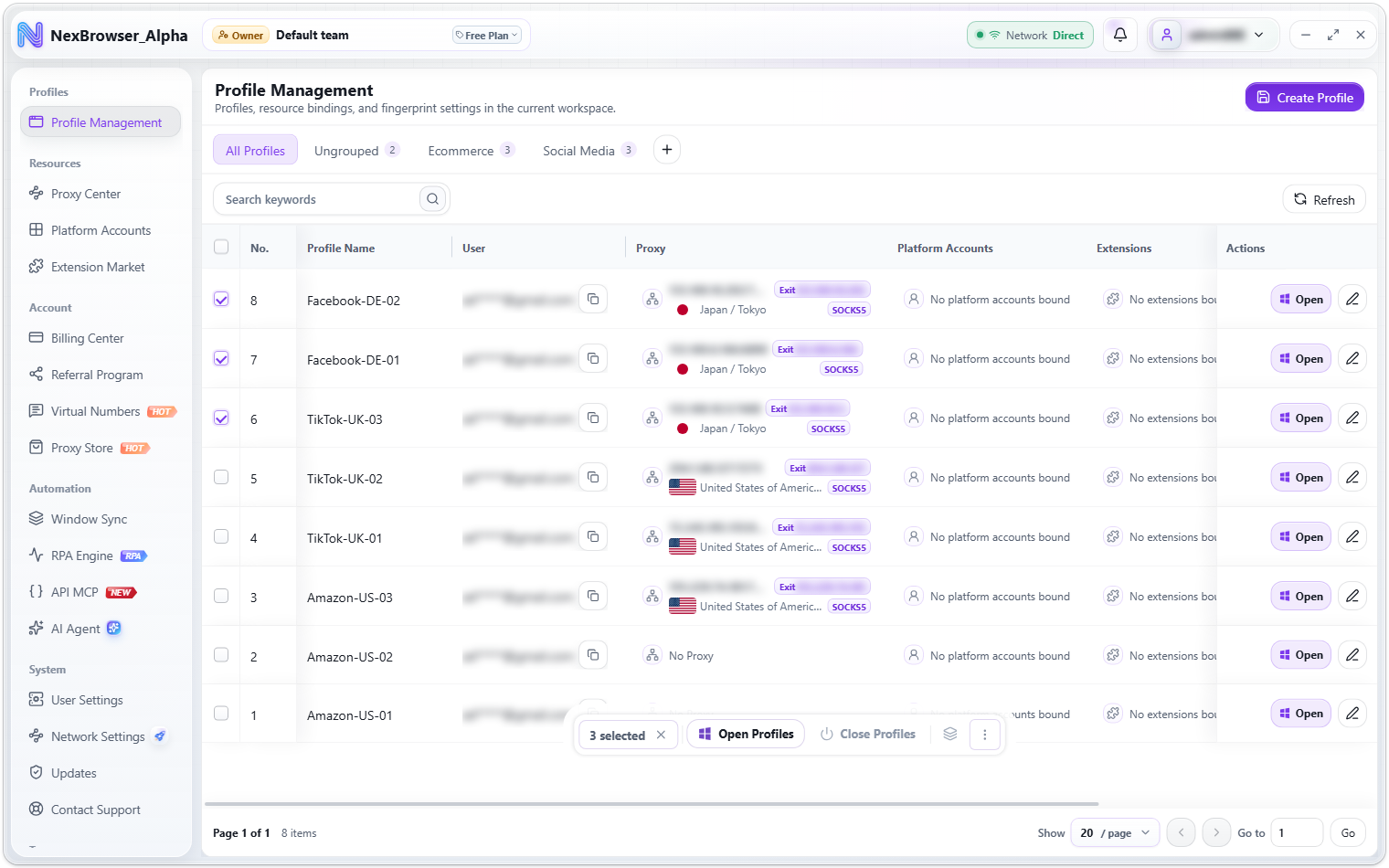
When you select profiles, a floating action bar appears at the bottom showing how many are selected (for example "3 selected"). Click "Clear Selection" to dismiss it. Each button is shown or hidden according to your team role's permissions.
| Action | Where | Notes |
|---|---|---|
| Open Profiles | Action bar | Launches profiles one after another in number order, and tiles them in an adaptive grid that fills the work area (the more profiles, the smaller each window; no overlap, no paging) |
| Close Profiles | Action bar | Closes the selected profiles; at least one must be running. See Opening, Closing, and Cloud Sync |
| Window Sync | Action bar (icon button) | Requires at least 2 open profiles to be selected; otherwise you'll see "Select at least 2 open profiles first". Opens the separate Window Sync panel for multi-window control, with the selected profiles brought in automatically. See Multi-Window Sync |
| Move to Group | "More Actions" menu | Choose the target group in the "Move Profiles to Group" dialog. You'll see "Profile groups updated". The selected profiles must be closed |
| Reset Fingerprint | "More Actions" menu | Shows the "Reset Fingerprints" risk dialog; after you confirm, fingerprints are regenerated and you'll see "Fingerprints reset". The selected profiles must be closed. For the risks, see Fingerprint Settings |
| Delete Profiles | "More Actions" menu | Shows the "Delete Profiles" risk dialog; after you confirm, the profile settings, resource bindings, and local records are removed from the current workspace and the team quota is refreshed |
When opening in a batch, the grid layout is calculated from the actual screen work area. When opening a single profile, it uses that profile's own start position under "Basic Info → Window Layout".
Deleting profiles requires the profile delete permission (without it, the item isn't shown in the action bar). The confirmation dialog states: deleted profiles can't be restored from the client; check the status of running profiles first. The client has no recycle bin. Passwords saved inside the profile in the local password vault are deleted along with it; see Password Vault.