MCP Integration (External AI Clients)
The NexBrowser MCP Server wraps the desktop client's local OpenAPI as an MCP service, so MCP-capable AI clients such as Codex, Claude Code, Cursor, and Gemini CLI can list profiles, open windows, and work on pages directly. NexSMS, NexMask, NexCaptcha, and NexIP are bundled into the same MCP, so you connect once and get everything.
How it differs from Nex Agent: Nex Agent is the AI agent built into the client. The model and tokens live on the NexBrowser side, and it's connected automatically. MCP integration hands the browser to an external AI client instead, so the model, sessions, and billing all live on that side.
Every action is ultimately carried out by the NexBrowser desktop client on this computer. If the desktop client isn't running, or its local service isn't turned on, every tool fails to connect.
Before you start
- The NexBrowser desktop client is running, you're signed in, and a team is selected.
- Node.js 18 or later is installed on this computer (20+ recommended).
The API MCP page
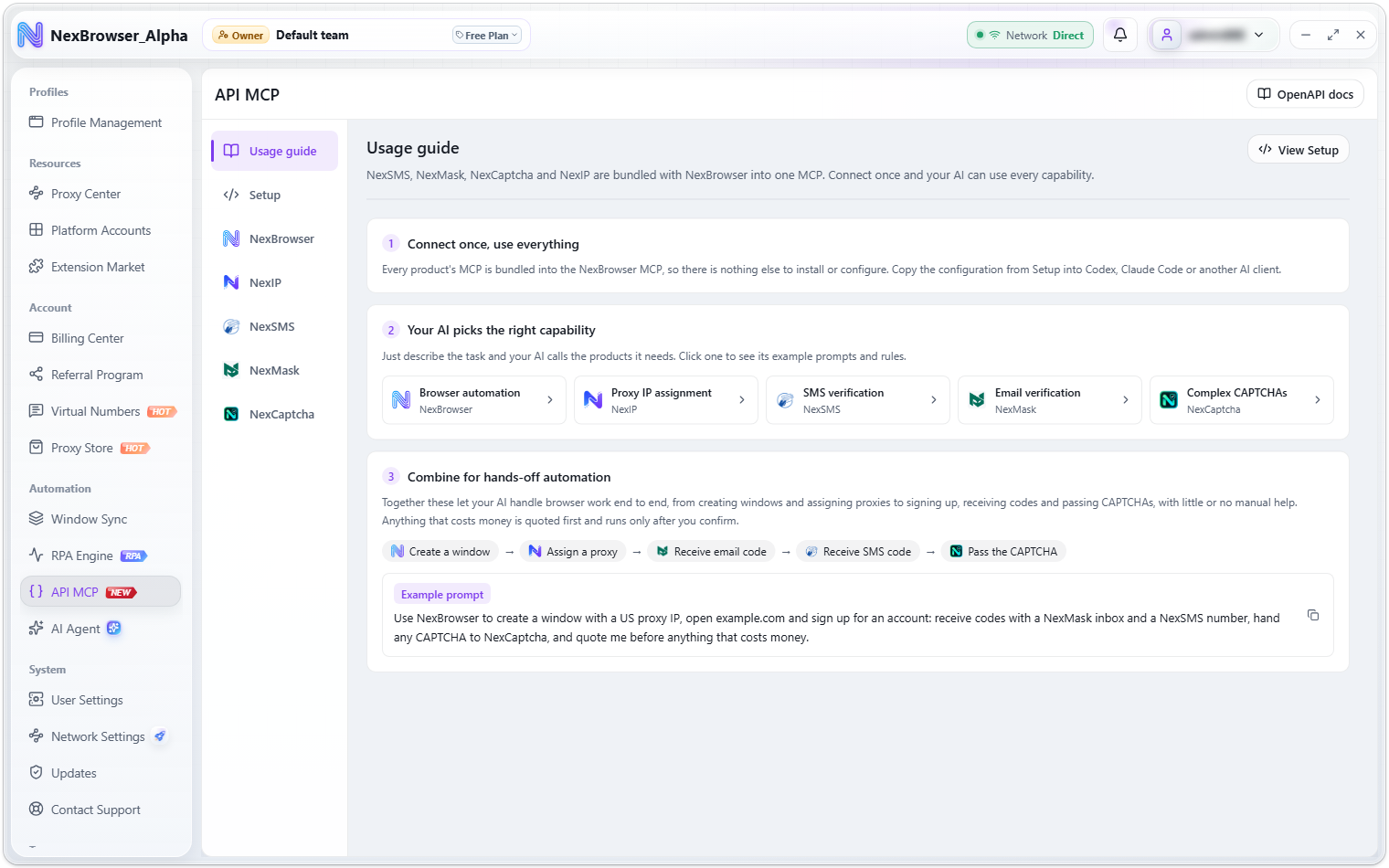
Open it from the sidebar: Automation → API MCP (the navigation item has a "NEW" badge). The menu on the left of the page:
| Menu | Contents |
|---|---|
| "Usage guide" | Opens by default. Explains what the bundled MCP can do, a typical end-to-end flow, and an example prompt |
| "Setup" | The local service switch, API key, port, OpenAPI test, and ready-made configurations for each AI client |
| "NexBrowser", "NexIP", "NexSMS", "NexMask", "NexCaptcha" | A business guide for each product: example prompts, things to know, and the list of MCP tools |
After you sign in, the client shows the "What's new in MCP" dialog (at most once every 7 days per account), listing the capabilities you get and the supported AI agents. Click "Set up MCP" to go straight to "Setup", or "Got it" to close it.
Step 1: Turn on the local service
- Open
API MCP → Setup. - Turn on the "API enabled" switch. While it's off, the page says "Once enabled, the built-in Agent, custom scripts, and automation tools can control browser profiles through the local OpenAPI."
- Once the service starts, an "API Key" is generated automatically. Click "Show key" to see it, or copy it directly. The key is stored on this computer and stays the same after the client restarts.
"Port settings" shows the service address 127.0.0.1:port, with port 45536 by default; the button on the right copies the service address:
- After changing the port, click "Apply". If the service is running, the "Confirm OpenAPI Port Change" dialog appears; once you confirm, the local service restarts on the new port and connections to the old port stop working.
- If the port is in use, the next free port is used automatically and you'll see "The configured port is not in effect. Currently listening on N." The address shown on the page is the one that counts.
- The service "Listens on the local loopback address only and is never exposed to the internet."
Clicking "Reset API key" generates a new key after the confirmation "Reset the API key? All client configurations using the old API key will stop working." For key rules and the request header format, see Service and authentication.
Step 2: Add the configuration to your AI client
The "Connect an AI client" card says: "Nex Agent is connected automatically. Choose your external client's tab and copy its configuration to connect."
- Choose the tab for your client. Below it you'll see how to use it and the complete configuration.
- Click "Copy Configuration". The copied text already contains the current API key and service address, so it's ready to use. While the service is off, the button is unavailable ("Start the service first to generate an access key").
- Paste it where the tab's instructions say, or run the copied command in a terminal.
- Restart or reload your AI client so the configuration takes effect.
| Tab | How to use it |
|---|---|
| Standard Configuration | For clients that support mcpServers (such as Claude Desktop) |
| Claude Code | Run the copied command in a terminal to add it to the current project |
| Codex | Run the copied command in a terminal to register a local MCP |
| Gemini CLI | Merge it into the mcpServers configuration in ~/.gemini/settings.json |
| ZCode (GLM) | Merge it into the mcp.servers configuration in ~/.zcode/cli/config.json |
| DeepSeek Harness | Append this YAML entry to ~/.dsh/cordis.patch.yml, then restart DeepSeek Harness |
| Kimi Code CLI | Merge it into the mcpServers configuration in ~/.kimi-code/mcp.json, then start a new session |
| VS Code (GitHub Copilot) | Merge it into your project's .vscode/mcp.json, then enable NexBrowser tools in local Copilot |
| Cursor | Paste it into Cursor's MCP configuration |
| OpenCode | Paste it into opencode.json |
The "Standard Configuration" looks like this, where <your-openapi-token> is the API key shown on the page:
{
  "mcpServers": {
    "nexbrowser": {
      "command": "npx",
      "args": ["-y", "@nexbrowser/mcp@latest"],
      "env": {
        "NEX_API_KEY": "<your-openapi-token>",
        "NEX_API_HOST": "http://127.0.0.1:45536"
      }
    }
  }
}
The page warns: "The configuration contains your current API key. Paste it only into trusted local clients."
Step 3 (recommended): Install the automation Skill
The optional "Automation Skill" below the configuration guides the AI to choose profiles, act on page snapshot refs, and call the paid services needed for an authorized task directly. Copy the install command and run it in a terminal:
npx skills add https://github.com/nex-browser/nexbrowser-mcp --skill nexbrowser-automation
MCP works without the Skill. It's for Skill-capable clients such as Claude Code, Codex, and Cursor, and with it installed the AI picks the wrong tool less often.
Usage guide and business guides
The "Usage guide" sums things up in three points: connect once, use everything; just describe the task and your AI calls the products it needs; and combined, your AI can handle browser work end to end, from creating windows and assigning proxies to signing up, receiving codes, and passing CAPTCHAs. Paid services needed for the task charge the account balance directly, without quotation or separate fee confirmation. The page includes a complete example prompt; click "Copy example prompt" to copy it.
Each product's business guide has "Try saying this to your AI" (example prompts you can copy), "What your AI takes care of" (things to know), and a collapsed "Developer reference: N MCP tools". The header has buttons to open the product's website and the matching management page in the client.
| Product | What it does | Key points |
|---|---|---|
| NexBrowser | Finds, creates, and opens browser profiles, then works on web pages | New profiles get their own fingerprint, up to 50 at a time; when a task ends, the AI only disconnects and leaves the window open |
| NexIP | Manages proxies, checks exit IPs, binds proxies to profiles, and buys or renews proxies | After confirmed unavailability, prefer an available owned proxy; recovery may preserve a continuation point and close/reopen only the current task's window to rebind |
| NexSMS | Buys virtual numbers, waits for SMS, fills codes into web pages, and releases numbers you don't need | Waits 120 seconds by default; automatically replaces unsupported numbers or confirmed receiving timeouts; reconciles unknown purchase outcomes first |
| NexMask | Gets receiving inboxes, syncs mail, and reads verification codes | Waits 180 seconds by default; excludes rejected formats, domains or suffixes before replacement; receive-only, without renewals or refunds |
| NexCaptcha | Solves the CAPTCHA on the current page and fills the result back in | Preparing a challenge is free; submission charges directly; confirmed failures may retry a fresh challenge, while normal Grid rounds continue the existing flow |
Automatic recovery in an authorized interactive task defaults to at most 3 attempts per resource flow, including the first. The AI reports waiting, replacement reasons and actual counts, then continues without repeated requests for a reply. For SMS, prefer an alternative for the same project before changing to a country/product that still matches the target site. Mailboxes may switch to a supported suffix or type from the live catalog. Avoid failed candidates; changing country, project or type does not reset the count. Required country, site project, mailbox domain or type constraints remain in force. After replacement, update the site form and send again, using only codes matching the current resource and sending time.
A purchase network timeout or unknown allocation/payment outcome triggers automatic service-record and billing reconciliation. If the outcome cannot be established, stop that flow without duplicate charges. Insufficient balance stops subsequent spending and quota consumption; the built-in Agent displays "Insufficient account balance. Paid operations have stopped. Top up before continuing." without waiting for proceed or top-up confirmation. External AI tool approvals follow its own client settings; the Automation Skill supplies these recovery rules.
Developer note: waitSeconds (the Agent passes 180), onlyNew and receivedAfter on nex_mail_message_list control local MCP waiting/filtering. receivedAfter is a timezone-qualified ISO time that filters out mail predating the current send. These are not HTTP /mail/pull parameters. nex_service_recovery records recovery state only in the built-in Agent; it is not a public MCP tool or local HTTP endpoint.
The page suggests starting your prompt with "Use NexBrowser" so the AI calls NexBrowser instead of other tools. Browser windows the AI is working in show a "Nex Agent is operating" indicator, which hides on its own after the session has been idle for a while.
Call over HTTP (OpenAPI)
Scripts or your own systems can also call the local API directly without MCP. The "Call over HTTP (OpenAPI)" card under "Setup" offers:
- "Quick test": a copyable test command and a "Test connection" button that checks whether the local service is reachable without needing a key. The result is "Connected. The service is reachable." or "Couldn't connect. Make sure the service is on and the port is free."
- "Guides" and "API reference": shortcuts to commonly used docs. "Full docs" and the "OpenAPI docs" button in the page header open the complete API documentation.
HTTP requests carry Authorization: Bearer <api-key> in the request header; see Service and authentication.
Configuration
| Variable | Required | Default | Description |
|---|---|---|---|
NEX_API_KEY | Yes | — | The API key from API MCP → Setup |
NEX_API_HOST | No | http://127.0.0.1:45536 | The OpenAPI service address |
NEX_TIMEOUT | No | 30000 | Timeout per request, in milliseconds |
NEX_EXPOSE_CDP | No | Off | Set to 1 to return only the raw CDP address |
All four have matching command-line flags: --api-key, --api-host, --timeout, and --expose-cdp. Pass the key through an environment variable rather than on the command line.
What it can do
- Profile management: list, create, open, and close profiles, rename a profile, and view profile details.
- Groups: view groups and their profile counts, create, rename, and delete groups, and move profiles.
- Proxies and platform accounts: list, import, and check proxies, and bind them to closed profiles; manage the platform account directory.
- Page automation: connect to a profile, navigate, click, type, upload files, and manage tabs.
- Page inspection: snapshots, screenshots, page text, console messages, and network requests.
- Business services: buy proxies, virtual numbers, and receiving inboxes, fetch verification codes, and solve page CAPTCHAs.
- Session isolation: each MCP process only holds the browser sessions it created.
Common tool names:
nex_browser_list              nex_browser_open
nex_browser_close             nex_browser_connect
nex_browser_tab_list          nex_browser_snapshot
nex_browser_click             nex_browser_fill_form
nex_browser_take_screenshot   nex_browser_network_requests
The full tool list is available through MCP's tools/list; each product's common tools are also listed under "Developer reference" in its business guide.
Other ways to install
If you'd rather not go through npx every time, install it globally:
npm install --global @nexbrowser/mcp
nexbrowser-mcp
Troubleshooting
| Symptom | What to do |
|---|---|
| Connection fails | Make sure the NexBrowser desktop client is running and "API enabled" is on; you can check with "Test connection" under "Quick test" |
| Unauthorized | The key may have been reset. Go back to "Setup", click "Copy Configuration" again, and update your client |
| Endpoint not found | The desktop client is too old. Update to the latest version; see Updates |
| No tools show up in the client | Restart or reload the MCP client |
| The port isn't 45536 | The default port was taken and the next one was used. Set NEX_API_HOST to the address shown on the page, or copy the configuration again |
Security
- Unless you need remote access, keep OpenAPI listening on the local loopback address only.
- Don't commit the key, or configuration files containing it, to a code repository.
- After you reset the key, the old one stops working immediately; update every configured client.
- Page snapshots and text are sent to an external model provider and may contain sensitive information such as account details.
- Turn on capabilities such as page evaluation, code execution, and raw CDP only when needed, and turn them off when you're done.