Nex Agent (AI Agent)
Nex Agent is the AI agent built into the client. Give it a browser task in plain language and it opens profiles, works on pages, fills in forms, and takes screenshots, showing its reasoning, tool calls, and task plan in the chat as it goes. It can also work with NexIP, NexSMS, NexMask, and NexCaptcha to assign proxies, receive SMS or email verification codes, and handle CAPTCHAs. Paid services needed for an authorized task charge the account balance directly, without quotation or separate fee confirmation.
Open Nex Agent
Open it from the sidebar: Automation → AI Agent. This opens the separate "AI Agent Chat" window.
Before you start:
- Sign in and select a team; otherwise you'll see "Sign in before starting Nex Agent" or "Select a team before running Agent".
- Turn on the local service on the API MCP page; otherwise you'll see "Enable API MCP before opening AI Agent".
- Your team role needs the AI Agent permission; without it the navigation item isn't shown. See Roles and Permissions.
When the window opens, the local Agent starts automatically. While it connects, the message box shows "Connecting to MCP service, please wait...". If it fails to start, click "Start Agent" to try again.
When you close the "AI Agent Chat" window, the Agent keeps working in the background, and a floating bar labeled "AI Agent" and "Running in background" appears in the main window. Click the bar to restore the chat; only the close button on the bar ("Close AI Agent Completely") actually shuts the Agent down.
After you switch the client's interface language, the Agent restarts automatically in the new language. If it was replying at the time, you'll see "Interface language changed. Agent is restarting, and the reply in progress was interrupted."
Manage chats
The chat sidebar offers "New Chat", "Search", "Tasks", and "Delete Chats on This Page". Chats are grouped into "Pinned" and "All"; right-click a chat or use the title bar menu to "Pin Chat", "Rename Chat", or "Delete Chat". Chats are saved in the cloud. The welcome screen asks "What can Nex Agent help you with today?".
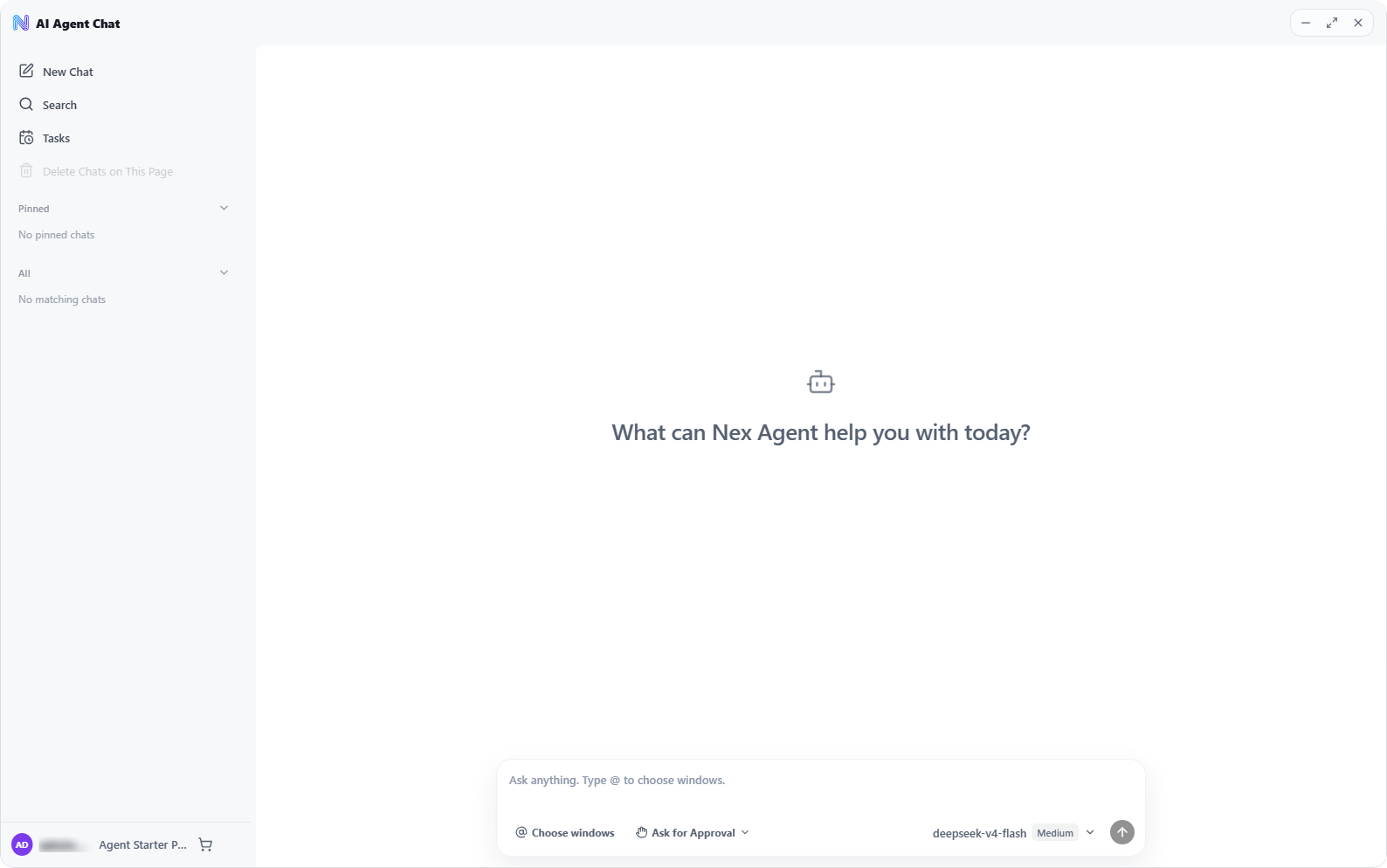
Deleting a chat clears it for good: "The chat record, local chat history, and Agent memory cache will be cleared." "Delete Chats on This Page" deletes every chat in the list (confirm button: "Delete All"). A chat that's still running can't be deleted; you'll see "Stop the running task before deleting this chat".
Local chats created by older versions can't be continued in the new version; you'll see "Legacy local chats cannot use unified forwarding. Start a new chat." Only your most recent message can be double-clicked, edited, and sent again.
Send tasks and the message queue
- Press Enter to send and Shift+Enter for a new line. While the Agent is running, a "Stop" button is shown.
- After a reply finishes, a grey next-step suggestion may appear in the empty message box; press Tab to accept it.
- You can keep typing and sending while the Agent is running. New messages go into the "Queued messages" card above the message box (showing "Next turn · N messages") and run in order in the next turn. For each message you can "Steer" (insert it into the task in progress to change the Agent's direction) or "Delete message", and the more menu offers "Edit message", "Move message up", and "Move message down"; you can also drag messages to reorder them. A message that fails to send is marked "Send failed" and can be sent again with "Requeue".
Choose profiles and multi-profile tasks
Telling the Agent which profiles to work on makes tasks more accurate:
- Click "Choose windows" below the message box, or type
@in the message box, to open the quick picker. - Pick from "Recently used" or "Available profiles", or search ("Search name, number or Window ID"). Click "View all profiles" to filter by group and profile status, then click "Done".
- The selected profiles appear as chips in the message box; click one to choose again or remove it on its own.
You can select up to 20 profiles at a time. Selecting profiles doesn't open the browsers; the Agent opens them as needed.
With several profiles selected, the Agent spreads the task across them and runs it in parallel: either the same steps in a batch on every profile, or a separate subtask for each profile. The chat shows "Create N parallel tasks" and "Run subtask", and you can stop a running subtask on its own with "Stop subtask". Browser windows the Agent is working in show a "Nex Agent is operating" indicator.
When the task finishes, an "Execution report" card appears in the chat. It lists the task parameters, the result for each target profile (Succeeded, Failed, Cancelled, Unused, Unverified, and so on), and the success rate. Click "Export report" to download the report as a Markdown file.
The Agent only counts a result as successful when it has clear evidence of the business outcome (for example, the page shows the sign-up succeeded). If it completed the actions but can't confirm the outcome, the result is "Unverified", and the success rate notes how many are unverified; check those profiles yourself. Running many profiles in parallel uses tokens noticeably faster.
Approval mode and model
The tool area of the message box has these settings:
| Option | Description |
|---|---|
| "Ask for Approval" | Protected actions such as deletion, account-catalog access or account binding, and schedule changes pause the Agent. An approval panel "Allow Nex Agent to …?" appears above the message box with the target and the note "Applies to this request only". Choose "Reject" (Esc) or "Allow once" (Enter); task spending, number release and proxy rebinding run directly |
| "Full Access" | "Run all actions directly without confirmation" |
| Model picker | The available models are whatever the client shows. DeepSeek models also offer "Reasoning Effort" (Low/Medium/High), and the menu includes "Reset to Defaults" |
Protected actions that need approval include deleting resources, viewing, creating, editing, or deleting platform accounts, binding platform accounts to profiles, reading files, running commands, and creating or changing scheduled tasks. Purchases, renewals, quota extraction, CAPTCHA solving, number release and proxy rebinding within an authorized interactive task no longer require repeated approval. Each decision stays in the chat history as "Awaiting approval", "Approved", or "Rejected".
With "Full Access", protected actions such as resource deletion also run immediately. In both modes, paid services and bounded automatic recovery needed for an authorized interactive task run directly.
SMS, email, proxies, and CAPTCHAs
The Agent has NexBrowser's business services built in and can use them directly during web tasks:
| Service | What the Agent can do |
|---|---|
| NexIP | List, import, and check proxies, bind them to profiles, and buy or renew proxies |
| NexSMS | Buy virtual numbers, wait for the SMS, and fill the code straight into the page; release numbers you don't need |
| NexMask | Get a receiving mailbox, sync its mail, and read verification codes |
| NexCaptcha | Solve GeeTest, reCAPTCHA v2, Turnstile, and some image-grid CAPTCHAs on the page, and fill the result back in |
When an authorized interactive task needs a purchase, renewal, quota extraction, or CAPTCHA solving, the Agent executes it and charges the account balance directly, without quotation, typed confirmation, or fee approval; see Billing Center and Top-Up. Price inquiries, comparisons, and explicit do-not-order requests do not place orders. Confirmed resource failures trigger automatic replacement and continuation without asking whether to proceed. Each target's resource flow defaults to at most 3 attempts including the first; changing country, project or mailbox type does not reset the count.
- Phone numbers: wait
120seconds by default after the site sends SMS. Replace an invalid, already registered, unsupported number or a confirmed receiving timeout. Prefer a suitable alternative for the same project, then use the live catalog to change country/product while still matching the target site. A WhatsApp project cannot receive a Telegram verification code, and required country/type constraints remain in force. Release eligible old numbers directly; refunds follow the server's result. - Mailboxes: wait
180seconds by default after the site sends mail. Replace after a confirmed timeout without relevant mail. If the site rejects a format, domain, suffix or provider, exclude that candidate class and select a suitable owned mailbox or supported type to purchase. Update the site form and request sending again, matching the code to the current address, site and sending time. - Proxies and CAPTCHAs: after confirmed proxy unavailability, prefer an available owned proxy, then purchase if needed. Recovery may preserve the continuation point, close and reopen only the current task's window to rebind; unrelated windows stay untouched. After a failed solve or explicit site rejection, check the original task and acquire a fresh challenge to solve again. Normal Grid rounds continue the existing challenge rather than counting as solve failures.
- Progress and stop conditions: the chat reports deadlines, replacement reasons and actual progress such as "attempt 2/3". A purchase network timeout or unknown payment/allocation outcome triggers automatic service-record and billing reconciliation. If the outcome cannot be established, that flow stops with the specific reason to avoid duplicate charges. Exhausted attempts or no candidate meeting required constraints ends with a report without waiting for a reply.
Insufficient balance displays "Insufficient account balance. Paid operations have stopped. Top up before continuing." and immediately stops subsequent spending and quota consumption in the task and its subagents, without another proceed or top-up confirmation.
Scheduled tasks (Tasks)
Click "Tasks" in the chat sidebar to create Agent tasks that run on a schedule; you can also run them manually at any time.
- Click "New Task" and fill in "Task Name", "Task Description", and "Task Content". The task content hint reads: "Each run has no previous context. Write a complete instruction that can be finished on its own."
- Set the "Frequency": Every day, Weekdays (Mon–Fri), Weekly, Monthly, Every few hours, or "Custom (Cron)". Then choose the time, days of week, or day of month as needed. A live preview below shows "Schedule: …".
- Choose the "Model": "Each run uses this model and is billed through a dedicated task session."
- Tick "Enable After Creation" if you want, then click "Save Task". You'll see "Task created".
The task list shows each task's name, description, schedule, status (Running / Enabled / Paused), and last run. The Actions column offers "Run" / "Stop", "History", "Edit", "Pause" / "Enable", and delete. "History" opens the run history with start time, duration, status, result, and model. Deleting a task asks: "Delete task "name"? The task definition and its run history will both be deleted."
Each run writes its result to a dedicated chat for that task in the sidebar (titled "Scheduled task · name"). When a run ends, a system notification such as "Scheduled task "name" completed" appears; click it to open that chat. A number badge on "Tasks" means there are new task results.
- Scheduled tasks are run by the local Agent, so the client must keep running and you must not have used "Close AI Agent Completely".
- Scheduled runs don't perform paid actions, number release, proxy rebinding, deletion or changes to scheduled tasks. Automatic replacement purchases apply only to interactive tasks.
- If the previous run is still going, the new run is skipped.
You can also simply ask the Agent in a chat to create a scheduled task for you; in "Ask for Approval" mode you'll need to approve it first.
Token billing and purchases
Click your avatar or nickname in the account area at the bottom of the chat sidebar to open the usage panel, which shows "Token Balance" and "Total used: N tokens". Click "Buy Quota" to open the purchase dialog: it shows your current balance; choose a plan (name / token amount / price) and click "Confirm Purchase". On success you'll see "Purchase successful".
- Plans and prices are whatever the purchase dialog shows; a price that isn't set yet shows "Price pending".
- Purchases are paid from your account balance. To top up, see Billing Center and Top-Up.
- The token balance can go negative: when overdrawn it shows a negative number and the message "Insufficient quota. Buy tokens to continue."