Script Center and Script Editing
Scripts are the core asset of RPA: a reusable browser routine. A script doesn't specify which profiles it runs on; binding profiles is the job of the Task Center. Open it at RPA Engine → Script Center.
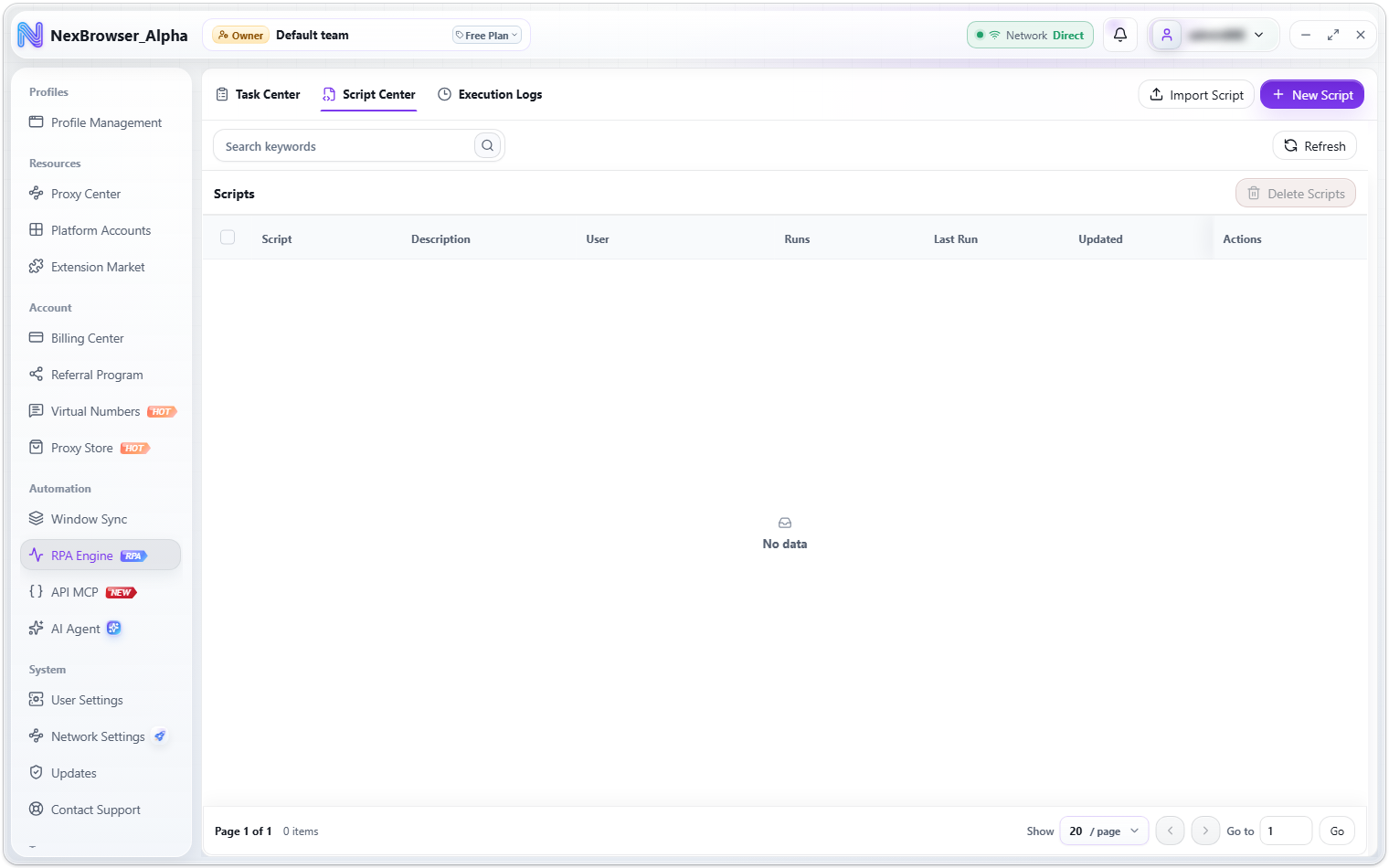
Script list
The top right of the page has two buttons, "Import Script" and "New Script"; the toolbar below has a search box and "Refresh".
| Column | Description |
|---|---|
| Script | The script name |
| Description | Editable inline: click to change it. On save you'll see "Script description saved" |
| User | The team member who created the script |
| Updated | When it was last saved |
| Actions | "Export" downloads the script JSON; "Edit" opens the script workbench |
To delete scripts, select them on the left of the list, then click "Delete Scripts" at the top right (it reads "Delete N" once rows are selected). You'll be asked "Delete the N selected RPA scripts?".
| Action | How | Result |
|---|---|---|
| Create | Click "New Script" | Opens an empty workbench. The default script name follows the Script-<date and time> pattern |
| Edit | Click "Edit" in the row | Loads the saved flow. After saving you'll see "RPA script updated" |
| Import | Click "Import Script" and choose a JSON file | On success you'll see "Script JSON parsed. Review it before saving." and the workbench opens. It's only stored after you click Save |
| Export | Click "Export" in the row | Downloads a JSON file named after the script |
The file must be a complete script file exported from this product. If it has no flow steps, you'll see "The imported JSON has no steps". After import, the script keeps the name from the file; you can rename it in the workbench header before saving, so the same JSON can be imported several times as separate copies.
The script workbench
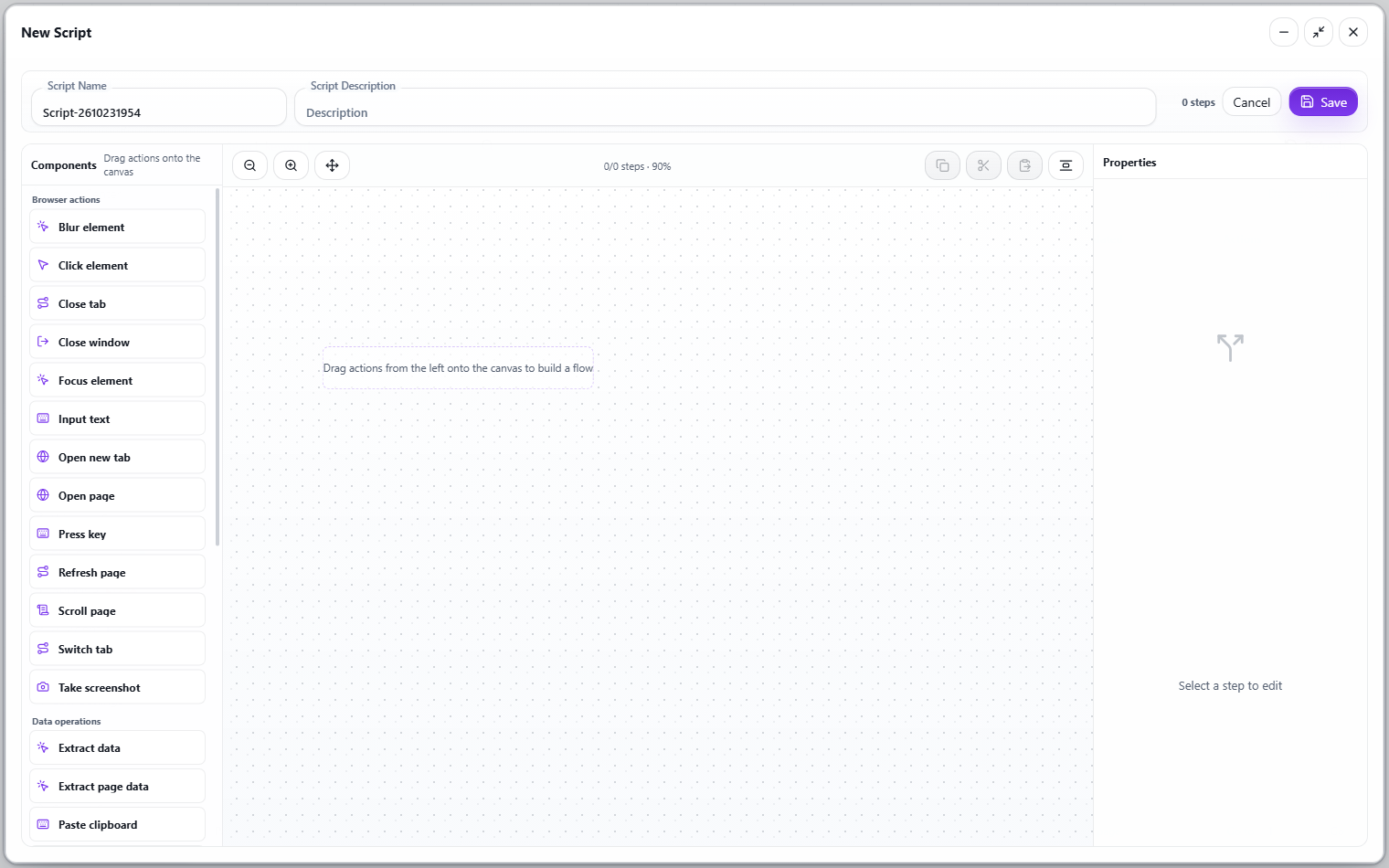
Creating or editing a script opens the full-screen script workbench. The title bar has minimize and maximize buttons on the right. When minimized, only a one-line summary (script name + step count) and a "Resume Editing" button remain, so you can check other pages in the meantime.
The workbench has three columns:
| Area | Position | Purpose |
|---|---|---|
| "Components" panel | Left | Lists every available action by category, with the hint "Drag actions onto the canvas" |
| Flow canvas | Center | Place steps and connect them; the canvas toolbar is at the top |
| "Properties" panel | Right | Configure the parameters and notes of the selected step |
The header holds the script name and script description fields; on the right it shows the current "N steps" and the "Cancel" and "Save" buttons.
Building a script from scratch
- Click "New Script" and fill in the script name (required) and script description in the header.
- Drag the first action from the "Components" panel on the left onto the canvas. An empty canvas shows the hint "Drag actions from the left onto the canvas to build a flow".
- Click the dot at the bottom right of the "Start" node at the top of the canvas and drag a line to the first step. Steps that aren't connected to the Start node never run.
- Keep dragging in the next actions and chain them together with the connection point at the bottom of each node.
- Select a node and fill in the action's parameters (such as the element selector or the text to type) in the "Properties" panel on the right.
- Optionally give the node "Notes". The canvas uses the notes as the node title, and the execution log shows the same name.
- Click "Save".
Working on the canvas
- Add a step: drag an action from the left panel to anywhere on the canvas.
- Move a step: drag the node. Dropping it inside a loop area makes it part of that loop.
- Connect: drag from the connection point below a node to the target node. Regular actions have a single "Connect Next Step" output; condition actions show several branch outputs (by default "No" and "Yes").
- Select a connection: click the line itself. The right panel shows which branch it comes from and which step it goes to, and the toolbar shows a "Delete Connection" button; you can also press Delete.
- Delete a step: click the delete icon at the top right of the node, or select the node and click the delete button in the "Properties" title bar, then confirm "Delete this step? Related connections will be rearranged according to the flow rules."
- Zoom and pan: scroll to zoom; drag on empty space to pan the canvas.
- Numbering and reachability: each node shows its sequence number on the canvas on its right side. Nodes not chained from the Start node are dimmed, and the
reachable steps/total stepscount in the middle of the toolbar tells you how many isolated nodes remain.
Canvas toolbar
| Button | Purpose |
|---|---|
| "Zoom Out", "Zoom In" | Adjust zoom in 10% steps, between about 55% and 170% |
| "Reset Canvas View" | Restores the default zoom and position |
| "Tidy Up Canvas" | Rearranges all nodes in flow order, turning a messy canvas into a top-down tree |
| "Copy Selected Step", "Cut Selected Step", "Paste to Canvas or Selected Loop" | Reuse configured steps. If a loop area is selected when you paste, the steps go inside that loop |
| "Delete Connection" | Appears only after you select a connection |
The middle of the toolbar shows reachable/total steps · zoom %. The button for deleting steps isn't here; it's in the "Properties" title bar on the right.
Keyboard shortcuts:
| Shortcut | Action |
|---|---|
Ctrl+C / Ctrl+X / Ctrl+V | Copy / cut / paste the selected step |
Ctrl+Z | Undo |
Ctrl+Shift+Z or Ctrl+Y | Redo |
Delete / Backspace | Delete the selected connection |
Node positions are stored on this device and aren't uploaded. When you open the same script on another device, the canvas is laid out automatically again. The flow logic isn't affected at all; click "Tidy Up Canvas" once to make it neat again.
Properties panel
With a step selected, the right panel shows, from top to bottom:
- Action name: which action this step uses.
- Parameter fields: determined by the action, such as element selector, page URL, click type, or timeout (ms). Saving is blocked if a required field is empty.
- "Notes": a business name for the step, for example "Open Google". Notes appear on the canvas node and in the execution log.
With nothing selected, the panel shows "Select a step to edit". With a connection selected, it shows which step that connection goes to.
Variables
Variables let data captured by earlier steps be used by later ones.
- Declare a variable: actions such as data extraction, script execution, variable assignment, client ability calls, and loops have fields like "Output Variable" or "Variable Name". Filling one in declares a variable.
- Reference a variable: use
${variableName}in text parameters. The dropdown button on the right of the field lists every variable declared before the current step; click one to insert it instead of typing. - Upstream visibility: you can only reference variables that come before the current step in the flow. Referencing an undeclared variable causes an error on save that names the step and field.
Loops
Dragging a loop action onto the canvas creates a loop area together with a loop start node and a loop end node inside it.
- Loop body: drag the steps you want to repeat into the area. Drag the bottom right corner of the area to resize it.
- Automatic chaining: steps inside the loop area that you haven't connected manually are chained by their order on the canvas.
- Loop strategy:
- Count Loop: set the number of iterations, with a counter variable (default name
i) that increases each round; use${i}inside the loop body to reference the current round. - Condition Loop: set a variable, a comparison (Equals, Not Equals, Greater Than, Greater Than or Equal, Less Than, Less Than or Equal, Contains, Does Not Contain, Is Empty, Is Not Empty), and a target value. The next round runs only while the condition holds.
- Count Loop: set the number of iterations, with a counter variable (default name
- Ending early: put an exit-loop action in the loop body to break out of the current loop. The flow control action offers three modes: "Continue", "Exit Loop", and "Mark as Failed".
The panel notes: "When saved, a loop is submitted as two executable steps: a loop start and a loop end."
Conditions
A condition action is a fork in the flow, with several outputs below the node:
- By default there are two branches labeled "No" and "Yes", connected to the steps to take when the condition is false or true.
- Condition types: Element Visible, Page Contains Text, URL Contains Fragment, and Variable Check. For Variable Check you also choose a comparison and a target value.
- With several rules, the outputs expand rule by rule. At run time the first matching rule from top to bottom wins; if none match, the default branch is taken.
Both branches must be connected; otherwise saving reports that the branch isn't connected.
Waiting for elements
Slow-loading pages and elements that haven't rendered yet are the most common cause of automation failures. There are three ways to wait:
| Approach | When to use it |
|---|---|
| Fixed wait action | You only know you need to "wait a bit"; enter the wait in milliseconds |
| Wait assertion action | Continue only once a condition holds: Element Visible, Element Hidden, Page Contains Text, URL Contains Fragment, or Variable Check. If it isn't met before the timeout, the step fails |
| The action's own "Wait for Element" switch | Click, type, screenshot, scroll, and similar actions have this switch in their parameters. Turn it on to wait for the element before acting; the timeout is set by "Timeout (ms)" |
Prefer wait assertions or the built-in wait switch: they're more reliable and faster than stretching a fixed wait.
Saving and common blockers
Clicking "Save" runs a series of checks. If one fails, an error shows at the top along with a toast:
| Message | Meaning and fix |
|---|---|
| "Script name is required" | Add a script name in the header |
| "Add and connect at least one action step" | The canvas is empty, or no step is connected to the Start node |
| "The RPA action model is incomplete (xx). Scripts can't be edited or saved." | The action list wasn't fully loaded. Click "Refresh" in the toolbar to reload it, then try again |
| "The RPA action model is empty. Scripts can't be edited or saved." | Same as above: the action list didn't load |
| "The action model for xx is not loaded. Refresh the RPA action models and save again." | The action used by this step isn't in the current action list. Refresh and try again |
| Required / format errors on parameter fields | Fix them as prompted. JSON parameters must be a valid JSON object or array |
After a successful save, the workbench closes and the list refreshes.
Action reference
The actions in the "Components" panel are delivered by the server and kept up to date automatically; you can also click "Refresh" in the toolbar to fetch the latest actions. The client can currently run 30 actions, grouped by capability below.
The tables below group actions by capability, with purposes and parameters taken from how the client actually runs them. The action names, group titles, and parameter titles shown in the panel come from the server and may be worded slightly differently. What your client shows is authoritative, and newer versions may add actions.
Pages and tabs
| Action | Purpose | Main parameters |
|---|---|---|
| Open page | Opens a URL in the current tab | Page URL, Wait for Load, Timeout (ms) |
| Open new tab | Opens a URL in a new tab; later actions run in the new tab | Page URL, Wait for Load, Timeout (ms) |
| Switch tab | Finds a tab by a condition and switches to it | Match Field (URL / Title), match mode (equals / contains / does not contain), target value |
| Close tab | Closes tabs | Close Scope (Current Tab / Target Tab / Other Tabs), Match Field, match mode, target value |
| Close window | Closes the whole browser window; the flow ends here | None (the node has no outgoing connection) |
| Refresh page | Reloads the current page and stays on it for a while | Wait (ms) (default 10000), Timeout (ms) |
Element interaction
| Action | Purpose | Main parameters |
|---|---|---|
| Click element | Clicks an element on the page | Element Selector, Click Type (Click / Double Click / Right Click), Wait for Element, Timeout (ms) |
| Type text | Writes text into an input | Element Selector, Input Text, Re-enter (clear first), Simulate Keyboard Typing (type character by character), Wait for Element, Timeout (ms) |
| Focus element | Gives focus to an element | Element Selector, Timeout (ms) |
| Blur element | Removes focus from an element | Element Selector, Timeout (ms) |
| Press key | Sends one key to the focused element | Key (Ctrl+A, Ctrl+C, Ctrl+V, Ctrl+R, Backspace, Tab, Enter, Space, Esc, Delete, the four arrow keys, Page Up, Page Down) |
| Scroll page | Scrolls the page or scrolls to a position | Scroll Mode (Scroll to Element / Scroll by Screen / Scroll to Edge), Element Selector, Element Alignment (Top / Center / Bottom / Nearest), Scroll Direction (Up / Down), Screens to Scroll, Page Edge (Top / Bottom) |
Clipboard and screenshots
| Action | Purpose | Main parameters |
|---|---|---|
| Write to clipboard | Writes text to the system clipboard | Content (supports variable templates) |
| Paste | Pastes at the current focus | None |
| Screenshot | Captures the page and saves it as an image | Screenshot Scope (Current Viewport / Full Page / Specific Element), Element Selector, Screenshot Folder |
Screenshots are saved under the "Screenshot Folder" in task name / script name subfolders, and each file is named after the step (its notes first) plus a timestamp.
Waiting and conditions
| Action | Purpose | Main parameters |
|---|---|---|
| Wait | Waits for a fixed time | Wait (ms) (default 1000) |
| Wait assertion | Continues once a condition holds; fails the step on timeout | Assertion Type (Element Visible / Element Hidden / Page Contains Text / URL Contains Fragment / Variable Check), Element Selector, Expected Text, URL Fragment, Timeout (ms) |
| Condition | Takes different branches based on a condition | Condition Type (Element Visible / Page Contains Text / URL Contains Fragment / Variable Check), Element Selector, Expected Text, URL Fragment, Variable Name, Variable Condition, Target Value |
Loops and control
| Action | Purpose | Main parameters |
|---|---|---|
| Loop | Creates a loop area with loop start and loop end nodes when dropped | Ready to use; parameters are set on the loop start node |
| Loop start | Decides whether to run another round: true goes to the loop body, false leaves the loop | Loop Strategy (Count Loop / Condition Loop), Loop ID, Variable Name, comparison, Target Value / Iterations |
| Loop end | After the loop body finishes a round, returns to loop start or exits the loop | Loop ID |
| Exit loop | Breaks out of the current loop early from inside the loop body | None |
| Flow control | Changes the flow's direction on purpose | Control Type (Continue / Exit Loop / Mark as Failed), Message |
Data and variables
| Action | Purpose | Main parameters |
|---|---|---|
| Extract page data | Pulls content from the page into a variable | Data Source (Page Element / Variable Data / Current Page), Extract Content (Text / Link URL / Form Value / HTML / Element Attribute / Regex Extract / JSON Path), Element Selector, Attribute Name, Extract Multiple, Output Variable |
| Extract data | Same as above, with optional regex or JSON path processing of the result | Adds to the above: Regular Expression, Regex Group, JSON Path |
| Assign variable | Writes a fixed value or a template result to a variable | Variable Name, Operation (Assign), Fixed Value / Template |
| Transform variable | Processes an existing variable and writes the result to a new one | Operation (Assign / JSON Text to Object / Object to JSON Text / Get Value by JSON Path / Concatenate Text / Get List Size / Get Nth List Item), Source Variable, Target Variable, JSON Path, Concat Items, List Index |
Files and scripts
| Action | Purpose | Main parameters |
|---|---|---|
| Upload file | Sets a local file on a file input on the page | Element Selector, File Path, Timeout (ms) |
| Run script | Runs a short script for data or workarounds the page can't handle | Execution Environment (Browser Context / Run Locally), Script Content, Output Variable |
Run script executes the code you enter inside the page, and a mistake can easily send the flow off course. Use it only for small jobs such as "collect candidate elements" or "read a page variable", and keep the business flow in visual actions so the log can pinpoint problems clearly.
Client abilities
| Action | Purpose | Main parameters |
|---|---|---|
| Call client ability | Reads client data during the flow, such as the current page URL, current page text, cookies, and the profile, proxy, or platform account lists | Ability, Ability Input (JSON), Result Variable |