Extension Market and Custom Extensions
The "Extension Market" is where you prepare browser extensions for your team: download them from the market, import external extensions by Chrome Web Store URL, or upload your own extension packages, then bind them to the profiles that should load them.
Open it from the sidebar: Resources → Extension Market. The page has two tabs: "Extension Market" and "Downloaded Extensions".
Before you start
The whole page requires the extension view permission; without it, the navigation item and the market tab aren't available. Download/update/pin, upload, and delete each need their own permission. Without them, the buttons are greyed out with a hint such as "You don't have permission to save extensions", "You don't have permission to upload extensions", or "You don't have permission to delete extensions". See Roles and Permissions.
Browse and filter the market
- The top row holds the first-level category buttons (the first one is "All"). After you pick a category, a second-level row appears (also starting with "All"). The Category column shows "Parent / Child".
- The page header has a search box and a "Refresh" button. The list shows each extension's icon, name, category, version (market version vs. local version), description, and action button. It's paginated, and you can change the page size.
- If categories fail to load, you'll see "Failed to load extension categories. Refresh later." You can still search; you just can't filter by category.
When you enter a search keyword, the category is reset to "All" before searching.
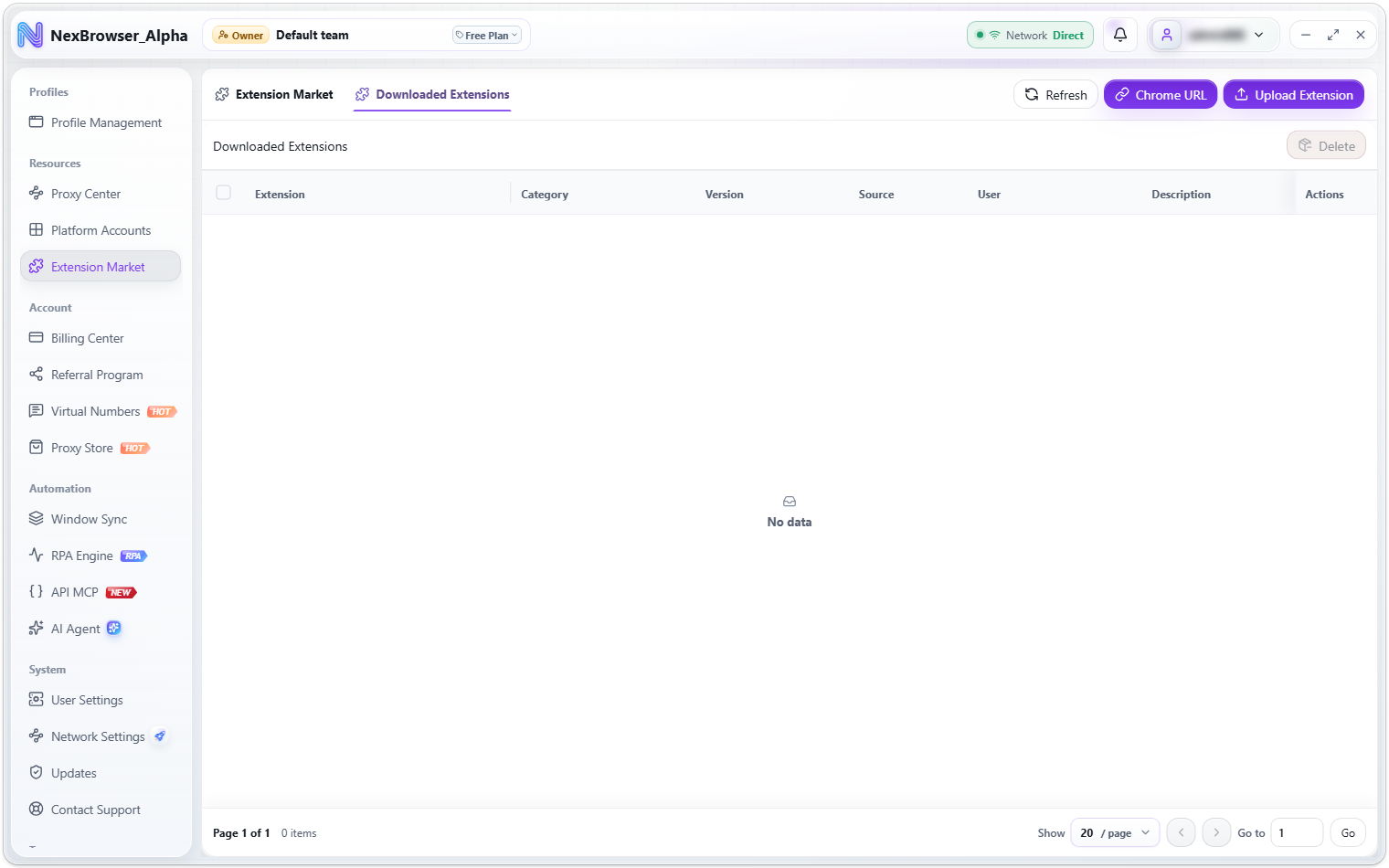
Download and the three button states
Click "Download" in a row to start downloading. The button shows live progress ("Downloading X%"). When it finishes, you'll see "Extension downloaded to the current team", and the page switches to the "Downloaded Extensions" tab.
The action button in each row changes with the extension's state:
| State | Button | Description |
|---|---|---|
| Not downloaded | "Download" | Downloads the package to the local cache and registers it with the current team |
| Downloaded, newer version available | "Update" | Tooltip "Update from X to Y". Only re-downloads the package to the local cache; on success you'll see "Extension updated to the latest version" |
| Downloaded and up to date | "Delete" | Deletes the downloaded extension (removes it from the team, see below) |
Downloaded packages are cached on this device. Packages that carry checksum information are verified after download. If verification fails, the cache is cleared and you'll see "Failed to download the extension. Check your network and try again." Just download it again.
"Update" doesn't change the team's registration; it only re-downloads the package to the local cache. So after switching computers, you need to download the package once on the new machine.
Download external extensions by Chrome URL
Both the market tab and the downloaded tab have a "Chrome URL" button for registering an external extension with the current team directly:
- Click "Chrome URL" to open the "Download Chrome Extension" dialog.
- Paste the URL or ID into the Chrome Web Store URL box (placeholder: Chrome Web Store URL or extension ID).
- Click "Download", then pass the risk confirmation dialog "Download External Chrome Extension?" (confirm button: "Download Extension").
- On success you'll see "Chrome extension downloaded to the current team", and the page switches to the downloaded tab.
Input rules: an http/https URL, or an extension ID of exactly 32 letters from a to p. Anything containing whitespace is invalid and shows "Enter a valid Chrome Web Store URL or 32-character extension ID". The dialog always shows the note "External Source: Enter a trusted Chrome Web Store URL or extension ID. The extension will be downloaded to the current team."
The risk confirmation says: "Make sure the source is trusted. The client can't read the full permission list before downloading. If anything goes wrong, delete it from the downloaded list." In other words, the client doesn't show the permissions the extension requests beforehand, so make sure you trust the source.
Upload custom extensions
Only the "Downloaded Extensions" tab has the "Upload Extension" button. It uploads a local ZIP, 7z, or CRX extension package to the current team so team members can download it.
- Click "Upload Extension" and choose a file in the system dialog "Select Extension Package" (filter: Chrome Extension Package, zip/7z/crx).
- The "Upload Team Extension" dialog shows the file name, version, and size. The form has "Extension ID" (read-only, derived automatically), "Extension Name" (required, defaults to the name inside the package), "Checksum Hash" (read-only), and "Description". If you picked the wrong file, click "Choose Again".
- Click "Upload and Add". The status at the bottom shows, in order: Parsing package → Requesting upload authorization → Uploading and installing locally → Saving extension details.
- On success you'll see "Extension uploaded and added to the current team", and the page switches to the downloaded tab.
Requirements and limits:
- Only Manifest V2 or V3 extensions are supported.
- The package must contain exactly one extension root (one manifest.json). The archive may wrap it in one extra outer folder.
- Packages with abnormal file paths inside are rejected.
- The "Extension ID" is detected from the package automatically; you don't need to enter it.
- During upload, the client tidies up the package and generates the "Checksum Hash" used for integrity checks. A successfully uploaded package is also saved to the local cache, so this device doesn't need to download it again.
Common errors:
| Error message | Cause and fix |
|---|---|
| "Failed to parse the extension package. Check the file and try again." | The package doesn't meet the requirements above (for example an unsupported manifest version, more than one extension root, a missing manifest.json, or a damaged file). Repackage it as required and choose it again |
| "This package has no signature information to derive the extension ID. Select a CRX package or a signed ZIP package instead." | The extension ID can't be derived (the ID box shows "Extension ID not detected"), and submitting shows "Enter a valid 32-character extension ID". Use a CRX package or a signed ZIP package instead |
| "The extension package has expired. Select the file again." | The dialog was left open too long and the parsed result expired. Choose the file again |
| "The extension file was uploaded, but its details weren't saved. Submit again." | The file was uploaded but saving its details failed. The button changes to "Retry Save"; retrying doesn't upload the file again |
Manage downloaded extensions
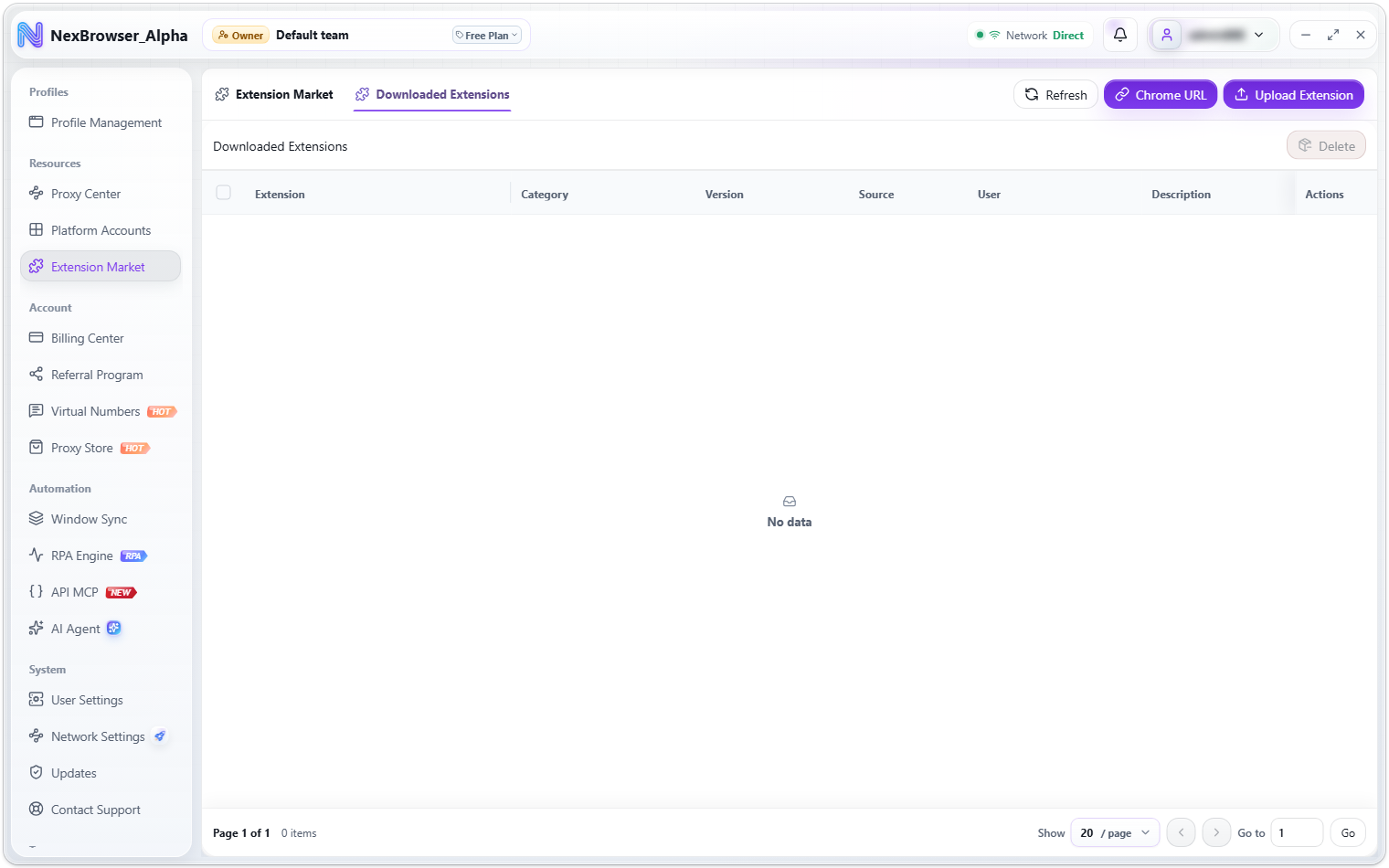
The "Downloaded Extensions" tab manages the extensions registered with the current team:
- The Source column shows a "User Upload" or "Market" badge; the list also shows the owning user and version status. User-uploaded extensions need a temporary download authorization when downloading or updating; if you're offline or authorization fails, you'll see "Extension download URL is missing".
- Pin: the pin button in the Actions column (tooltip "Pin" / "Unpin"; on success you'll see "Extension pin status updated"). When an update is available, the pin button is temporarily replaced by an update button with a refresh icon (tooltip "Update to X", "Updating extension" while it runs), and it comes back after the update.
- Delete: after you select rows, the "Delete" button at the top right of the list changes to "Delete N", and the confirmation reads "Delete the N selected extensions?". On the market tab, an extension that's downloaded and up to date shows a single "Delete"; its confirmation dialog is titled "Delete Extension" and reads "Delete extension "name"?". On success you'll see "Extension deleted".
- The list reflects the server's data. If you don't see the latest changes, click "Refresh".
Deleting removes the team's registration: the extension is no longer available to anyone on the team, not just cleared from this device. Make sure none of your teammates' profiles still use it.
Bind extensions to profiles
Extensions are loaded per profile:
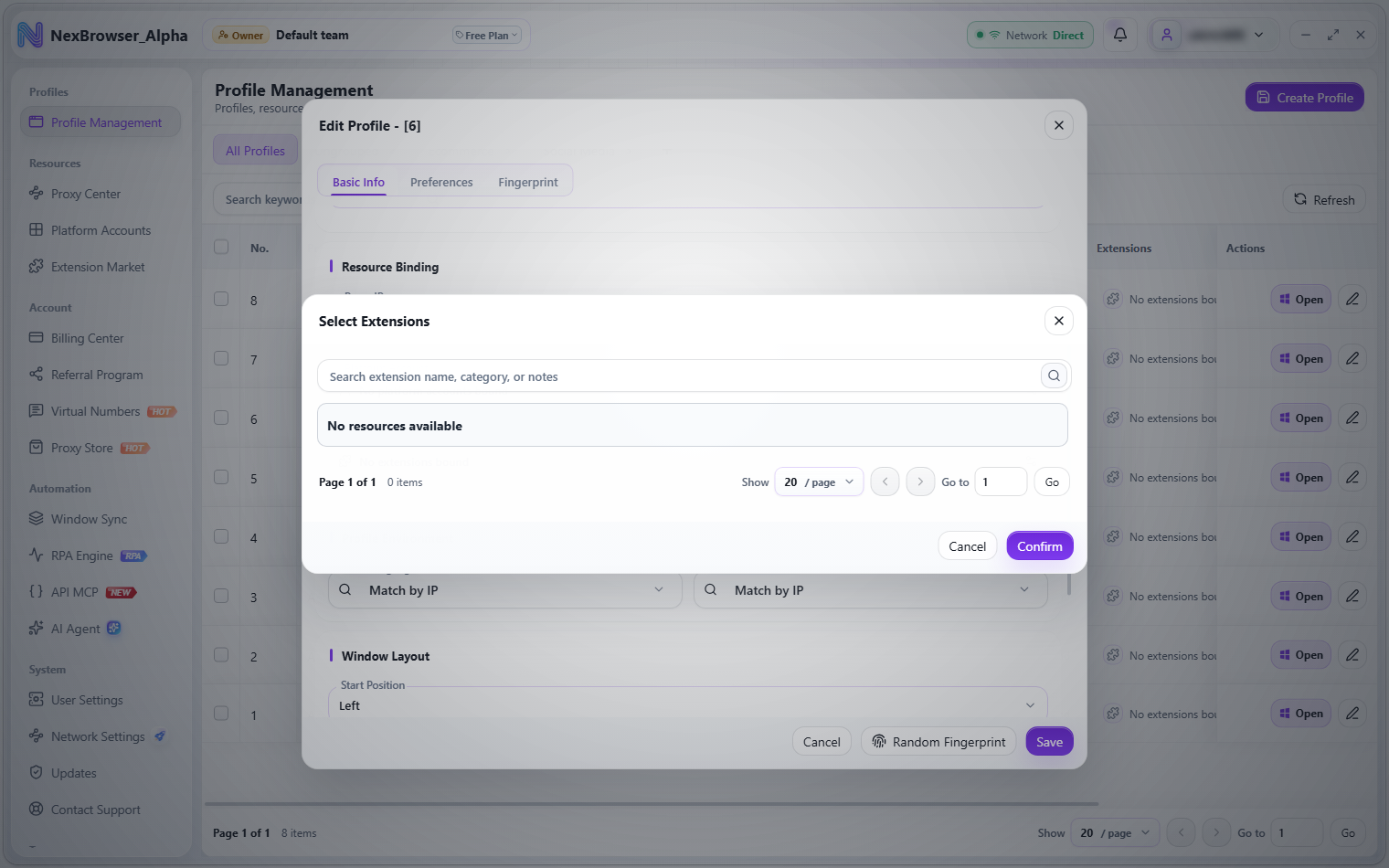
- Open the profile create/edit dialog and find the "Extensions" field.
- Open the "Select Extensions" dialog (search placeholder: "Search extension name, category, or notes"; supports multiple selection and pagination), select extensions, and click "Confirm".
- When the profile starts, the client loads these extensions automatically from the packages cached on this device.
The form cell shows up to 2 extension icons and names; any more appear as "+N extensions". With nothing bound, it shows "No extensions bound". Opening the picker requires the extension view permission; without it, the cell is disabled with the hint "You don't have permission to configure this".
Extensions bundled with the installer and extensions required by the client version are loaded globally for every profile and don't need to be bound (they're updated with the client components, see Updates). The built-in password vault extension is managed by the client separately and doesn't need binding either.
When a profile starts, only packages cached on this device are loaded. If an extension is bound but its local cache is missing or fails to unpack, it's skipped silently without blocking the launch: the profile opens, but the extension isn't there. After switching computers or clearing the cache, download the bound extensions again in the Extension Market before starting the profile.
Extension icons are downloaded and cached locally by the client. If an icon fails to load, a default puzzle-piece placeholder is shown instead; downloading and using the extension isn't affected.
Related pages
- Basic Info Settings (resource binding)
- Create Profiles
- Updates (built-in extension components)
- Roles and Permissions