Task Center and Execution Logs
A task applies a script to specific profiles: one task binds 1 script and any number of target profiles, is triggered manually on this device, and writes its results to the execution logs when it finishes. Open it at RPA Engine → Task Center and RPA Engine → Execution Logs.
Create a task
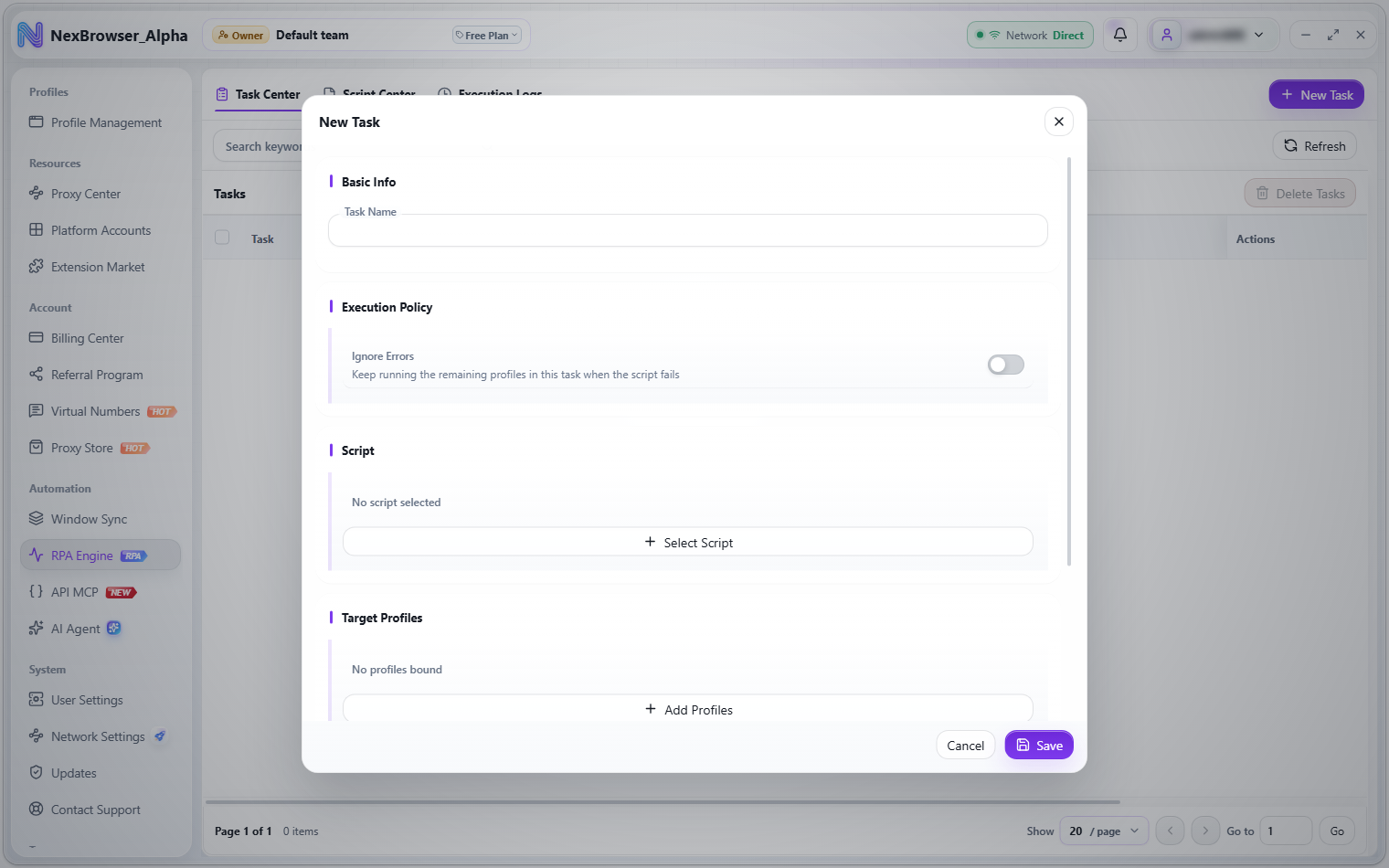
Go to RPA Engine → Task Center and click "New Task" at the top right. The dialog has five sections.
| Section | Field | Description |
|---|---|---|
| Basic Info | Task Name | Make it clear, such as "script purpose + profile batch". The run confirmation and the logs both show this name |
| Execution Policy | "Ignore Errors" | When on, a script failure in one profile doesn't stop the task from running on the remaining profiles |
| Script | "Select Script" | Each task can bind only 1 script. Once selected, the button changes to "Replace Script", and the item also has "Replace" and "Remove" |
| Target Profiles | "Add Profiles" | Bind as many profiles as you like; each item has "Remove" |
| Task Description | Multi-line text | A note on what the task does; you can edit it directly in the list |
The "Select Script" and "Add Profiles" dialogs both support search and pagination; make your choice and click "Confirm". Script items show the script description and flow status ("Flow configured" or "0 steps"), and a line at the bottom shows which script is currently selected. Profile items show "Proxy bound" or "No proxy".
Click "Save" when done; you'll see "RPA task created".
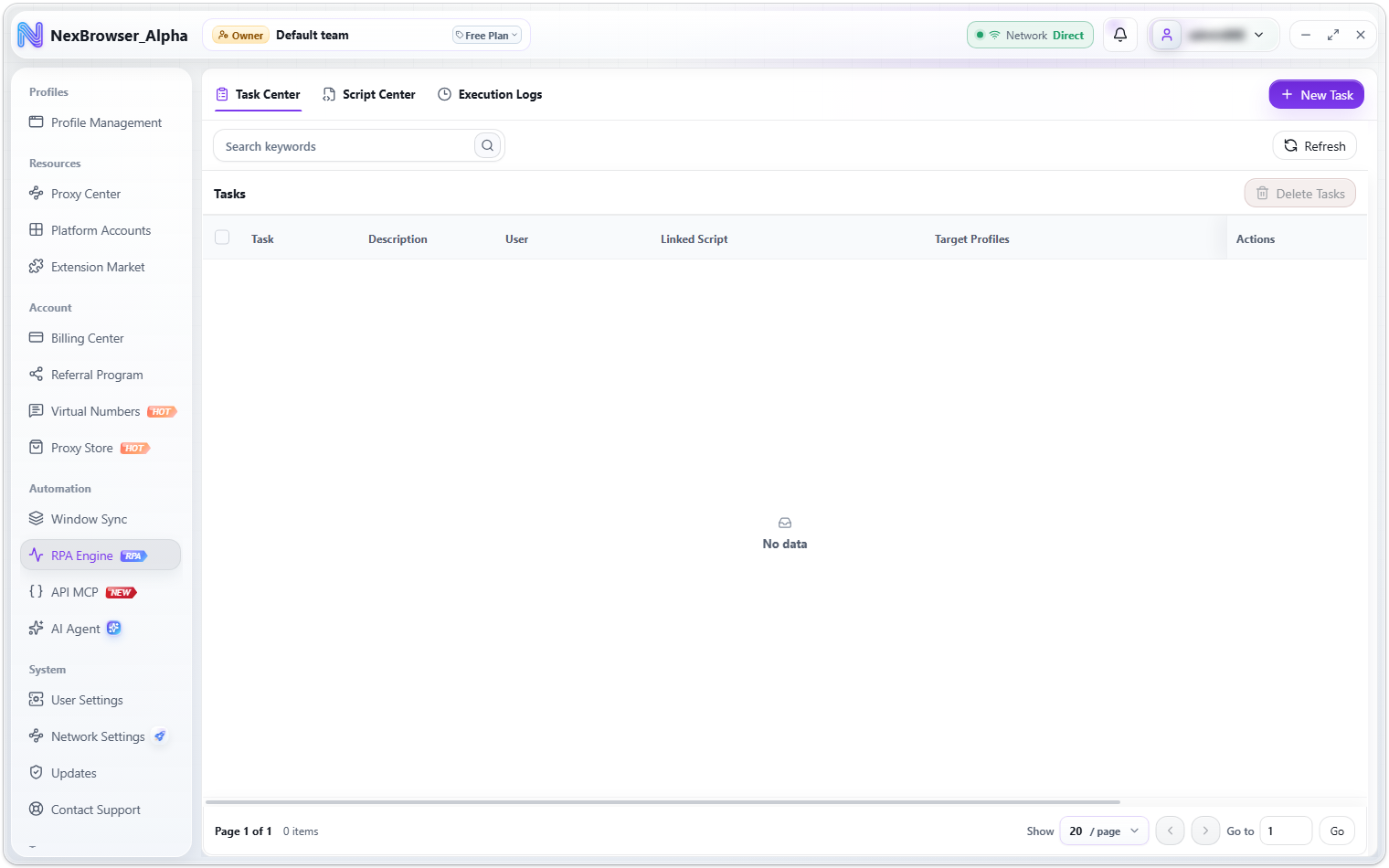
Task list
| Column | Description |
|---|---|
| Task | The task name |
| Description | Editable inline. On save you'll see "Task description saved" |
| User | The team member who created the task |
| Linked Script | The bound script; click it to rebind directly |
| Target Profiles | The bound profiles; extras are collapsed into "+N more" |
| Status | Idle / Running Locally / Running Remotely |
| Runs | successful runs/total runs |
| Last Run | When it last ran |
| Actions | Run Task, Stop Task, Edit Task (when running remotely, the run button becomes "Reset Task Status") |
The top toolbar has a search box and "Refresh". To bulk delete, select tasks and click "Delete Tasks" at the top right of the list (it reads "Delete N" once tasks are selected); on success you'll see "RPA tasks deleted".
Run and stop
Clicking the run button in a task's row first opens the "Run RPA Task?" risk confirmation, which lists:
- The task name
- The number of target profiles ("None" if no profile is bound)
- The script that will run
- The risk notice: the task operates on pages and account states in the bound profiles, so avoid working in the same profiles manually while it runs
Click "Run Task" to start. While it runs, the row's status changes to "Running Locally", the run button is greyed out, and a stop button appears next to it. Clicking stop shows "Stop request sent for the RPA task"; the step in progress is cancelled, and profiles that haven't run yet are marked as cancelled.
When it finishes you'll see "RPA task completed". If some profiles were skipped or failed, you'll see "RPA task completed with skipped or failed profiles" instead; check the execution log to see which ones.
Running a task opens any bound profiles that aren't open yet. Profiles that are already open are reused, with a message such as "X is already open; RPA will run on it directly". If a profile fails to launch, it's skipped ("Failed to switch the profile state; skipped …") and the other profiles continue. If none of the bound profiles can run, you'll get "No profiles available for RPA. The bound profiles may all be open already or failed to launch." A task that's already running on this device can't be started again: "The task is already running and can't be run again".
Task status and reset
| Status | Meaning | What you can do |
|---|---|---|
| Idle | No run in progress | Run, edit, delete, rebind the script or profiles |
| Running Locally | Running on this device | Only stop it; you can't run it again or edit it |
| Running Remotely | The server records the task as running, but not on this device | Only "Reset Task Status" |
While a task is "Running Remotely" (for example because another device or the platform's scheduler is running it), you can't run, edit, delete, or rebind it. You'll see a message such as "Task "xx" is running remotely. Confirm no one is running it and reset it to idle before editing it."
Once you're sure nobody is actually running it, click "Reset Task Status" in the row, then click "Reset to Idle" in the "Reset RPA Task Status?" dialog. On success you'll see "Stale RPA task status reset", and the task can run again. If a device really is still running it, forcing a reset means the same profiles get operated on from two places at once.
Execution logs
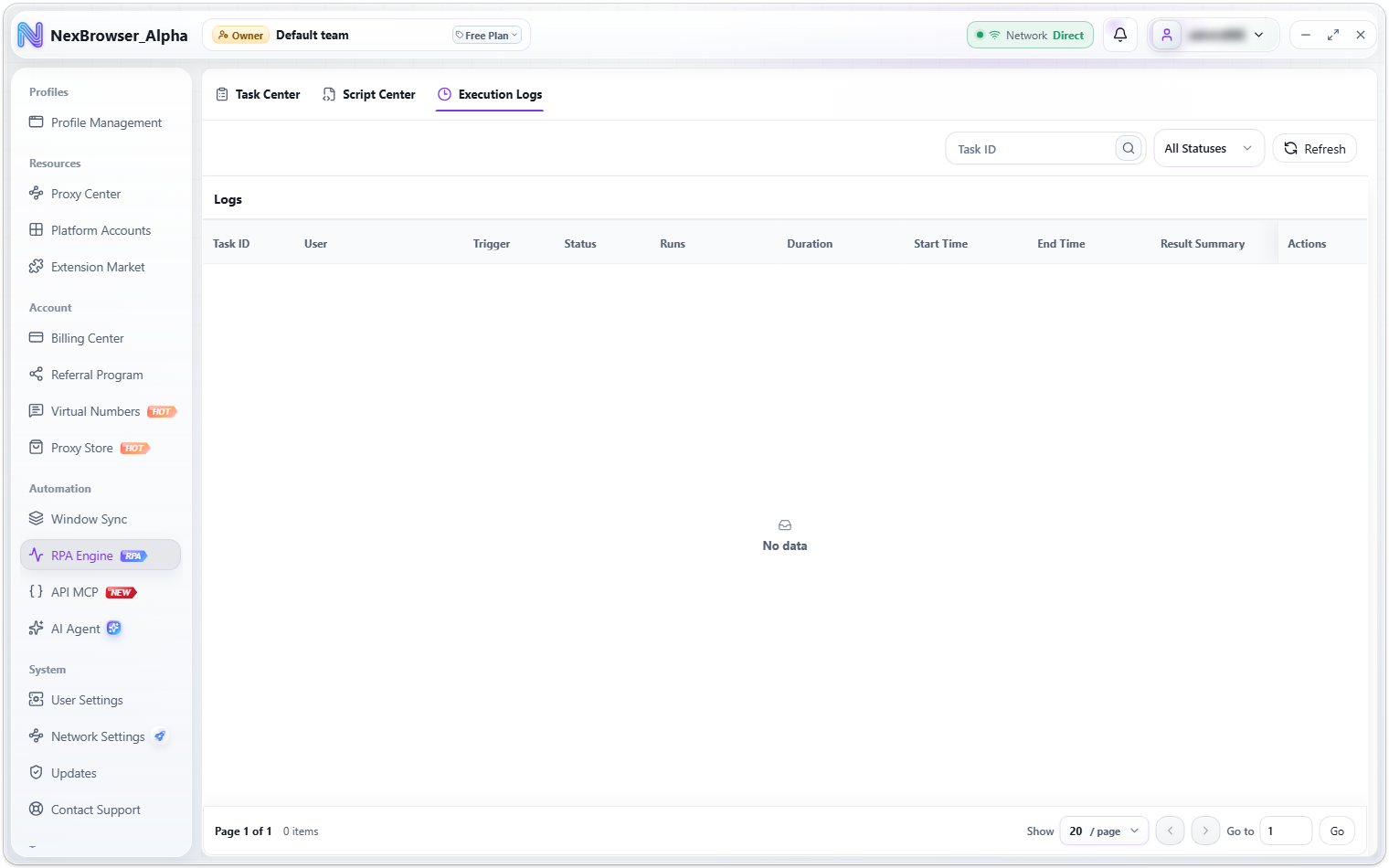
RPA Engine → Execution Logs keeps a full audit record of every task run and is the main tool for troubleshooting automation failures.
Filters and list
- Search: the search box filters by task ID and accepts digits only; anything else returns an empty list.
- Status: the dropdown offers "All Statuses", "Succeeded", "Failed", "Canceled", and "Running".
- Refresh: the refresh button on the right reloads the logs for the current filters.
| Column | Description |
|---|---|
| Task ID | The matching task in the Task Center |
| User | The member who triggered this run |
| Trigger | "Manual" means someone clicked run in the client; "Scheduled" means the platform's scheduler started it |
| Status | Succeeded / Failed / Canceled / Running |
| Runs | successful profiles/total profiles |
| Duration | Shown in milliseconds below 1000 ms, otherwise in seconds |
| Start Time, End Time | When this run started and ended |
| Result Summary | The error message for the whole run, or - if there is none |
| Actions | "View Details" opens the log details |
Log details
Click "View Details" to open the "Log Details" dialog:
- Summary at the top: task, trigger, status, duration.
- Groups: grouped by "target profile + script". Each group shows the profile name, script name, and the flow's duration; "Expand" / "Collapse" on the right toggles the details.
- Step details: once expanded, each step is listed with its number, name (your notes first), duration, status badge, and result or error message. Condition steps show which branch was taken this time.
Steps have five statuses: Succeeded, Failed, Skipped, Running, and Canceled.
"Skipped" in the step details usually means the whole profile never got going: the profile failed to launch or to switch state, so every step under it is recorded as skipped.
In a task with "Ignore Errors" on, a single failed step doesn't immediately stop the rest of that profile's steps, but the run is still judged as failed, and skipped profiles still count in the statistics. So "Ignore Errors" only affects whether the run continues, not how the log judges success or failure.
Suggested troubleshooting order
- Start with the "Result Summary" and "Runs" columns to see whether all profiles failed or only some.
- All failed: most likely the script itself (a selector changed, or the target site was redesigned). Go back to the Script Center and fix the script.
- Some failed: expand that profile's group and find the step where failures start. A common cause is an element that hasn't loaded yet; add a wait assertion to that step or turn on the action's own "Wait for Element".
- A whole group "Skipped": the profile couldn't open. Check the profile itself and whether its proxy works; see Open, Close, and Cloud Sync.