RPA Automation Overview
The RPA Engine lets you capture a repetitive browser routine without writing code: first connect actions such as "open page, click, type, wait, check, loop" into a flow on a visual canvas, then bind that flow to a batch of browser profiles and run it on all of them, and finally check the results profile by profile and step by step in the logs.
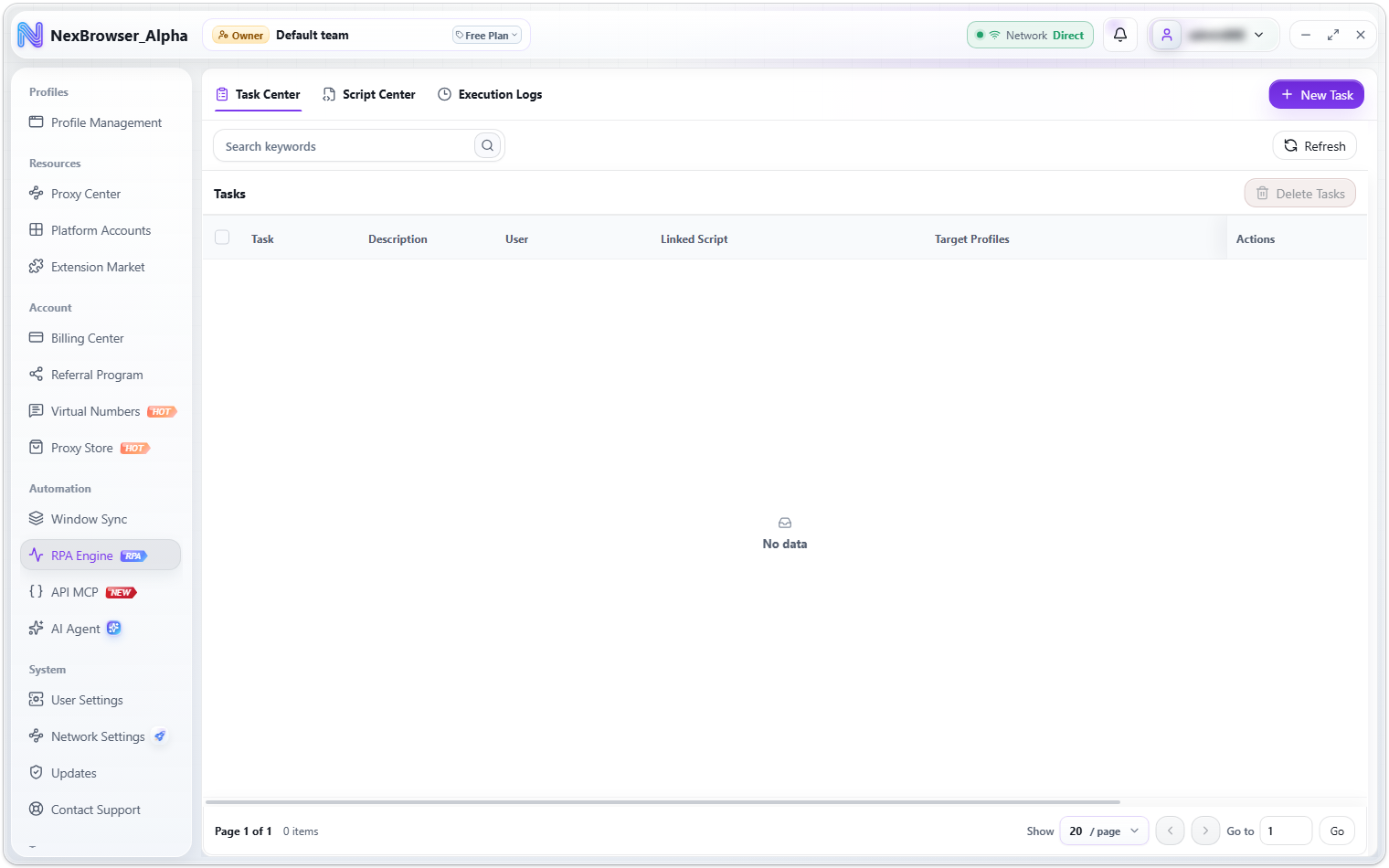
Open it from the sidebar: Automation → RPA Engine. The page has three tabs at the top: "Task Center", "Script Center", and "Execution Logs".
The RPA Engine is currently an experimental (Beta) feature, so its features and interface may change in later versions. The action list is delivered by the server and keeps growing, and action names follow the interface language. The actions and groups you actually see depend on your client version.
What each module does
| Module | Where | What it's for | Details |
|---|---|---|---|
| Script Center | RPA Engine → Script Center | Build flows and set parameters to produce reusable "scripts" | Script Center and Script Editing |
| Task Center | RPA Engine → Task Center | Bind 1 script to N profiles, run it manually, and manage its run status | Task Center and Execution Logs |
| Execution Logs | RPA Engine → Execution Logs | Record the profiles, steps, durations, and results of every run | Task Center and Execution Logs |
The three work as one pipeline: a script is a reusable flow template, a task applies that template to specific profiles and runs it, and the log is the record of what happened.
Script Center ──provides script──▶ Task Center ──binds profiles + runs──▶ Browser profiles
   ▲                                    │
   │                                    └──reports per profile, per step──▶ Execution Logs
You can think of the three concepts like this:
- Script: a flow. It doesn't specify which profiles it runs on, and several tasks can reuse it.
- Task: a script + a batch of target profiles + an execution policy. Each task binds exactly 1 script but can bind many profiles.
- Log: the full record of one task run, grouped by "target profile + script", which you can expand down to every step.
Typical workflow
- Prepare profiles: create the profiles that will take part in
Profile Management, and make sure their proxy, fingerprint, and other settings work. See Create Profiles. - Make a script: go to
RPA Engine → Script Center, click "New Script", drag actions onto the canvas, connect them, set parameters, and save. - Create a task: go to
RPA Engine → Task Center, click "New Task", enter the task name → "Select Script" → "Add Profiles" → save. - Run: click the run button in the task's row and confirm the risk notice to start. Bound profiles that aren't open are opened automatically; profiles that are already open are reused.
- Check the results: when it finishes, go to
RPA Engine → Execution Logs, look up this run by task ID to see which profiles succeeded or failed, and expand down to the steps to find the problem. Then go back to the script and fix its parameters.
Element selectors and wait times depend heavily on the specific site. Bind 1 profile for a trial run first, use the execution log to confirm every step shows "Succeeded", and only then add more profiles. This saves a lot of rework.
How tasks are triggered
The client has no scheduling settings; tasks can only be triggered manually on this device. If an execution log shows the "Scheduled" trigger, that run was started by the platform's scheduler, not by clicking run on this device.
While a task runs, the client reloads the latest configuration of the task, the script, and each profile, so after editing a script you don't need to rebind the task; the change applies on the next run.
Permissions and team isolation
RPA scripts and tasks are isolated by team; different teams can't see each other's. Each operation has its own permission. Without it, the related buttons are hidden or show "You don't have permission to perform this action". See Roles and Permissions.